

本文說明如何使用 Run:ai Model Streamer,搭配 Google Kubernetes Engine (GKE) 的 vLLM 推論伺服器,加快從 Cloud Storage 載入大型 AI 模型權重的速度。
本文中的解決方案假設您已將 safetensors 格式的 AI 模型和權重載入 Cloud Storage bucket。
在 vLLM 部署作業中加入 --load-format=runai_streamer 旗標,即可使用 Run:ai Model Streamer,提升 GKE 上 AI 工作負載的 AI 模型下載效率。
這份文件適用於下列使用者:
- 需要盡快將大型 AI 模型從物件儲存庫載入 GPU/TPU 節點的機器學習 (ML) 工程師。
- 在 GKE 上自動化及最佳化模型提供基礎架構的平台管理員和操作員。
- 評估 AI/機器學習工作負載專用資料載入工具的雲端架構師。
如要進一步瞭解 Cloud de Confiance by S3NS 內容中提及的常見角色和範例工作,請參閱「常見的 GKE 使用者角色和工作」。
總覽
本文所述的解決方案使用三個核心元件:Run:ai Model Streamer、vLLM 和 safetensors 檔案格式,可加快將模型權重從 Cloud Storage 載入 GPU 或 TPU 節點的速度。
Run:ai Model Streamer
Run:ai Model Streamer
是開放原始碼 Python SDK,可加快將大型 AI 模型載入加速器的速度。這項功能會直接從 Cloud Storage bucket 等儲存空間,將模型權重串流至 GPU 或 TPU 記憶體。模型串流器特別適合存取 Cloud Storage 中的 safetensors 檔案。
safetensors
safetensors 是一種檔案格式,可儲存張量 (AI 模型中的核心資料結構),同時提升安全性和速度。safetensors 是 Python pickle 格式的替代方案,採用零複製方法,可縮短載入時間。採用這種方法,張量可直接從來源存取,不必先將整個檔案載入本機記憶體。
vLLM
vLLM 是開放原始碼程式庫,用於 LLM 推論和服務。這款高效能推論伺服器經過最佳化,可快速載入大型 AI 模型。本文中的 vLLM 是在 GKE 上執行 AI 模型,並處理傳入推論要求的核心引擎。Run:ai 模型 Streamer 內建 Cloud Storage 驗證支援功能,GPU 需使用 vLLM 0.11.1 以上版本,TPU 則需使用 0.18.0 以上版本。
Run:ai Model Streamer 如何加快模型載入速度
啟動以 LLM 為基礎的 AI 應用程式進行推論時,模型通常需要一段時間才能準備就緒,這段延遲時間稱為冷啟動,這是因為系統必須從儲存位置 (例如 Cloud Storage bucket) 將整個數十億位元組的模型檔案下載至電腦的本機磁碟。接著,檔案會載入加速器的記憶體。在這段載入期間,昂貴的加速器會閒置,這既沒效率又耗費成本。
模型串流器會直接從 Cloud Storage 將模型串流至 GPU 或 TPU 記憶體,不必先下載再載入。串流器會使用高效能後端,平行讀取模型的多個部分 (稱為張量)。並行讀取張量比依序載入檔案快得多。
架構總覽
Run:ai Model Streamer 與 GKE 上的 vLLM 整合,可直接從 Cloud Storage 將 AI 模型權重串流至加速器記憶體,不經過本機磁碟,加快模型載入速度。
下圖呈現了這個架構:
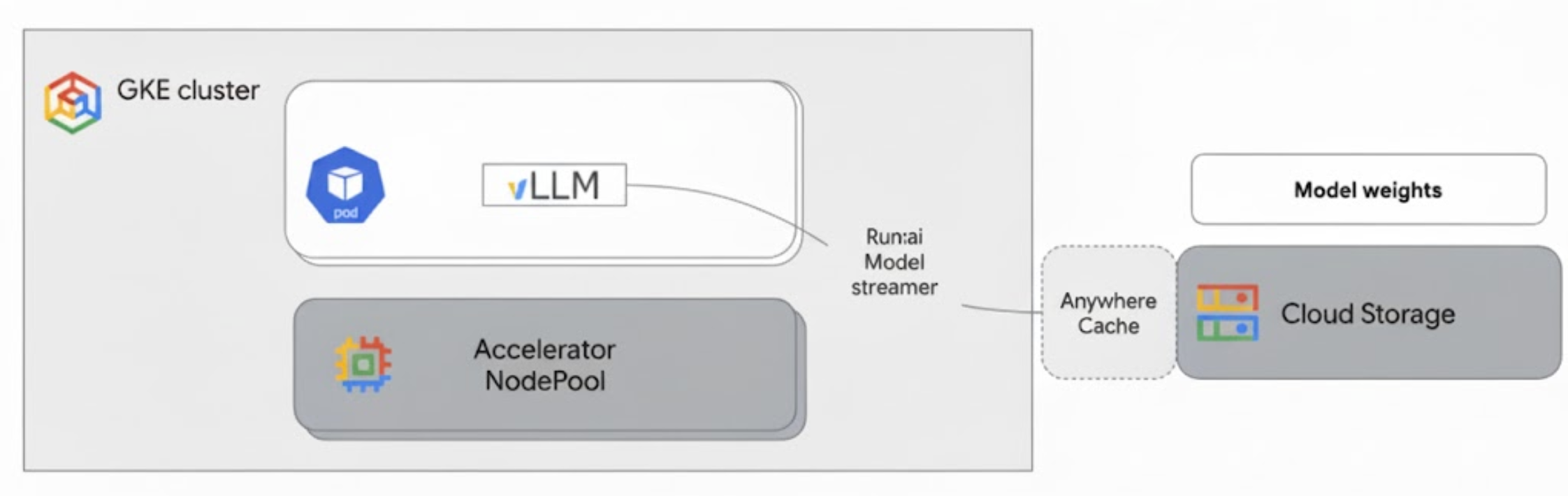
這個架構包含下列元件和工作流程:
- Cloud Storage bucket:以
safetensors格式儲存 AI 模型權重。 - 搭載 GPU 或 TPU 的 GKE Pod:執行 vLLM 推論伺服器。
- vLLM 推論伺服器:設定
--load-format=runai_streamer旗標,啟用模型串流功能。 - Run:ai Model Streamer:vLLM 啟動時,模型串流器會從 Cloud Storage bucket 中指定的
gs://路徑讀取模型權重。這項功能不會將檔案下載至磁碟,而是直接將張量資料串流至 GKE Pod 的加速器記憶體,讓 vLLM 立即用於推論。 - Cloud Storage Rapid Cache (選用):啟用後,Rapid Cache 會將 bucket 資料快取至與 GKE 節點相同的可用區,進一步加快串流器存取資料的速度。
優點
- 縮短冷啟動時間:模型串流器可大幅縮短模型啟動時間。與傳統方法相比,載入模型權重的速度最多可快六倍。詳情請參閱「Run:ai Model Streamer 基準測試」。
- 提升加速器使用率:盡量縮短模型載入延遲時間,讓 GPU 和 TPU 等加速器能將更多時間用於實際的推論工作,進而提升整體效率和處理容量。
- 簡化工作流程:本文所述解決方案與 GKE 整合,可讓 vLLM 或 SGLang 等推論伺服器直接存取 Cloud Storage bucket 中的模型。
事前準備
請務必完成下列必要條件。
選取或建立專案,並啟用 API
In the Cloud de Confiance console, on the project selector page, select or create a Cloud de Confiance project.
Roles required to select or create a project
- Select a project: Selecting a project doesn't require a specific IAM role—you can select any project that you've been granted a role on.
-
Create a project: To create a project, you need the Project Creator role
(
roles/resourcemanager.projectCreator), which contains theresourcemanager.projects.createpermission. Learn how to grant roles.
Verify that billing is enabled for your Cloud de Confiance project.
Enable the Kubernetes Engine, Cloud Storage, Compute Engine, IAM APIs, if any are not already enabled.
Roles required to enable APIs
To enable APIs, you need the serviceusage.services.enable permission. If you
created the project, then you likely already have this permission through the
Owner role (roles/owner). Otherwise, you can get this permission through the
Service Usage Admin role (roles/serviceusage.serviceUsageAdmin).
Learn how to grant roles.
設定 Cloud Shell
本文使用 Google Cloud CLI 和 kubectl 指令,建立及管理這項解決方案所需的資源。如要在 Cloud Shell 中執行這些指令,請按一下 Cloud de Confiance 控制台頂端的「啟用 Cloud Shell」。
在 Cloud de Confiance 控制台中啟用 Cloud Shell。
或者,您也可以在本機殼層環境中安裝並初始化 gcloud CLI,以便執行指令。如要使用本機殼層終端機,請執行 gcloud auth login 指令,透過 Cloud de Confiance by S3NS進行驗證。
授予 IAM 角色
請確認您的 Cloud de Confiance 帳戶在專案中具備下列 IAM 角色,以便建立 GKE 叢集及管理 Cloud Storage:
roles/container.adminroles/storage.admin
如要授予這些角色,請執行下列指令:
gcloud projects add-iam-policy-binding PROJECT_ID \
    --member="user:$(gcloud config get-value account)" \
    --role="roles/container.admin"
gcloud projects add-iam-policy-binding PROJECT_ID \
    --member="user:$(gcloud config get-value account)" \
    --role="roles/storage.admin"
將 PROJECT_ID 替換為專案 ID。
準備環境
本節將引導您設定 GKE 叢集,並設定權限以存取 Cloud Storage 中的模型。
建立 GKE 叢集
Run:ai Model Streamer 可與 GKE Autopilot 和 Standard 叢集搭配使用。選擇最符合需求的叢集模式。
為專案和叢集名稱設定變數:
export PROJECT_ID=PROJECT_ID
export CLUSTER_NAME=CLUSTER_NAME
更改下列內容:
PROJECT_ID:您的 Cloud de Confiance by S3NS 專案 ID。您可以執行gcloud config get-value project指令,找出專案 ID。CLUSTER_NAME:叢集名稱。例如:run-ai-test。
建立 Autopilot 或 Standard 叢集:
Autopilot
請按照下列步驟建立 GKE Autopilot 叢集:
設定叢集區域:
export REGION=REGION將
REGION替換為要建立叢集的區域。為達到最佳效能,請使用與 Cloud Storage bucket 相同的區域。建立叢集:
gcloud container clusters create-auto $CLUSTER_NAME \
    --project=$PROJECT_ID \
    --location=$REGION
Autopilot 叢集會根據工作負載需求自動佈建節點。在後續步驟中部署 vLLM 伺服器時,Autopilot 會視需要佈建 GPU 或 TPU 節點。詳情請參閱「關於節點集區自動建立功能」。
標準
請按照下列步驟建立 GKE Standard 叢集:
設定叢集的可用區:
export ZONE=ZONE將
ZONE替換為要建立叢集的可用區。為達到最佳效能,請使用與 Cloud Storage bucket 位於相同區域的可用區。建立叢集:
gcloud container clusters create $CLUSTER_NAME \
    --project=$PROJECT_ID \
    --zone=$ZONE \
    --workload-pool=$PROJECT_ID.s3ns.svc.id.goog \
    --num-nodes=1
建立節點集區
如果您建立的是標準叢集,則必須建立含有 GPU 或 TPU 的節點集區。Autopilot 叢集會根據工作負載需求,自動佈建節點。根據要使用的加速器建立節點集區:
*   {GPU}

    Create a node pool with one G2 machine (NVIDIA L4 GPU):

    ```sh
    gcloud container node-pools create g2-gpu-pool \
        --cluster=$CLUSTER_NAME \
        --zone=$ZONE \
        --machine-type=g2-standard-16 \
        --num-nodes=1 \
        --accelerator=type=nvidia-l4
    ```

*   {TPU}

    Create a node pool with TPU v7x nodes:

    ```sh
    gcloud container node-pools create tpu7x-pool \
        --cluster=$CLUSTER_NAME \
        --zone=$ZONE \
        --machine-type=tpu7x-standard-4t \
        --num-nodes=1
    ```
設定 Workload Identity Federation for GKE
設定 Workload Identity Federation for GKE,允許 GKE 工作負載安全地存取 Cloud Storage bucket 中的模型。
為 Kubernetes 服務帳戶和命名空間設定變數:
export KSA_NAME=KSA_NAME
export NAMESPACE=NAMESPACE
更改下列內容:
NAMESPACE:要讓工作負載執行的命名空間。請務必使用相同的命名空間,建立本文件中所有資源。KSA_NAME:Pod 可用來向 Cloud de Confiance by S3NS API 進行驗證的 Kubernetes 服務帳戶名稱。
建立 Kubernetes 命名空間:
kubectl create namespace $NAMESPACE建立 Kubernetes 服務帳戶 (KSA):
kubectl create serviceaccount $KSA_NAME \ --namespace=$NAMESPACE授予 KSA 必要權限:
設定環境變數:
export BUCKET_NAME=BUCKET_NAME
export PROJECT_ID=PROJECT_ID
export PROJECT_NUMBER=$(gcloud projects describe $PROJECT_ID \
    --format 'get(projectNumber)')
更改下列內容:
BUCKET_NAME:包含safetensors檔案的 Cloud Storage bucket 名稱。PROJECT_ID:您的 Cloud de Confiance by S3NS 專案 ID。
在後續步驟中,系統會使用
PROJECT_NUMBER、PROJECT_ID、NAMESPACE和KSA_NAME,為專案建構 Workload Identity Federation for GKE 主體 ID。將
roles/storage.bucketViewer角色授予 KSA,以便查看 Cloud Storage bucket 中的物件:gcloud storage buckets add-iam-policy-binding gs://$BUCKET_NAME \ --member="principal://iam.googleapis.com/projects/$PROJECT_NUMBER/locations/global/workloadIdentityPools/$PROJECT_ID.s3ns.svc.id.goog/subject/ns/$NAMESPACE/sa/$KSA_NAME" \ --role="roles/storage.bucketViewer"將
roles/storage.objectUser角色授予 KSA,允許 KSA 讀取、寫入及刪除 Cloud Storage bucket 中的物件:gcloud storage buckets add-iam-policy-binding gs://$BUCKET_NAME \ --member="principal://iam.googleapis.com/projects/$PROJECT_NUMBER/locations/global/workloadIdentityPools/$PROJECT_ID.s3ns.svc.id.goog/subject/ns/$NAMESPACE/sa/$KSA_NAME" \ --role="roles/storage.objectUser"
您已成功設定具備 GPU 或 TPU 的 GKE 叢集,並為 GKE 設定 Workload Identity Federation for GKE,授予 Kubernetes 服務帳戶必要權限,以便存取 Cloud Storage 中的 AI 模型。叢集和權限設定完成後,即可部署 vLLM 推論伺服器,該伺服器會使用這個服務帳戶,透過 Run:ai Model Streamer 串流傳輸模型權重。
使用 Run:ai Model Streamer 部署 vLLM
部署 Pod,執行與 OpenAI 相容的 vLLM 伺服器,並設定 --load-format=runai_streamer 旗標,使用 Run:ai Model Streamer。GPU 的 vLLM 版本必須為 0.11.1 以上,TPU 的 vLLM 版本則必須為 0.18.0 以上。
下列範例資訊清單顯示如何為小型模型 (例如 gemma-2-9b-it) 設定 vLLM,並啟用模型串流器。
--model-loader-extra-config={"distributed":true} 旗標可啟用模型權重的分散式載入功能,建議您使用這項設定,提升從物件儲存庫載入模型的效能。
根據要使用的加速器選取範例資訊清單:
GPU
下列資訊清單範例使用單一 NVIDIA L4 GPU。如果您使用需要多個 GPU 的大型模型,請將
--tensor-parallel-size值增加至所需的 GPU 數量。將下列資訊清單儲存為
vllm-deployment.yaml。這個資訊清單的設計宗旨是提供彈性,適用於 Autopilot 和 Standard 叢集。apiVersion: apps/v1 kind: Deployment metadata: name: vllm-streamer-deployment namespace: NAMESPACE spec: replicas: 1 selector: matchLabels: app: vllm-streamer template: metadata: labels: app: vllm-streamer spec: serviceAccountName: KSA_NAME containers: - name: vllm-container image: vllm/vllm-openai:v0.11.1 command: - python3 - -m - vllm.entrypoints.openai.api_server args: - --model=gs://BUCKET_NAME/PATH_TO_MODEL - --load-format=runai_streamer - --model-loader-extra-config={"distributed":true} - --host=0.0.0.0 - --port=8000 - --disable-log-requests - --tensor-parallel-size=1 ports: - containerPort: 8000 name: api # startupProbe allows for longer startup times for large models startupProbe: httpGet: path: /health port: 8000 failureThreshold: 60 # 60 * 10s = 10 minutes timeout periodSeconds: 10 initialDelaySeconds: 30 readinessProbe: httpGet: path: /health port: 8000 failureThreshold: 3 periodSeconds: 10 resources: limits: nvidia.com/gpu: "1" requests: nvidia.com/gpu: "1" volumeMounts: - mountPath: /dev/shm name: dshm nodeSelector: cloud.google.com/gke-accelerator: nvidia-l4 volumes: - emptyDir: medium: Memory name: dshm更改下列內容:
NAMESPACE:Kubernetes 命名空間。KSA_NAME:Kubernetes 服務帳戶名稱。BUCKET_NAME:Cloud Storage bucket 名稱。PATH_TO_MODEL:模型目錄在 bucket 中的路徑,例如models/my-llama。
TPU
下列範例資訊清單使用 TPU v7x 節點。
將下列資訊清單儲存為
vllm-deployment.yaml。apiVersion: apps/v1 kind: Deployment metadata: name: tpu-vllm namespace: NAMESPACE spec: replicas: 1 selector: matchLabels: app: tpu-vllm template: metadata: labels: app: tpu-vllm spec: serviceAccountName: KSA_NAME containers: - name: vllm-container image: vllm/vllm-tpu:v0.18.0 resources: limits: google.com/tpu: "4" command: ["sh", "-c"] args: - >- python3 -m vllm.entrypoints.openai.api_server --model=gs://BUCKET_NAME/PATH_TO_MODEL --load-format=runai_streamer --tensor-parallel-size=8 --port=8000 ports: - containerPort: 8000 env: - name: VLLM_XLA_CACHE_PATH value: "gs://BUCKET_NAME/PATH_TO_CACHE" nodeSelector: cloud.google.com/gke-tpu-accelerator: tpu7x cloud.google.com/gke-tpu-topology: 2x2x1更改下列內容:
NAMESPACE:Kubernetes 命名空間。KSA_NAME:Kubernetes 服務帳戶名稱。BUCKET_NAME:Cloud Storage bucket 名稱。PATH_TO_MODEL:bucket 內模型目錄的路徑,例如models/my-llama。PATH_TO_CACHE:bucket 中 XLA 編譯快取目錄的路徑,例如models/xla-cache。
套用資訊清單,建立 Deployment:
kubectl create -f vllm-deployment.yaml
您可以使用 GKE Inference Quickstart 工具產生更多 vLLM 資訊清單。
驗證 Deployment
查看部署狀態:
kubectl get deployments -n NAMESPACE取得 Pod 名稱:
kubectl get pods -n NAMESPACE | grep vllm-streamer請注意開頭為
vllm-streamer-deployment的 Pod 名稱。如要檢查模型串流器是否下載模型和權重,請查看 Pod 記錄:
kubectl logs -f POD_NAME -n NAMESPACE將
POD_NAME替換為上一個步驟中的 Pod 名稱。成功的串流記錄會與下列內容相似:[RunAI Streamer] Overall time to stream 15.0 GiB of all files: 13.4s, 1.1 GiB/s
選用:使用 Rapid Cache 提升效能
Cloud Storage Rapid Cache 可將資料快取至離 GKE 節點較近的位置,進一步加快模型載入速度。在同一可用區中水平擴展多個節點時,快取特別有幫助。
您可以在特定 Cloud de Confiance by S3NS 區域中,為特定 Cloud Storage bucket 啟用 Rapid Cache。為提升效能,快取的可用區必須與 GKE 推論 Pod 執行的可用區相符。具體做法取決於 Pod 是否在可預測的區域中執行。
如果是 GKE Standard 可用區叢集,且您知道 Pod 會在哪個可用區中執行,請為該特定可用區啟用 Rapid Cache。
對於可跨多個可用區排定 Pod 的區域性 GKE 叢集 (Autopilot 和 Standard 叢集),您有下列選項:
- 在所有可用區啟用快取:在叢集所在區域的每個可用區啟用 Rapid Cache。無論 GKE 在何處排定 Pod,都能確保快取可用。請注意,啟用快取功能的每個區域都會產生費用。詳情請參閱「Rapid Cache 定價」。
- 將 Pod 放置到特定區域:在工作負載資訊清單中使用
nodeSelector或nodeAffinity規則,將 Pod 限制在單一區域。然後只在該可用區啟用 Rapid Cache。如果工作負載可限制在單一可用區,這種做法會更經濟實惠。
如要為 GKE 叢集所在的可用區啟用 Rapid Cache,請執行下列指令:
# Enable the cache
gcloud storage buckets anywhere-caches create gs://$BUCKET_NAME $ZONE

# Check the status of the cache
gcloud storage buckets anywhere-caches describe $BUCKET_NAME/$ZONE
清除所用資源
如要避免系統向您的 Cloud de Confiance by S3NS 帳戶收取本文件所用資源的費用,請刪除含有相關資源的專案,或者保留專案但刪除個別資源。
如要刪除個別資源,請按照下列步驟操作:
刪除 GKE 叢集。這項操作會移除所有節點和工作負載。
gcloud container clusters delete CLUSTER_NAME --location=ZONE_OR_REGION更改下列內容:
CLUSTER_NAME:叢集名稱。ZONE_OR_REGION:叢集所在的可用區或區域。
如果已啟用 Rapid Cache,請停用這項功能,以免持續產生費用。詳情請參閱「停用快取」。
後續步驟
- 瞭解如何將 Hugging Face 模型載入 Cloud Storage (實驗功能)
- 瞭解如何在 GKE 中使用多個 GPU 提供 LLM。
- 進一步瞭解 GKE 提供的 GPU。
- 進一步瞭解 GKE 提供的 TPU。
- 請參閱 GKE 儲存空間總覽。
- 瞭解如何設定 Workload Identity Federation。