
This document describes how to configure access permissions for Cloud Billing accounts.
Cloud Billing account user permissions
Each Cloud Billing account needs at least one Billing Account Administrator. By default, the person who creates the Cloud Billing account is a Billing Account Administrator for that billing account. For redundancy, we recommend that you configure more than one administrator on each Cloud Billing account.
You can grant your users different levels of access to billing accounts, depending on what they need to do (for example, track spend, review cost anomalies, manage budgets, optimize costs, or review and pay invoices).
You don't directly give users permissions; instead, you grant them roles, which have one or more permissions bundled within them. You can grant one or more roles on the same resource.
If you have an organization associated with your Cloud de Confiance account, you can grant or limit access to Cloud Billing by setting an IAM policy at the organization level. You can also set Cloud Billing IAM policy on the Cloud Billing account level or limit billing access to a folder or project level.
Before you begin
Familiarize yourself with the roles and permissions available in Cloud Billing.
- For information about predefined billing roles and their permissions, see Cloud Billing access control & permissions.
- If the permissions available in the predefined roles don't fit your needs, create and use custom roles that grant more specific sets of permissions. For more information, see Create custom roles for billing.
Permissions required for this task
To manage user permissions on a Cloud Billing account, you need a role that includes the following permissions on your Cloud Billing account:
billing.accounts.getIamPolicy- To view roles on account, including associated usernames.billing.accounts.setIamPolicy- To grant roles to principals on a Cloud Billing account.
To gain this permission using a predefined role, ask your administrator to grant you the following role on the Cloud Billing account:
Update user permissions for a Cloud Billing account
In the Billing section of the Cloud de Confiance console, you can review, add, or remove Cloud Billing user permissions for each billing account that you administer.
Access the Permissions panel for a Cloud Billing account
To manage permissions for a Cloud Billing account, access the account from the list of Cloud Billing accounts in the Cloud de Confiance console Billing account management page:
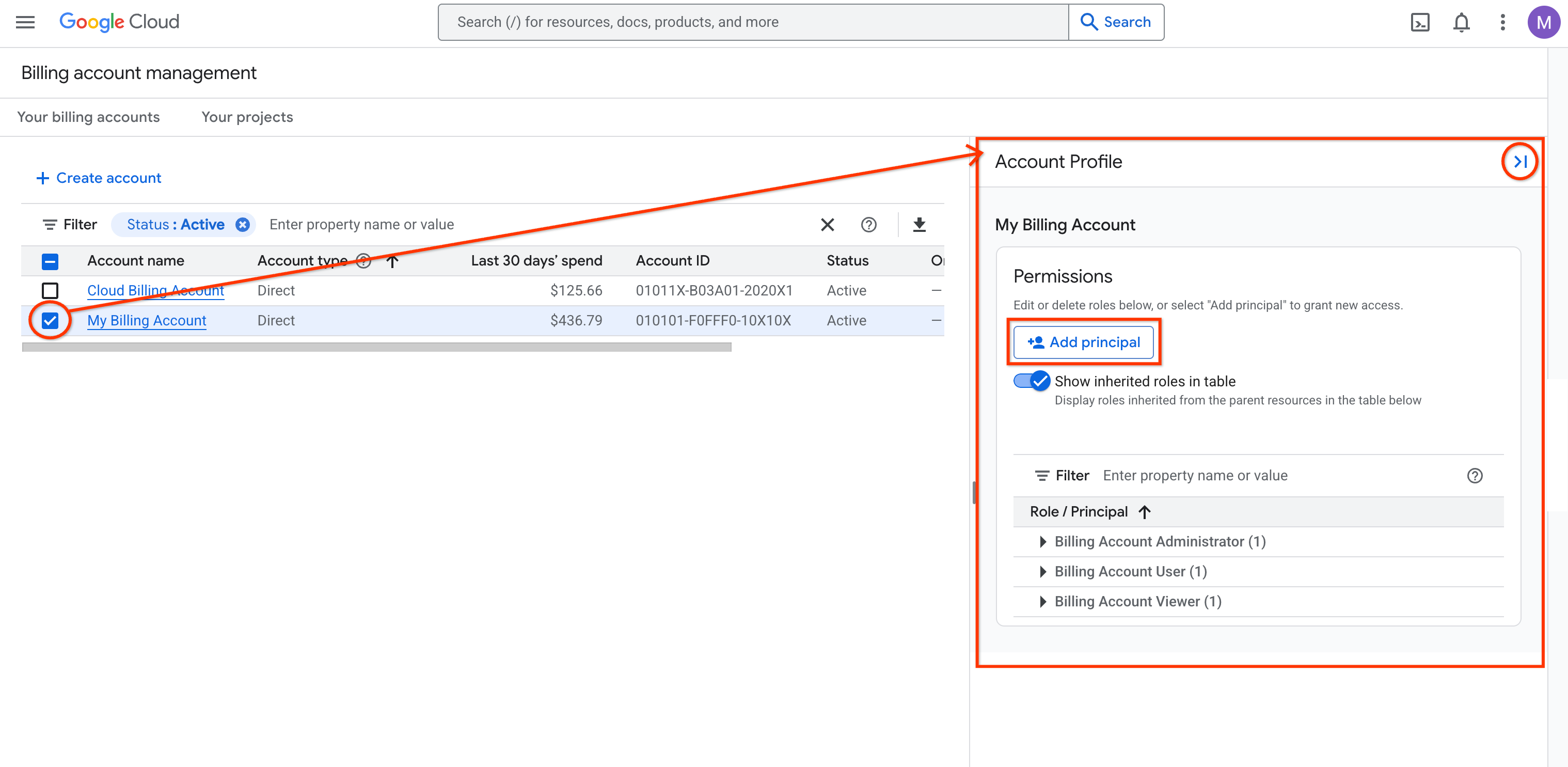
Sign in to the Manage billing accounts page in the Cloud de Confiance console.
Select the row of a Cloud Billing account to view the principals and permissions for the billing account in the info panel. If the panel isn't already visible, click Show info panel to open it.
Alternatively, you can access a Cloud Billing account's permissions on its Account management page:
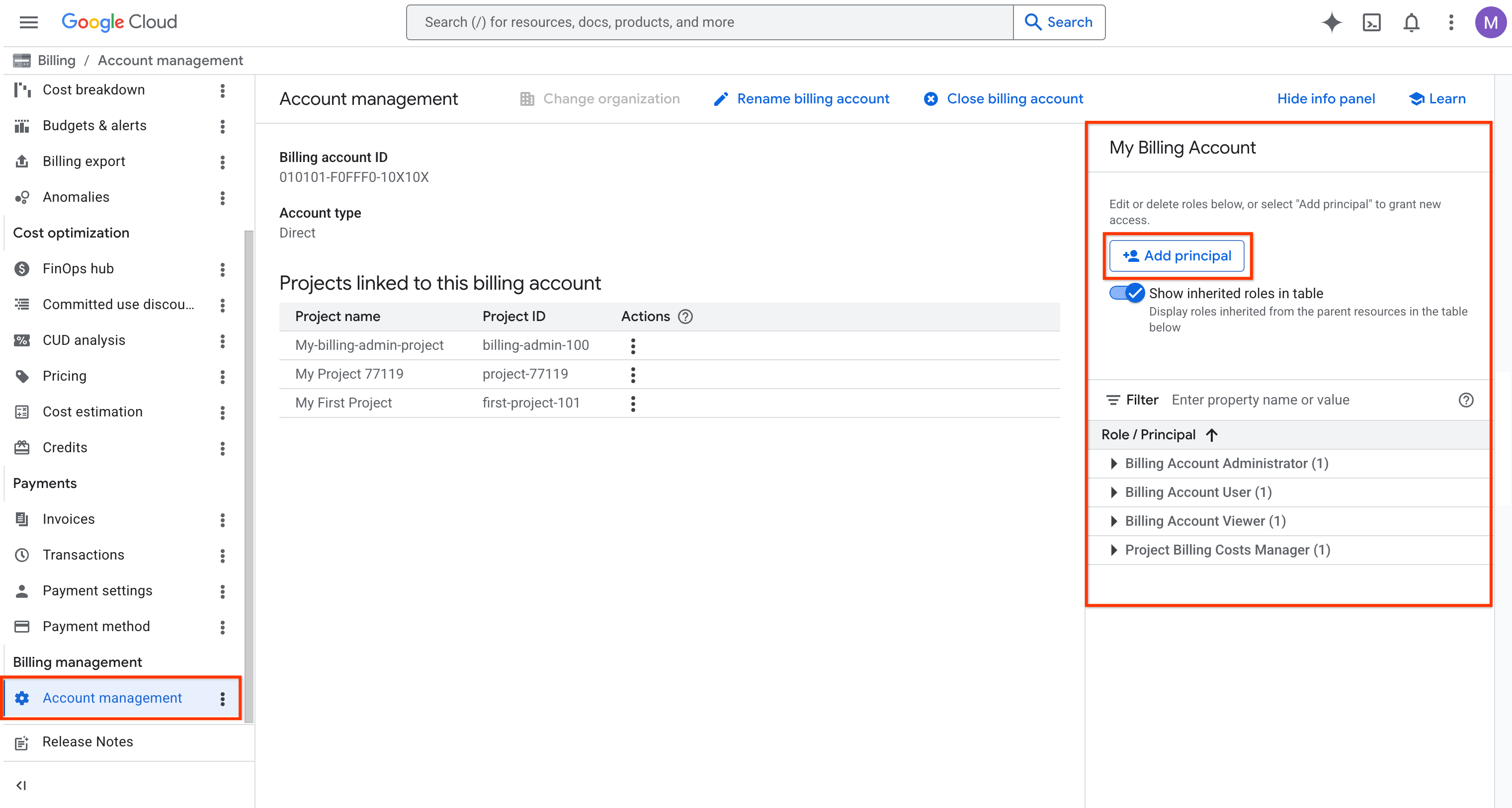
In the Cloud de Confiance console, go to the Account management page for the Cloud Billing account.
At the prompt, choose the Cloud Billing account that you want to view.
In the Info panel, review and edit the Principals and Permissions for the selected Cloud Billing account. If the panel isn't already visible, click Show info panel to open it.
Update roles and principals in the Permissions panel
The Permissions panel is organized by role, along with the number of principals that have each role. For example, in your permissions panel, you might see the following:
- Billing Account Administrator (2 principals)
- Billing Account User (6 principals)
- Billing Account Viewer (10 principals)
You can grant multiple roles to the same principal.
To view the list of principals assigned to a role, expand the role node.
To find a specific principal and see which roles are granted to that principal, use the Filter and enter the email address of the principal.
To update Cloud Billing permissions, in the Permissions panel, do any of the following:
To add new principals and assign permissions:
- Click Add principal.
- In the New principals field, enter one or more email addresses for the principals that you want to add. You can add individuals, service accounts, or Google Groups as principals.
- Select a permission for the principals from Select a role.
- If needed, you can Add another role to grant additional permissions to the principals.
- When done, click Save.
To edit a principal's billing permissions:
- Use the Filter to locate a specific principal or role.
- In the list, locate the principal that you want to edit.
In the principal's row, click Edit .
The Edit permissions panel opens, specific to the selected principal and resource (Cloud Billing account) that you're viewing.
In the Edit permissions panel, add, edit, and delete roles for the selected principal and resource.
When done, click Save.
To revoke a role from a principal:
- Use the Filter to locate a specific principal or role.
- In the list, locate the principal whose role you want to revoke.
- In the principal's row, click Delete .
Confirm your action.