
In Agent Registry you can view a topology graph that shows traffic to and from an agent or AI application. Analyzing the graph helps you to understand if the agent or AI application is communicating with trusted agents, MCP servers, and endpoints.
To get more insights about your agent resources, use the query builder to on the Topology page. You can visualize observability, security, software supply chain, and infrastructure resource data associated with your agents.
Some limitations apply to topology data.
Before you begin
These instructions assume that you have set up Agent Registry and registered your agent resources.
To view agent traffic, instrument your AI applications.
Enable the App Hub, App Topology, Cloud Asset Inventory, and Observability APIs, if any are not already enabled.
Roles required to enable APIs
To enable APIs, you need the
serviceusage.services.enablepermission. If you created the project, then you likely already have this permission through the Owner role (roles/owner). Otherwise, you can get this permission through the Service Usage Admin role (roles/serviceusage.serviceUsageAdmin). Learn how to grant roles.-
Verify that billing is enabled for your Cloud de Confiance project.
If you are protecting services in a VPC Service Controls perimeter, update the perimeter to include App Topology and services that provide underlying data. Learn more.
Required roles
To get the permissions that you need to view topology graphs in Agent Registry, ask your administrator to grant you the following IAM roles on the projects where you want to use App Topology:
- App Topology Viewer (
roles/apptopology.viewer) - Agent Registry API Viewer (
roles/agentregistry.viewer)
For more information about granting roles, see Manage access to projects, folders, and organizations.
These predefined roles contain the permissions required to view topology graphs in Agent Registry. To see the exact permissions that are required, expand the Required permissions section:
Required permissions
The following permissions are required to view topology graphs in Agent Registry:
-
Get discovered resource data:
apptopology.discoveredResourcesTopologies.generate -
Get resource data data:
apptopology.sreDomainTopologies.generate
You might also be able to get these permissions with custom roles or other predefined roles.
View an agent topology
In the Cloud de Confiance console, go to the Agent Registry page.
In the project picker, select the project that contains your agents.
On the Agents tab, click the name of the agent that you want to view.
Click the Topology tab.
In the Quick Queries section, click a query. If there are results that match your query, the topology graph is displayed.
Explore the topology graph. The graph shows resources that match your query and the relationships between them.
- Icons represent nodes, discovered and registered resources and their resource type.
- Lines represent connections, the relationships between nodes.
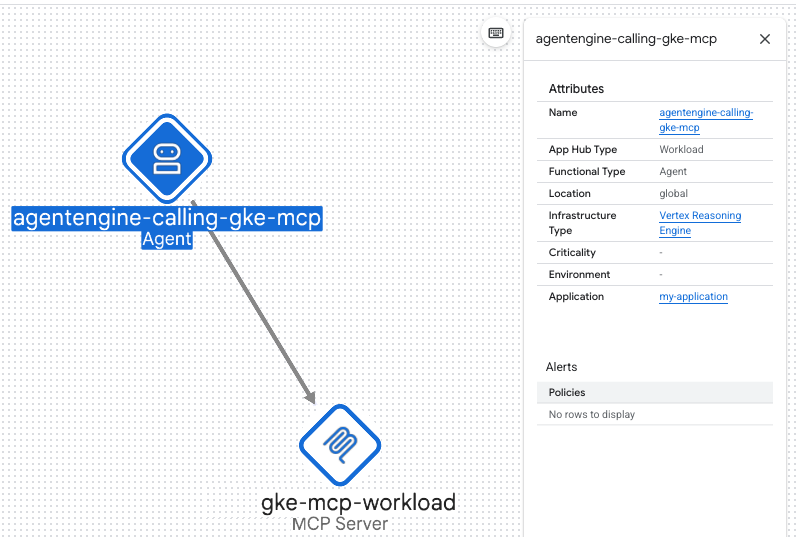
You can interact with a topology in the following ways:
- Change the visualization by zooming in or out or repositioning nodes.
- View the label for a connection by hovering over the connection line between two nodes.
- Get information about a node or connection by selecting it.
- Hide or show the query panel by clicking Toggle panel .
To view additional data about the selected agent, view the dashboards in Application Monitoring.
View an AI application topology
In the Cloud de Confiance console, go to the Agent Registry page.
In the project picker, select the project that contains your AI application.
On the AI applications tab, click the name of the agent that you want to view.
Click the Topology tab.
In the Quick Queries section, click a query. If there are results that match your query, the topology graph is displayed.
Explore the topology graph. The graph shows resources that match your query and the relationships between them.
- Icons represent nodes, discovered and registered resources and their resource type.
- Lines represent connections, the relationships between nodes.
You can interact with a topology in the following ways:
- Change the visualization by zooming in or out or repositioning nodes.
- View the label for a connection by hovering over the connection line between two nodes.
- Get information about a node or connection by selecting it.
- Hide or show the query panel by clicking Toggle panel .
To view additional data about the selected application, view the dashboards in Application Monitoring.
What's next
- Visualize more data about your agent resources on the Topology page.