

このページでは、Google Kubernetes Engine(GKE)が Service Extensions を使って Cloud Load Balancing にカスタム ロジックを追加する方法について説明します。
このページは、Service Extensions を使ってカスタム トラフィックの管理ロジックを構成する必要がある GKE の ID およびアカウントの管理者と開発者の方を対象としています。
このページを読む前に、次のことをよく理解しておいてください。
- GKE ネットワーキングの基本的なコンセプト
- GKE Gateway API
- GKE Gateway Controller
- GKE GatewayClass
- Service Extensions の概要
概要
GKE は Service Extensions を使用して、カスタム ロジックを Cloud Load Balancing に追加します。Service Extensions は、高度なトラフィック分割、カスタム認証、リクエスト ロギングなどのタスクに使用できます。
GKE Gateway Controller は、次のサービス拡張機能に対応しています。
- GCPRoutingExtension: この拡張機能は、トラフィック ルーティングを制御するためにカスタム ロジックを Cloud Load Balancing に追加します。
- GCPTrafficExtension: この拡張機能は、トラフィックを変更するためにカスタム ロジックを Cloud Load Balancing に挿入します。このロジックは、サービスが選択された後のトラフィックに適用されます。ロードバランサは、HTTP リクエストとレスポンスのヘッダーとペイロードを追加または変更できます。GCPTrafficExtension は、サービスの選択やサービス セキュリティ ポリシーには影響しません。
- GCPEdgeExtension: この拡張機能を使用すると、リクエスト ヘッダーを変更して、バックエンド サービスの選択と Cloud CDN キャッシュキーに影響を与えることができます。これは、グローバル外部マネージド ロードバランサでのみサポートされています。
- GCPAuthzExtension: この拡張機能を使用すると、認可の決定をカスタムまたはサードパーティの認可エンジン(外部ウェブ アプリケーション ファイアウォールなど)または Identity-Aware Proxy に委任できます。この拡張機能は GCPAuthzPolicy リソースで使用されます。このリソースは、Gateway に入るトラフィックにアクセス制御を適用し、拡張機能へのコールアウトのタイミングを決定します。
拡張機能は Gateway に接続します。単一クラスタ Gateway の場合、拡張機能は Service リソース、GCPWasmPlugin リソース、または GoogleAPIServiceName リソースを参照します。マルチクラスタ Gateway の場合、拡張機能は ServiceImport リソースまたは GoogleAPIServiceName リソースを参照します。
Service リソースまたは ServiceImport リソースを参照する: このモデルでは、カスタム ロジックを個別のバックエンド アプリケーションとしてデプロイし、Kubernetes Service として公開します。ロードバランサは、このサービスにコールアウトしてトラフィックを処理します。このアプローチは汎用性が高く、カスタム ルーティング ロジックを実装することや、ヘッダーの変更やペイロードの検査などのトラフィック操作を実行することが可能です。
GCPWasmPlugin リソースを参照する: パフォーマンスの高いユースケースでは、WebAssembly(Wasm)モジュールを使用して、カスタムのユーザー作成ロジックをCloud de Confiance by S3NS ロードバランサのデータパスに直接挿入できます。Artifact Registry 内の Wasm モジュールのイメージを指す GCPWasmPlugin リソースを定義します。このメソッドは、GCPTrafficExtension リソースと GCPEdgeExtension リソース、およびグローバル外部アプリケーション ロードバランサでのみ使用されます。
Google API サービスを参照する: GCPTrafficExtension または GCPAuthzExtension 内の
googleAPIServiceNameフィールドを使用して、Google API サービスを直接参照することもできます。
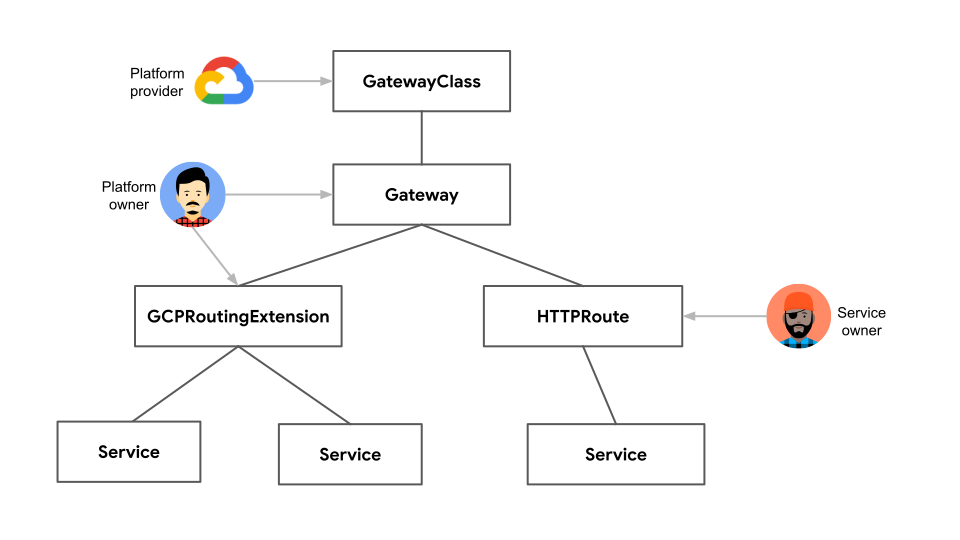
次の図では、GCPRoutingExtension リソースが Gateway に接続され、複数の Service を参照しています。拡張機能が Service へのトラフィック ルーティングを制御します。
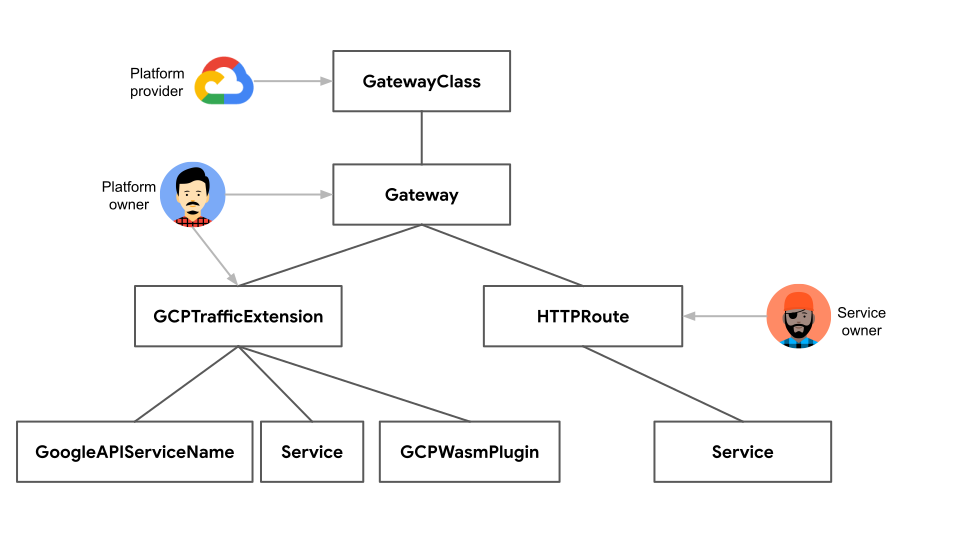
次の図では、GCPTrafficExtension リソースが Gateway に接続され、Service、GoogleAPIServiceName、または GCPWasmPlugin を参照しています。拡張機能は、リクエストとレスポンスのヘッダーとペイロードを変更します。
始める前に
作業を始める前に、次のタスクが完了していることを確認してください。
- Google Kubernetes Engine API を有効にする。 Google Kubernetes Engine API を有効化
- このタスクに Google Cloud CLI を使用する場合は、gcloud CLI をインストールして初期化します。gcloud CLI をインストール済みの場合は、
gcloud components updateコマンドを実行して最新のバージョンを取得します。以前のバージョンの gcloud CLI では、このドキュメントのコマンドを実行できない場合があります。
必要に応じて、Compute Engine API、Network Services API、Model Armor API を有効にします。
API へのアクセスを有効にするに移動し、手順に沿って操作します。
Cloud de ConfianceService Extensions の料金体系について詳しくは、料金をご覧ください。
Service Extensions のアクセス制御で、必要なロールと権限を確認します。
Service Extensions の割り当てで割り当てと上限を確認します。
Common Expression Language(CEL)マッチャーを使用する場合は、CEL マッチャーの言語リファレンスでサポートされている属性と演算子を確認してください。
Service Extensions の制限事項を確認してください。
GKE Gateway コントローラの要件
- クラスタが使用する GKE バージョンは 1.33 以降である必要があります。
- GCPWasmPlugin を使用するには、クラスタで GKE バージョン 1.33.3 以降を使用する必要があります。
- ServiceImport リソースを使用するには、クラスタで GKE バージョン 1.34.3 以降を使用する必要があります。
- 内部マルチクラスタ Gateway 用に構成された Gateway リソースが必要です。このリソースは、グローバル外部アプリケーション ロードバランサ、クロスリージョン内部アプリケーション ロードバランサ、リージョン外部アプリケーション ロードバランサ、またはリージョン内部アプリケーション ロードバランサのいずれかです。
- クラスタで Gateway API が有効になっている必要があります。
- 構成済みの Gateway リソースが必要です。このリソースは、グローバル外部アプリケーション ロードバランサ、リージョン外部アプリケーション ロードバランサ、またはリージョン内部アプリケーション ロードバランサのいずれかです。GCPWasmPlugin リソースを使用する場合は、グローバル外部アプリケーション ロードバランサ Gateway のみをデプロイする必要があります。
- 構成済みの HTTPRoute リソースが必要です。
制限事項
次の表に、GKE での Gateway Service Extensions の構成に関連する制限事項を示します。
| カテゴリ | 制限事項 |
|---|---|
| ロードバランサ |
GCPRoutingExtension は、次のロードバランサでサポートされています。
gke-l7-global-external-managed Gateway クラス)でのみサポートされます。
|
| 拡張チェーンと仕様 |
|
| タイムアウト |
|
| MatchCondition |
|
| ヘッダー |
|
| メタデータ |
|
| イベント |
|
| RequestBodySendMode |
|
| ResponseBodySendMode |
|
| リソース参照 |
|
| GCPWasmPlugin |
|
| GCPAuthzPolicy と GCPAuthzExtension |
|
googleAPIServiceName |
|
backendRef |
Extension で backendRef を使用する Service を参照する場合は、次の条件を満たす必要があります。
|
observabilityMode |
フィールド observabilityMode フィールドは、次の制限付きで Extension に設定できます。
|
Service を参照する
Service Extensions では、ロードバランサに実行させるカスタム ロジックをホストする Service を参照できます。デフォルトでは、Gateway に Service Extensions はありません。
GKE Service Extensions を構成する手順は次のとおりです。
バックエンド コールアウト サービスをデプロイする: カスタム ロジック実行用のバックエンド サービスを表す Kubernetes Service を作成します。ロードバランサがこのサービスを呼び出します。
Service Extensions を構成する: ロードバランサのタイプに基づいて適切な拡張機能を使用します。
リージョン ゲートウェイの GCPRoutingExtension: リージョン外部アプリケーション ロードバランサとリージョン内部アプリケーション ロードバランサでこの拡張機能を使用して、リージョン内でカスタム ルーティング ロジックを実装します。
グローバル外部、リージョン外部、内部ゲートウェイの GCPTrafficExtension: グローバル外部アプリケーション ロードバランサ、リージョン外部アプリケーション ロードバランサ、リージョン内部アプリケーション ロードバランサでこの拡張機能を使用して、さまざまなロードバランサ タイプでヘッダーの変更やペイロードの検査などのトラフィック操作を実行します。
バックエンド コールアウト サービスをデプロイする
コールアウト サービスは、GKE の Gateway Service Extensions に対してカスタム ロジックを実装するサービスです。Gateway は、GCPTrafficExtension または GCPRoutingExtension の構成に基づいてこれらのバックエンド アプリケーションを呼び出し、トラフィックを変更またはルーティングします。
Gateway にカスタム ロジックを追加するために、コールアウト サービスをデプロイします。この独立したサービスは、ヘッダー操作、ペイロード変換、トラフィック ルーティングなどのカスタム処理を担当します。
Gateway のコールアウトとして機能するサービスをデプロイする手順は次のとおりです。
(省略可)TLS の Secret を作成する: このコマンドは、TLS 証明書と秘密鍵を含む TLS タイプの Kubernetes Secret を作成します。
コールアウト サービスの TLS シークレットを作成するには、次の値を置き換えます。
SECRET_NAME: コールアウト サービスのシークレット名path-to-cert: 証明書のファイルパスpath-to-key: 鍵のファイルパス
シークレットが追加されたことを確認するには、次のコマンドを実行します。
kubectl get secrets SECRET_NAMESECRET_NAMEは、コールアウト サービスのシークレット名に置き換えます。出力例を以下に示します。
NAME            TYPE                DATA   AGE
SECRET_NAME     kubernetes.io/tls   2      12s
Deployment と Service のリソースを定義します。
次の項目を定義する必要があります。
- Deployment: Service Extensions のカスタム ロジックを含むアプリケーション Pod を管理します。
- Service: Deployment によって管理されるアプリケーション Pod をネットワーク サービスとして公開します。
Deployment と Service の定義を含むサンプル マニフェスト
extension-service-app.yamlを作成します。apiVersion: apps/v1 kind: Deployment metadata: name: extension-service-app spec: selector: matchLabels: app: store replicas: 1 template: metadata: labels: app: store spec: containers: - name: serviceextensions image: us-docker.pkg.dev/service-extensions-samples/callouts/python-example-basic:public-image-e42d951 ports: - containerPort: 8080 - containerPort: 443 volumeMounts: - name: certs mountPath: "/etc/certs/" readOnly: true env: - name: POD_NAME valueFrom: fieldRef: fieldPath: metadata.name - name: NAMESPACE valueFrom: fieldRef: fieldPath: metadata.namespace - name: TLS_SERVER_CERT_PATH value: "/etc/certs/path-to-cert" - name: TLS_SERVER_PRIVKEY value: "/etc/certs/path-to-key" resources: requests: cpu: 10m volumes: - name: certs secret: secretName: SECRET_NAME optional: false --- apiVersion: v1 kind: Service metadata: name: extension-service spec: ports: - port: 443 targetPort: 443 appProtocol: HTTP2 selector: app: store次のように置き換えます。
POD_NAME: Pod の名前。SECRET_NAME: コールアウト サービスのシークレット名。TLS_SERVER_CERT_PATH: Pod 内の TLS サーバー証明書のパス。TLS_SERVER_PRIVKEY: Pod 内の TLS サーバー秘密鍵のパス。
extension-service-app.yamlマニフェストを適用します。kubectl apply -f extension-service-app.yaml
構成を確認します
アプリケーションがデプロイされたことを確認します。
kubectl get pod --selector app=storeアプリケーションの実行が開始されると、出力は次のようになります。
NAME                                     READY   STATUS    RESTARTS   AGE
extension-service-app-85f466bc9b-b5mf4   1/1     Running   0          7s
Service がデプロイされたことを確認します。
kubectl get service extension-service出力は次のようになります。各ストアの Deployment の Service を示しています。
NAME                TYPE        CLUSTER-IP     EXTERNAL-IP   PORT(S)   AGE
extension-service   ClusterIP   34.118.225.9   <none>        443/TCP   2m40s
Service Extensions を構成する
GCPRoutingExtension または GCPTrafficExtension を構成して、トラフィック フローをカスタマイズできます。
リージョン Gateway 用に GCPRoutingExtension を構成する
GCPRoutingExtension を使用してトラフィックを再ルーティングできます。GCPRoutingExtension を構成するには、service-extensions.com ホストのリクエストを指定するように HTTPRoute を更新します。
HTTPRoute を更新します。ルーティング拡張機能をトリガーするホスト名またはパスを含めるように HTTPRoute を変更します。
次のサンプル マニフェストを
store-route.yamlファイルとして保存します。kind: HTTPRoute apiVersion: gateway.networking.k8s.io/v1 metadata: name: store spec: parentRefs: - kind: Gateway name:GATEWAY_NAME hostnames: - "store.example.com" - "service-extensions.example.com" rules: - backendRefs: - name: store-v1 port: 8080 - matches: - headers: - name: env value: canary backendRefs: - name: store-v2 port: 8080 - matches: - path: value: /de backendRefs: - name: store-german port: 8080GATEWAY_NAMEは実際の Gateway の名前に置き換えます。store-route.yamlマニフェストを適用します。kubectl apply -f store-route.yaml
GCPRoutingExtension を定義します。
サンプルの
gcp-routing-extension.yamlファイルに GCPRoutingExtension の構成を保存します。kind: GCPRoutingExtension apiVersion: networking.gke.io/v1 metadata: name: my-gateway-extension namespace: default spec: targetRefs: - group: "gateway.networking.k8s.io" kind: Gateway name: GATEWAY_NAME extensionChains: - name: chain1 matchCondition: celExpressions: - celMatcher: request.path.contains("serviceextensions") extensions: - name: ext1 authority: "myext.com" timeout: 1s backendRef: group: "" kind: Service name: extension-service port: 443GATEWAY_NAMEは実際の Gateway の名前に置き換えます。サンプル マニフェストをクラスタに適用します。
kubectl apply -f gcp-routing-extension.yaml
GCPRoutingExtension の構成と、Gateway へのバインディングを確認します。
GCPRoutingExtension のデプロイを確認します。
kubectl describe gcproutingextension my-gateway-extension出力は次のようになります。
Name:         my-gateway-extension
Namespace:    default
Labels:       <none>
Annotations:  <none>
API Version:  networking.gke.io/v1
Kind:         GCPRoutingExtension
Metadata:
  Creation Timestamp:  2025-03-02T17:12:30Z
  Generation:        1
  Resource Version:  31283253
  UID:               ec8efaa0-d8e7-4e1b-9fd4-0ae0ef3c74d0
Spec:
  Extension Chains:
    Extensions:
      Authority:    myext.com
      Backend Ref:
        Group:
        Kind: Service
        Name: extension-service
        Port: 443
      Name:       ext1
      Timeout:    1s
    Match Condition:
      Cel Expressions:
        Cel Matcher: request.path.contains("serviceextensions")
    Name:  chain1
  Target Refs:
    Group: gateway.networking.k8s.io
    Kind: Gateway
    Name: GATEWAY_NAME
Events:  <none>
出力には、デフォルト Namespace 内の
my-gateway-extensionという名前の GCPRoutingExtension の詳細が表示されます。出力には、拡張機能の動作を定義するSpecフィールドが表示されます。Gateway のバインディングを確認します。
GCPRoutingExtension が Gateway にバインドされていることを確認します。これには数分かかることがあります。
kubectl describe gateway GATEWAY_NAMEGATEWAY_NAMEは実際の Gateway の名前に置き換えます。出力は次のようになります。
Name:         GATEWAY_NAME
Namespace:    default
Labels:       none
Annotations:  networking.gke.io/addresses: /projects/1234567890/regions/us-central1/addresses/test-hgbk-default-internal-http-5ypwen3x2gcr
              networking.gke.io/backend-services:
                /projects/1234567890/regions/us-central1/backendServices/test-hgbk-default-extension-service-443-rduk21fwhoj0, /projects/1234567890/re...
              networking.gke.io/firewalls: /projects/1234567890/global/firewalls/test-hgbk-l7-default-us-central1
              networking.gke.io/forwarding-rules: /projects/1234567890/regions/us-central1/forwardingRules/test-hgbk-default-internal-http-qn7dk9i9zm73
              networking.gke.io/health-checks:
                /projects/1234567890/regions/us-central1/healthChecks/test-hgbk-default-extension-service-443-rduk21fwhoj0, /projects/1234567890/regio...
              networking.gke.io/last-reconcile-time: 2025-03-02T17:15:02Z
              networking.gke.io/lb-route-extensions:
                /projects/1234567890/locations/us-central1/lbRouteExtensions/test-hgbk-default-internal-http-lwh0op4qorb0
              networking.gke.io/lb-traffic-extensions:
              networking.gke.io/ssl-certificates:
              networking.gke.io/target-http-proxies:
                /projects/1234567890/regions/us-central1/targetHttpProxies/test-hgbk-default-internal-http-2jzr7e3xclhj
              networking.gke.io/target-https-proxies:
              networking.gke.io/url-maps: /projects/1234567890/regions/us-central1/urlMaps/test-hgbk-default-internal-http-2jzr7e3xclhj
API Version:  gateway.networking.k8s.io/v1
Kind:         Gateway
Metadata:
  Creation Timestamp:  2025-03-02T16:37:50Z
  Finalizers:
  gateway.finalizer.networking.gke.io
  Generation:        1
  Resource Version:  31284863
  UID:               fd512611-bad2-438e-abfd-5619474fbf31
...
出力には、GKE が Gateway と基盤となるCloud de Confiance リソース間のリンクを保存するために使用するアノテーションが表示されます。
networking.gke.io/lb-route-extensionsアノテーションは、ゲートウェイと GCPRoutingExtension のバインディングを確認します。GCPRoutingExtension に
Programmedというステータスと、ProgrammingSucceededという理由が表示されていることを確認することで、拡張機能のステータスをチェックします。このコマンドは数分かかることがあります。kubectl describe gcproutingextension my-gateway-extension出力は次のようになります。
Name: my-gateway-extension Namespace: default Labels: <none> Annotations: <none> API Version: networking.gke.io/v1 Kind: GCPRoutingExtension Metadata: Creation Timestamp: 2025-03-02T17:12:30Z Generation: 1 Resource Version: 31284378 UID: ec8efaa0-d8e7-4e1b-9fd4-0ae0ef3c74d0 Spec: Extension Chains: Extensions: Authority: myext.com Backend Ref: Group: Kind: Service Name: extension-service Port: 443 Name: ext1 Timeout: 1s Match Condition: Cel Expressions: Cel Matcher: request.path.contains("serviceextensions") Name: chain1 Target Refs: Group: gateway.networking.k8s.io Kind: Gateway Name: GATEWAY_NAME Status: Ancestors: Ancestor Ref: Group: gateway.networking.k8s.io Kind: Gateway Name: GATEWAY_NAME Namespace: default Conditions: Last Transition Time: 2025-03-02T17:14:15Z Message: Reason: Accepted Status: True Type: Accepted Last Transition Time: 2025-03-02T17:14:15Z Message: Reason: ProgrammingSucceeded Status: True Type: Programmed Controller Name: networking.gke.io/gateway Events: Type Reason Age From Message ---- ------ ---- ---- ------- Normal ADD 2m31s sc-gateway-controller default/my-gateway-extension Normal SYNC 51s (x2 over 98s) sc-gateway-controller Attachment of GCPRoutingExtension "default/my-gateway-extension" to AncestorRef {Group: "gateway.networking.k8s.io", Kind: "Gateway", Namespace: "default", Name: GATEWAY_NAME, SectionName: nil, Port: nil} was a success Normal SYNC 23s sc-gateway-controller Reconciliation of GCPRoutingExtension "default/my-gateway-extension" to AncestorRef {Group: "gateway.networking.k8s.io", Kind: "Gateway", Namespace: "default", Name: GATEWAY_NAME, SectionName: nil, Port: nil} was a successStatus.Conditionsフィールドに、Programmed条件がStatus: TrueおよびReason: ProgrammingSucceededとして表示されています。 この情報は、拡張機能が正常に適用されたことを示しています。
アプリケーションにトラフィックを送信する
Gateway、Route、アプリケーションをクラスタ内にデプロイした後は、そのアプリケーションにトラフィックを流せるようになります。
アプリケーションにアクセスするには、Gateway の IP アドレスを見つける必要があります。
ターミナルで次のコマンドを使用します。
kubectl get gateways.gateway.networking.k8s.io GATEWAY_NAME -o=jsonpath="{.status.addresses[0].value}"GATEWAY_NAMEは実際の Gateway の名前に置き換えます。このコマンドによって、Gateway の IP アドレスが出力されます。後続のコマンドでは、
GATEWAY_IP_ADDRESSを出力の IP アドレスに置き換えます。store.example.com/serviceextensionsにあるserviceextensionsバージョンのストアサービスにアクセスして、パスの更新をテストします。curl http://store.example.com/serviceextensions --resolve store.example.com:80:GATEWAY_IP_ADDRESS -v出力は次のようになります。
{ "cluster_name": "gke1", "host_header": "service-extensions.com", "metadata": "store-v1", "pod_name": "store-v1-5d9554f847-cvxpd", "pod_name_emoji": "💇🏼♀️", "project_id": "gateway-demo", "timestamp": "2025-03-15T12:00:00", "zone": "us-central1-c" }
GCPTrafficExtension を構成する
GCPTrafficExtension を使用すると、 Cloud de Confiance 環境内で高度なトラフィック管理機能を利用できます。この拡張機能は、グローバル外部アプリケーション ロードバランサ、リージョン外部アプリケーション ロードバランサ、リージョン内部アプリケーション ロードバランサのいずれでも構成できます。GCPTrafficExtension を使用すると、カスタムの HTTP リクエストとレスポンスのロジック、高度なルーティング、変換、セキュリティ ポリシーを実装できます。
HTTPRoute を更新します。トラフィック拡張をトリガーするホスト名またはパスを含めるように HTTPRoute を変更します。
次のサンプル マニフェストを
store-route.yamlファイルとして保存します。kind: HTTPRoute apiVersion: gateway.networking.k8s.io/v1 metadata: name: store spec: parentRefs: - kind: Gateway name: GATEWAY_NAME hostnames: - "store.example.com" - "service-extensions.example.com" rules: - backendRefs: - name: store-v1 port: 8080 - matches: - headers: - name: env value: canary backendRefs: - name: store-v2 port: 8080 - matches: - path: value: /de backendRefs: - name: store-german port: 8080GATEWAY_NAMEは、ゲートウェイの名前に置き換えます(internal-http、external-http、global-external-httpなど)。store-route.yamlマニフェストをクラスタに適用します。kubectl apply -f store-route.yaml
GCPTrafficExtension を定義します。
GCPTrafficExtension 構成をサンプル
gcp-traffic-extension.yamlファイルに保存します。kind: GCPTrafficExtension apiVersion: networking.gke.io/v1 metadata: name: my-traffic-extension namespace: default spec: targetRefs: - group: "gateway.networking.k8s.io" kind: Gateway name: GATEWAY_NAME extensionChains: - name: chain1 matchCondition: celExpressions: - celMatcher: request.path.contains("serviceextensions") extensions: - name: ext1 authority: "myext.com" timeout: 1s backendRef: group: "" kind: Service name: extension-service port: 443 supportedEvents: - RequestHeaders - RequestBody - ResponseHeaders - ResponseBodyGATEWAY_NAMEは Gateway の名前に置き換えます(internal-http、external-http、global-external-httpなど)。サンプル マニフェストをクラスタに適用します。
kubectl apply -f gcp-traffic-extension.yaml
GCPTrafficExtension の構成と、Gateway へのバインディングを確認します。
GCPTrafficExtension のデプロイを確認します。
kubectl describe gcptrafficextension my-traffic-extension出力は次のようになります。
Name:         my-traffic-extension
Namespace:    default
Labels:       <none>
Annotations:  <none>
API Version:  networking.gke.io/v1
Kind:         GCPTrafficExtension
Metadata:
  Creation Timestamp:  2025-03-02T17:12:30Z
  Generation:        1
  Resource Version:  31283253
  UID:               ec8efaa0-d8e7-4e1b-9fd4-0ae0ef3c74d0
Spec:
  Extension Chains:
    Extensions:
      Authority:    myext.com
      Backend Ref:
        Group:
        Kind: Service
        Name: extension-service
        Port: 443
      Name:       ext1
      Timeout:    1s
    Match Condition:
      Cel Expressions:
        Cel Matcher: request.path.contains("serviceextensions")
    Name:  chain1
  Target Refs:
    Group: gateway.networking.k8s.io
    Kind: Gateway
    Name: GATEWAY_NAME
Events:  <none>
出力には、デフォルト Namespace 内の
my-traffic-extensionという名前の GCPTrafficExtension の詳細が表示されます。拡張機能の動作を定義するSpecフィールドが表示されます。Gateway のバインディングを確認します。
GCPTrafficExtension が Gateway にバインドされていることを確認します。このコマンドが完了するまで数分かかる場合があります。
kubectl describe gateway GATEWAY_NAME出力は次のようになります。
Name:         GATEWAY_NAME
Namespace:    default
Labels:       <none>
Annotations:  networking.gke.io/addresses: /projects/1234567890/regions/us-central1/addresses/test-hgbk-default-internal-http-5ypwen3x2gcr
              networking.gke.io/backend-services:
                /projects/1234567890/regions/us-central1/backendServices/test-hgbk-default-extension-service-443-rduk21fwhoj0, /projects/1234567890/re...
              networking.gke.io/firewalls: /projects/1234567890/global/firewalls/test-hgbk-l7-default-us-central1
              networking.gke.io/forwarding-rules: /projects/1234567890/regions/us-central1/forwardingRules/test-hgbk-default-internal-http-qn7dk9i9zm73
              networking.gke.io/health-checks:
                /projects/1234567890/regions/us-central1/healthChecks/test-hgbk-default-extension-service-443-rduk21fwhoj0, /projects/1234567890/regio...
              networking.gke.io/last-reconcile-time: 2025-03-02T17:15:02Z
              networking.gke.io/lb-traffic-extensions:
                /projects/1234567890/locations/us-central1/lbTrafficExtensions/test-hgbk-default-internal-http-lwh0op4qorb0
              networking.gke.io/ssl-certificates:
              networking.gke.io/target-http-proxies:
                /projects/1234567890/regions/us-central1/targetHttpProxies/test-hgbk-default-internal-http-2jzr7e3xclhj
              networking.gke.io/target-https-proxies:
              networking.gke.io/url-maps: /projects/1234567890/regions/us-central1/urlMaps/test-hgbk-default-internal-http-2jzr7e3xclhj
API Version:  gateway.networking.k8s.io/v1
Kind:         Gateway
Metadata:
  Creation Timestamp:  2025-03-02T16:37:50Z
  Finalizers:
    gateway.finalizer.networking.gke.io
  Generation:        1
  Resource Version:  31284863
  UID:               fd512611-bad2-438e-abfd-5619474fbf31
...
出力には、GKE が Gateway と基盤となる Cloud de Confiance リソース間のリンクを保存するために使用するアノテーションが表示されます。
networking.gke.io/lb-traffic-extensionsアノテーションはバインディングを確認します。拡張機能のステータスを確認します。
GCPTrafficExtension の拡張機能のステータスを確認するには、次のコマンドを実行します。
kubectl describe gcptrafficextension my-traffic-extensionGCPTrafficExtension のステータスが
Programmedで、理由がProgrammingSucceededであることを確認します。このコマンドが完了するまで数分かかる場合があります。GCPTrafficExtension リソースの出力は次のようになります。
Name: my-traffic-extension Namespace: default Labels: <none> Annotations: <none> API Version: networking.gke.io/v1 Kind: GCPTrafficExtension Metadata: Creation Timestamp: 2025-03-02T17:12:30Z Generation: 1 Resource Version: 31284378 UID: ec8efaa0-d8e7-4e1b-9fd4-0ae0ef3c74d0 Spec: Extension Chains: Extensions: Authority: myext.com Backend Ref: Group: Kind: Service Name: extension-service Port: 443 Name: ext1 Timeout: 1s Match Condition: Cel Expressions: Cel Matcher: request.path.contains("serviceextensions") Name: chain1 Target Refs: Group: gateway.networking.k8s.io Kind: Gateway Name: GATEWAY_NAME Status: Ancestors: Ancestor Ref: Group: gateway.networking.k8s.io Kind: Gateway Name: GATEWAY_NAME Namespace: default Conditions: Last Transition Time: 2025-03-02T17:14:15Z Message: Reason: Accepted Status: True Type: Accepted Last Transition Time: 2025-03-02T17:14:15Z Message: Reason: ProgrammingSucceeded Status: True Type: Programmed Controller Name: networking.gke.io/gateway Events: Type Reason Age From Message ---- ------ ---- ---- ------- Normal ADD 2m31s sc-gateway-controller default/my-traffic-extension Normal SYNC 51s (x2 over 98s) sc-gateway-controller Attachment of GCPTrafficExtension "default/my-gateway-extension" to AncestorRef {Group: "gateway.networking.k8s.io", Kind: "Gateway", Namespace: "default", Name: GATEWAY_NAME, SectionName: nil, Port: nil} was a success Normal SYNC 23s sc-gateway-controller Reconciliation of GCPTrafficExtension "default/my-traffic-extension" to AncestorRef {Group: "gateway.networking.k8s.io", Kind: "Gateway", Namespace: "default", Name: GATEWAY_NAME, SectionName: nil, Port: nil} was a successStatus.Conditionsフィールドに、Programmed条件がStatus: TrueおよびReason: ProgrammingSucceededとして表示されています。この情報は、拡張機能が正常に適用されたことを示しています。
アプリケーションにトラフィックを送信する
Gateway、Route、アプリケーションをクラスタ内にデプロイした後は、そのアプリケーションにトラフィックを流せるようになります。
アプリケーションにアクセスするには、Gateway の IP アドレスを見つける必要があります。
ターミナルで次のコマンドを使用します。
kubectl get gateways.gateway.networking.k8s.io GATEWAY_NAME -o=jsonpath="{.status.addresses[0].value}"GATEWAY_NAMEは実際の Gateway の名前に置き換えます。このコマンドによって、Gateway の IP アドレスが出力されます。後続のコマンドでは、
GATEWAY_IP_ADDRESSを出力の IP アドレスに置き換えます。store.example.com/serviceextensionsにあるserviceextensionsバージョンのストアサービスにアクセスして、パスの更新をテストします。curl http://store.example.com/serviceextensions --resolve store.example.com:80:GATEWAY_IP_ADDRESS -v出力は次のようになります。
{ * Request completely sent off < HTTP/1.1 200 OK < server: Werkzeug/2.3.7 Python/3.11.3 < date: Sun, 02 Mar 2025 16:58:10 GMT < content-type: application/json < access-control-allow-origin: * < hello: service-extensions < via: 1.1 google < transfer-encoding: chunked }
GCPAuthzExtension リソースを構成する
GCPAuthzExtension と GCPAuthzPolicy を使用すると、外部サービスまたは Identity-Aware Proxy(IAP)に委任することで、複雑な認可の決定を適用できます。
GCPAuthzExtension を定義します。
カスタム拡張機能サービスまたは IAP をコールアウト サービスとして参照するように GCPAuthzExtension を構成できます。
オプション 1: カスタム拡張機能サービスを参照する
- GCPAuthzExtension 構成をサンプル
gcp-authz-extension.yamlファイルに保存します。
apiVersion: networking.gke.io/v1 kind: GCPAuthzExtension metadata: name: my-authz-ext namespace: default spec: backendRef: kind: Service name: "${authz-service}" forwardHeaders: - Authorization failOpen: false timeout: "0.1s" wireFormat: EXT_PROC_GRPC上記の例では、
"${authz-service}"は拡張サービスです。これは、GCPAuthzPolicy と同じ Namespace に存在する必要があります。- 次のようにマニフェストを適用します。
kubectl apply -f gcp-authz-extension.yaml- GCPAuthzExtension 構成をサンプル
オプション 2: IAP をカスタム コールアウト サービスとして参照する
googleAPIServiceNameフィールドでiap.googleapis.comを指定して、IAP をカスタム コールアウト サービスとして構成することもできます。- GCPAuthzExtension 構成をサンプル
authz-extension-iap.yamlファイルに保存します。
apiVersion: networking.gke.io/v1 kind: GCPAuthzExtension metadata: name: my-authz-ext-iap namespace: default spec: googleAPIServiceName: iap.googleapis.com timeout: 50ms failOpen: false- 次のようにマニフェストを適用します。
kubectl apply -f authz-extension-iap.yaml- GCPAuthzExtension 構成をサンプル
GCPAuthzPolicy を定義します。
GCPAuthzPolicy は Gateway をターゲットとし、一致するトラフィックに対して実行するアクションを指定します。
CUSTOM認可ポリシーを設定します。CUSTOMアクションは、前の手順で作成した拡張機能に認可の決定を委任します。次のマニフェストを
gcp-authz-policy.yamlに保存します。apiVersion: networking.gke.io/v1 kind: GCPAuthzPolicy metadata: name: my-gateway-authz namespace: default spec: enforcementLevel: L7 targetRefs: - group: gateway.networking.k8s.io kind: Gateway name: "GATEWAY_NAME" rules: - from: sources: - principals: - principal_selector: CLIENT_CERT_URI_SANS principal: exact: "spiffee://cluster.local/ns1/pod1" - to: operations: - paths: - exact: "/api/secure-endpoint" action: CUSTOM customProvider: authzExtension: extensionRefs: - group: networking.gke.io kind: GCPAuthzExtension name: my-authz-extGATEWAY_NAMEは実際の Gateway の名前に置き換えます。次のようにマニフェストを適用します。
kubectl apply -f gcp-authz-policy.yaml
GCPWasmPlugin リソースを参照する
GCPTrafficExtension または GCPEdgeExtension を含む GCPWasmPlugin を使用すると、ロードバランサのデータパスにカスタム ロジックを直接挿入できます。この方法では、Wasm モジュールとしてパッケージ化されたカスタム トラフィック管理機能をデプロイできます。
GKE Service Extensions を構成する手順は次のとおりです。
GCPWasmPlugin をデプロイする: Wasm モジュールのカスタムコードを含む GCPWasmPlugin CustomResourceDefinition(CRD)を作成してデプロイします。
gke-l7-global-external-managedGatewayClass では、GCPWasmPlugin を GCPTrafficExtension または GCPEdgeExtension とともに使用できます。サービス拡張機能を構成する: GCPWasmPlugin を使用して、次のいずれかの拡張機能を構成します。
GCPWasmPlugin をデプロイする
GCPWasmPlugin を使用すると、カスタムのユーザー作成ロジックを Cloud de Confiance ロードバランサのデータパスに直接挿入できます。GCPWasmPlugin リソースは、Artifact Registry 内の Wasm モジュールのイメージを指します。このイメージは、ロードバランサによって実行されます。
次の手順に進む前に、Wasm モジュールを Artifact Registry リポジトリにアップロードしていることを確認してください。詳細については、プラグイン コードを準備するをご覧ください。
GCPWasmPlugin リソースをデプロイする手順は次のとおりです。
次のマニフェストを
wasm-plugin.yamlとして保存します。kind: GCPWasmPlugin apiVersion: networking.gke.io/v1 metadata: name: gcp-wasm-plugin spec: versions: - name: wasm-plugin-version description: "Test wasm plugin version" image: "us-docker.pkg.dev/service-extensions-samples/plugins/local-reply:main" weight: 1000000 logConfig: enabled: true # Configures the sampling rate of activity logs. # The value of the field must be in range [0, 1e6]. sampleRate: 1000000 # Specifies the lowest level of logs that are exported to Cloud Logging. minLogLevel: INFO次の点にご注意ください。
spec.versions.name: バージョン名は GCPWasmPlugin リソース内で一意である必要があります。最大 10 個のバージョンをリストできます。0 以外の重みを持つバージョンは 1 つだけです。spec.versions.image: Artifact Registry に保存されているプラグイン コードを含むイメージを参照します。spec.versions.weight: プラグイン バージョンの重みを指定します。重みは 0~1,000,000 の数値(指定した値を含む)で指定する必要があります。spec.logConfig: このプラグインで Cloud Logging を有効にするかどうかを指定します。値が指定されていない場合、Cloud Logging はデフォルトで無効になります。spec.logConfig.sampleRate: アクティビティ ログのサンプリング レートを構成します。レートは 0~1,000,000 の数値(指定した値を含む)で指定してください。Cloud Logging が有効になっているときに指定しない場合、デフォルト値は1,000,000(リクエストの 100% がログに記録されます)です。spec.logConfig.minLogLevel: Cloud Logging にエクスポートされるログの最小レベルを指定します。Cloud Logging が有効になっているときに値が指定されていない場合、フィールドはデフォルトでINFOに設定されます。
wasm-plugin.yamlマニフェストを適用します。kubectl apply -f wasm-plugin.yamlプラグインがデプロイされたことを確認します。
kubectl describe gcpwasmplugins.networking.gke.io gcp-wasm-plugin出力は次のようになります。
Name: gcp-wasm-plugin Namespace: default Labels: <none> Annotations: <none> API Version: networking.gke.io/v1 Kind: GCPWasmPlugin Metadata: Creation Timestamp: 2025-08-08T19:54:18Z Generation: 1 Resource Version: 44578 UID: 549a12c7-91d1-43ad-a406-d6157a799b79 Spec: Log Config: Enabled: true Min Log Level: INFO Sample Rate: 1000000 Versions: Description: Test wasm plugin version Image: us-docker.pkg.dev/service-extensions-samples/plugins/local-reply:main Name: wasm-plugin-version Weight: 1000000 Events: <none>
GCPTrafficExtension を構成する
グローバル外部アプリケーション ロードバランサにカスタム ロジックを追加するには、GCPWasmPlugin を使用するように GCPTrafficExtension を構成します。GCPTrafficExtension を使用すると、 Cloud de Confiance 環境内で高度なトラフィック管理機能を利用できます。この拡張機能は、グローバル外部アプリケーション ロードバランサで構成できます。
GCPWasmPlugin を使用するように GCPTrafficExtension を構成するには、次の操作を行います。
GCPTrafficExtension を定義します。
GCPTrafficExtension 構成を
gcp-traffic-extension-with-plugin.yamlとして保存します。kind: GCPTrafficExtension apiVersion: networking.gke.io/v1 metadata: name: gcp-traffic-extension-with-plugin namespace: default spec: targetRefs: - group: "gateway.networking.k8s.io" kind: Gateway name: GATEWAY_NAME extensionChains: - name: chain1 matchCondition: celExpressions: - celMatcher: request.path.contains("serviceextensions") extensions: - name: ext1 supportedEvents: - RequestHeaders - ResponseHeaders backendRef: group: "networking.gke.io" kind: GCPWasmPlugin name: gcp-wasm-pluginGATEWAY_NAMEは、ゲートウェイの名前に置き換えます(global-external-httpなど)。サンプル マニフェストをクラスタに適用します。
kubectl apply -f gcp-traffic-extension-with-plugin.yaml
GCPTrafficExtension の構成と、Gateway へのバインディングを確認します。
GCPTrafficExtension のデプロイを確認します。
kubectl describe gcptrafficextensions.networking.gke.io gcp-traffic-extension-with-plugin出力は次のようになります。
Name: gcp-traffic-extension-with-plugin Namespace: default Labels: <none> Annotations: <none> API Version: networking.gke.io/v1 Kind: GCPTrafficExtension Metadata: Creation Timestamp: 2025-03-02T17:12:30Z Generation: 1 Resource Version: 31283253 UID: ec8efaa0-d8e7-4e1b-9fd4-0ae0ef3c74d0 Spec: Extension Chains: Extensions: Backend Ref: Group: networking.gke.io Kind: GCPWasmPlugin Name: gcp-wasm-plugin Name: ext1 Supported Events: RequestHeaders ResponseHeaders Match Condition: Cel Expressions: Cel Matcher: request.path.contains("serviceextensions") Name: chain1 Target Refs: Group: gateway.networking.k8s.io Kind: Gateway Name: GATEWAY_NAME Events: <none>GATEWAY_NAMEは実際の Gateway の名前に置き換えます。出力には、デフォルト Namespace 内の
gcp-traffic-extension-with-pluginという名前の GCPTrafficExtension の詳細が表示されます。拡張機能の動作を定義するSpecフィールドが表示されます。Gateway のバインディングを確認します。
GCPTrafficExtension が Gateway にバインドされていることを確認します。このコマンドが完了するまで数分かかる場合があります。
kubectl describe gateway GATEWAY_NAMEGATEWAY_NAMEは実際の Gateway の名前に置き換えます。出力は次のようになります。
Name: GATEWAY_NAME Namespace: default Labels: <none> Annotations: networking.gke.io/addresses: /projects/922988411345/global/addresses/test-k18j-default-external-http-2jfqxrkgd0fm networking.gke.io/backend-services: /projects/922988411345/global/backendServices/test-k18j-default-gw-serve404-80-8zjp3d8cqfsu, /projects/922988411345/global/backendServices... networking.gke.io/certmap: store-example-com-map networking.gke.io/firewalls: /projects/922988411345/global/firewalls/test-k18j-l7-default-global networking.gke.io/forwarding-rules: /projects/922988411345/global/forwardingRules/test-k18j-default-external-http-wt1tl0cwi6zr networking.gke.io/health-checks: /projects/922988411345/global/healthChecks/test-k18j-default-gw-serve404-80-8zjp3d8cqfsu, /projects/922988411345/global/healthChecks/test-... networking.gke.io/last-reconcile-time: 2025-08-08T20:27:35Z networking.gke.io/lb-route-extensions: networking.gke.io/lb-traffic-extensions: projects/922988411345/locations/global/lbTrafficExtensions/test-k18j-default-external-http-0tdum40yts35 networking.gke.io/ssl-certificates: networking.gke.io/target-http-proxies: networking.gke.io/target-https-proxies: /projects/922988411345/global/targetHttpsProxies/test-k18j-default-external-http-jy9mc97xb5yh networking.gke.io/url-maps: /projects/922988411345/global/urlMaps/test-k18j-default-external-http-jy9mc97xb5yh networking.gke.io/wasm-plugin-versions: projects/922988411345/locations/global/wasmPlugins/test-k18j-default-gcp-wasm-plugin-itle20jj9nyk/versions/test-k18j-wasm-plugin-version-i... networking.gke.io/wasm-plugins: projects/922988411345/locations/global/wasmPlugins/test-k18j-default-gcp-wasm-plugin-itle20jj9nyk API Version: gateway.networking.k8s.io/v1 Kind: Gateway Metadata: Creation Timestamp: 2025-03-02T16:37:50Z Finalizers: gateway.finalizer.networking.gke.io Generation: 1 Resource Version: 31284863 UID: fd512611-bad2-438e-abfd-5619474fbf31 Spec: Gateway Class Name: gke-l7-global-external-managed Listeners: Allowed Routes: Namespaces: From: Same Name: https Port: 443 Protocol: HTTPS ...出力には、GKE が Gateway と基盤となる Cloud de Confianceリソース間のリンクを保存するために使用するアノテーションが表示されます。
networking.gke.io/lb-traffic-extensions、networking.gke.io/wasm-plugin-versions、networking.gke.io/wasm-pluginsアノテーションはバインディングを確認します。拡張機能のステータスを確認します。
GCPTrafficExtension のステータスが
Programmedで、理由がProgrammingSucceededであることを確認します。このコマンドが完了するまで数分かかる場合があります。kubectl describe gcptrafficextensions.networking.gke.io gcp-traffic-extension-with-plugin出力は次のようになります。
Name: gcp-traffic-extension-with-plugin Namespace: default Labels: <none> Annotations: <none> API Version: networking.gke.io/v1 Kind: GCPTrafficExtension Metadata: Creation Timestamp: 2025-08-08T20:08:09Z Generation: 1 Resource Version: 56528 UID: 1389f790-9663-45ca-ac4e-a2c082f43359 Spec: Extension Chains: Extensions: Backend Ref: Group: networking.gke.io Kind: GCPWasmPlugin Name: gcp-wasm-plugin Name: ext1 Supported Events: RequestHeaders ResponseHeaders Match Condition: Cel Expressions: Cel Matcher: request.path.contains("serviceextensions") Name: chain1 Target Refs: Group: gateway.networking.k8s.io Kind: Gateway Name: external-http Status: Ancestors: Ancestor Ref: Group: gateway.networking.k8s.io Kind: Gateway Name: external-http Namespace: default Conditions: Last Transition Time: 2025-08-08T20:16:13Z Message: Observed Generation: 1 Reason: Accepted Status: True Type: Accepted Last Transition Time: 2025-08-08T20:16:13Z Message: Observed Generation: 1 Reason: ResolvedRefs Status: True Type: ResolvedRefs Last Transition Time: 2025-08-08T20:16:13Z Message: Observed Generation: 1 Reason: ProgrammingSucceeded Status: True Type: Programmed Controller Name: networking.gke.io/gateway Events: Type Reason Age From Message ---- ------ ---- ---- ------- Normal ADD 19m sc-gateway-controller default/gcp-traffic-extension-with-plugin Normal SYNC 3m25s (x4 over 11m) sc-gateway-controller Attachment of GCPTrafficExtension "default/gcp-traffic-extension-with-plugin" to AncestorRef {Group: "gateway.networking.k8s.io", Kind: "Gateway", Namespace: "default", Name: "external-http", SectionName: nil, Port: nil} was a success Normal SYNC 3m25s (x4 over 11m) sc-gateway-controller All the object references were able to be resolved for GCPTrafficExtension "default/gcp-traffic-extension-with-plugin" bound to AncestorRef {Group: "gateway.networking.k8s.io", Kind: "Gateway", Namespace: "default", Name: "external-http", SectionName: nil, Port: nil} Normal SYNC 3m25s (x4 over 11m) sc-gateway-controller Programming of GCPTrafficExtension "default/gcp-traffic-extension-with-plugin" to AncestorRef {Group: "gateway.networking.k8s.io", Kind: "Gateway", Namespace: "default", Name: "external-http", SectionName: nil, Port: nil} was a successプラグインのステータスを確認します。
GCPWasmPlugin リソースのステータスが
Programmedで、理由がProgrammingSucceededであることを確認します。このコマンドが完了するまで数分かかる場合があります。kubectl describe gcpwasmplugins.networking.gke.io gcp-wasm-plugin出力は次のようになります。
Name: gcp-wasm-plugin Namespace: default Labels: <none> Annotations: <none> API Version: networking.gke.io/v1 Kind: GCPWasmPlugin Metadata: Creation Timestamp: 2025-08-08T19:54:18Z Generation: 1 Resource Version: 44578 UID: 549a12c7-91d1-43ad-a406-d6157a799b79 Spec: Log Config: Enabled: true Min Log Level: INFO Sample Rate: 1000000 Versions: Description: Test wasm plugin version Image: us-docker.pkg.dev/service-extensions-samples/plugins/local-reply:main Name: wasm-plugin-version Weight: 1000000 Status: Ancestors: Ancestor Ref: Group: gateway.networking.k8s.io Kind: Gateway Name: external-http Namespace: default Conditions: Last Transition Time: 2025-08-08T19:59:06Z Message: Observed Generation: 1 Reason: Accepted Status: True Type: Accepted Last Transition Time: 2025-08-08T19:59:06Z Message: Observed Generation: 1 Reason: ResolvedRefs Status: True Type: ResolvedRefs Last Transition Time: 2025-08-08T19:59:06Z Message: Observed Generation: 1 Reason: ProgrammingSucceeded Status: True Type: Programmed Controller Name: networking.gke.io/gateway Events: Type Reason Age From Message ---- ------ ---- ---- ------- Normal ADD 31m sc-gateway-controller default/gcp-wasm-plugin Normal SYNC 2m1s (x7 over 26m) sc-gateway-controller Attachment of WasmPlugin "default/gcp-wasm-plugin" to AncestorRef {Group: "gateway.networking.k8s.io", Kind: "Gateway", Namespace: "default", Name: "external-http", SectionName: nil, Port: nil} was a success Normal SYNC 2m1s (x7 over 26m) sc-gateway-controller All the object references were able to be resolved for WasmPlugin "default/gcp-wasm-plugin" bound to AncestorRef {Group: "gateway.networking.k8s.io", Kind: "Gateway", Namespace: "default", Name: "external-http", SectionName: nil, Port: nil} Normal SYNC 2m1s (x7 over 26m) sc-gateway-controller Programming of WasmPlugin "default/gcp-wasm-plugin" to AncestorRef {Group: "gateway.networking.k8s.io", Kind: "Gateway", Namespace: "default", Name: "external-http", SectionName: nil, Port: nil} was a success
アプリケーションにトラフィックを送信する
Gateway、Route、アプリケーションをクラスタ内にデプロイした後は、そのアプリケーションにトラフィックを流せるようになります。
アプリケーションにアクセスするには、Gateway の IP アドレスを見つける必要があります。
ターミナルで次のコマンドを使用します。
kubectl get gateways.gateway.networking.k8s.io GATEWAY_NAME -o=jsonpath="{.status.addresses[0].value}"GATEWAY_NAMEは実際の Gateway の名前に置き換えます。このコマンドによって、Gateway の IP アドレスが出力されます。後続のコマンドでは、
GATEWAY_IP_ADDRESSを出力の IP アドレスに置き換えます。store.example.com/serviceextensionsにあるserviceextensionsバージョンのストアサービスにアクセスして、パスの更新をテストします。curl https://store.example.com/serviceextensions --resolve store.example.com:443:GATEWAY_IP_ADDRESS --cacert cacert.pem -v出力は
Hello Worldを返します。
GCPWasmPlugin を使用して GCPEdgeExtension を構成する
WebAssembly(Wasm)モジュールを使用してグローバル外部アプリケーション ロードバランサにカスタム ロジックを追加するには、GCPWasmPlugin を参照する GCPEdgeExtension を構成します。
次の GCPEdgeExtension マニフェストを
gcp-edge-extension-with-plugin.yamlとして保存します。kind: GCPEdgeExtension apiVersion: networking.gke.io/v1 metadata: name: gcp-edge-extension-with-plugin namespace: default spec: targetRefs: - group: "gateway.networking.k8s.io" kind: Gateway name: GATEWAY_NAME extensionChains: - name: chain1 matchCondition: celExpressions: - celMatcher: request.path.startsWith("/serviceextensions") extensions: - name: ext1 supportedEvents: - RequestHeaders backendRef: group: "networking.gke.io" kind: GCPWasmPlugin name: gcp-wasm-pluginGATEWAY_NAMEは実際の Gateway の名前に置き換えます。マニフェストをクラスタに適用します。
kubectl apply -f gcp-edge-extension-with-plugin.yamlGCPEdgeExtension の構成と Gateway へのバインディングを確認します。
拡張機能のステータスを確認します。
GCPEdgeExtension の拡張機能のステータスを確認するには、次のコマンドを実行します。
kubectl describe gcpedgeextensions.networking.gke.io gcp-edge-extension-with-pluginGCPEdgeExtension のステータスが
Programmedで、理由がProgrammingSucceededであることを確認します。このコマンドが完了するまで数分かかる場合があります。Gateway のバインディングを確認します。
次のコマンドを実行します。
kubectl describe gateway GATEWAY_NAMEGATEWAY_NAMEは実際の Gateway の名前に置き換えます。GCPEdgeExtension が Gateway にバインドされていることを確認します。このコマンドが完了するまで数分かかることがあります。出力には、Gateway とエッジ拡張機能間のリンクを確認する
networking.gke.io/lb-edge-extensionsアノテーションが含まれます。
拡張機能にトラフィックを送信する
Gateway と GCPEdgeExtension をデプロイしたら、アプリケーションにトラフィックを送信してルーティング ロジックをテストします。
アプリケーションにアクセスするには、Gateway の IP アドレスを取得します。
kubectl get gateways.gateway.networking.k8s.io external-http -o=jsonpath="{.status.addresses[0].value}"出力は Gateway の IP アドレスです。次のコマンドでは、
GATEWAY_IP_ADDRESSを出力の IP アドレスに置き換えます。ベース URL にリクエストを送信します。
curl http://store.example.com --resolve store.example.com:80:GATEWAY_IP_ADDRESS -vGateway は、リクエストをデフォルト サービス(
store-v1など)に転送します。celMatcher で指定されたパス(
/serviceextensionsなど)にリクエストを送信します。curl http://store.example.com/serviceextensions --resolve store.example.com:80:GATEWAY_IP_ADDRESS -v拡張機能が Wasm プラグインをトリガーし、リクエストをセカンダリ サービス(
store-v2など)に転送します。
GCPWasmPlugin リソースを管理する
GCPWasmPlugin CRD を更新して、プラグインをモニタリングできます。
GCPWasmPlugin を更新する
GCPWasmPlugin リソースを更新する手順は次のとおりです。
GCPWasmPlugin マニフェストで変更を行い、GCPWasmPlugin をデプロイするの手順に沿って操作します。
たとえば、プラグインの 2 つのバージョンを用意して、1 つのバージョンはトラフィックを処理し、もう 1 つのバージョンは処理しないようにするには、
wasm-plugin.yamlファイルを次のように更新します。kind: GCPWasmPlugin apiVersion: networking.gke.io/v1 metadata: name: gcp-wasm-plugin spec: versions: - name: wasm-plugin-version-v1 description: "Serving Wasm Plugin version" image: "us-docker.pkg.dev/service-extensions-samples/plugins/local-reply:main" weight: 1000000 - name: wasm-plugin-version-v2 description: "Non serving Wasm Plugin version" image: "us-docker.pkg.dev/service-extensions-samples/plugins/local-reply:main" weight: 0 logConfig: enabled: true sampleRate: 1000000 minLogLevel: INFOこの例では、次のようになります。
wasm-plugin-version-v1のweightは1000000です。これは、すべてのトラフィックを処理することを意味します。wasm-plugin-version-v2のweightは0です。つまり、トラフィックは配信されません。
Gateway が更新されていることを確認するには、次のコマンドを実行します。このコマンドが完了するまで数分かかる場合があります。
kubectl describe gateway GATEWAY_NAMEGATEWAY_NAMEは実際の Gateway の名前に置き換えます。
GCPWasmPlugin をモニタリングする
Cloud de Confiance コンソールで GCPWasmPlugin の指標を表示するには、プラグインの観点からモニタリングするをご覧ください。
ガイドの手順で [プラグイン バージョン フィルタ] リストから値を選択する必要がある場合は、prefix−WASM_PLUGIN_VERSION_NAME_FROM_FILE−suffix という形式を探します。ここで、WASM_PLUGIN_VERSION_NAME_FROM_FILE は GCPWasmPlugin 構成ファイルで定義した特定のバージョン名です。
ゲートウェイでのトラフィック拡張機能のトラブルシューティング
このセクションでは、Gateway でトラフィック拡張機能を構成する際のトラブルシューティングのヒントを紹介します。
ゲートウェイが見つかりませんでした
次のエラーは、GCPTrafficExtension、GCPRoutingExtension、または GCPEdgeExtension リソースの targetRefs フィールドで指定された Gateway リソースが存在しないことを示しています。
error: failed to create resource: GCPTrafficExtension.networking.gke.io "my-traffic-extension" is invalid: spec.gatewayRef: gateway "my-gateway" not found in namespace "default"
この問題を解決するには、GCPTrafficExtension または GCPRoutingExtension リソースの targetRefs フィールドで指定された Gateway リソースが、指定された Namespace に存在することを確認します。
サービスまたはサービスポートが見つからない
次のエラーは、GCPTrafficExtension リソースまたは GCPRoutingExtension リソースの backendRef フィールドで指定された Service または Service ポートが存在しないことを示しています。
error: failed to create resource: GCPTrafficExtension.networking.gke.io "my-traffic-extension" is invalid: spec.service: service "callout-service" not found in namespace "default"
この問題を解決するには、GCPTrafficExtension リソースまたは GCPRoutingExtension リソースの backendRef フィールドで指定された Service と Service ポートが、指定された Namespace に存在することを確認します。
NEG にネットワーク エンドポイントがない
次のエラーは、NEG にネットワーク エンドポイントがなく、GCPTrafficExtension または GCPRoutingExtension リソースの backendRef フィールドで指定された Service に関連付けられていないことを示しています。
error: failed to create resource: GCPTrafficExtension.networking.gke.io "my-traffic-extension" is invalid: spec.service: no network endpoints found for service "callout-service"
この問題を解決するには、GCPTrafficExtension または GCPRoutingExtension リソースの backendRef フィールドで指定された Service にネットワーク エンドポイントがあることを確認します。
リクエストを送信しても応答がないかエラーが返される
リクエストを送信しても応答がない場合やエラーが返される場合は、コールアウト サービスが正しく機能していない可能性があります。
この問題を解決するには、コールアウト サービスのログでエラーを確認します。
JSON ペイロードのエラーコード 404
次のエラーは、コールアウト サービスが見つからないか、リクエストに応答していないことを示しています。
{
"error": {
"code": 404,
"message": "Requested entity was not found.",
"status": "NOT_FOUND"
}
}
この問題を解決するには、コールアウト サービスが実行されていること、正しいポートでリッスンしていること、GCPTrafficExtension リソースまたは GCPRoutingExtension リソースでサービスが正しく構成されていることを確認します。
JSON ペイロードのエラーコード 500
次のエラーは、コールアウト サービスで内部サーバーエラーが発生していることを示しています。
{
"error": {
"code": 500,
"message": "Internal server error.",
"status": "INTERNAL"
}
}
この問題を解決するには、コールアウト サービスのログを調べて、内部サーバーエラーの原因を特定します。
GCPWasmPlugin が存在しない
次のエラーは、GCPTrafficExtension または GCPEdgeExtension の GCPWasmPlugin リソースがプロジェクトに存在しないことを示しています。
Status:
Ancestors:
Ancestor Ref:
Group: gateway.networking.k8s.io
Kind: Gateway
Name: external-http
Namespace: default
Conditions:
Last Transition Time: 2025-03-06T16:27:57Z
Message:
Reason: Accepted
Status:
True
Type: Accepted
Last Transition Time: 2025-03-06T16:27:57Z
Message: error cause: invalid-wasm-plugin: GCPWasmPlugin default/my-wasm-plugin in GCPTrafficExtension default/my-gateway-plugin-extension does not exist
Reason: GCPWasmPluginNotFound
Status: False
Type: ResolvedRefs
Controller Name: networking.gke.io/gateway
この問題を解決するには、 Cloud de Confiance プロジェクトに対応する GCPWasmPlugin を作成するか、既存の GCPWasmPlugin に拡張機能を関連付けます。
次のステップ
- GKE Inference Gateway について学習する。
- GKE Inference Gateway を使用して LLM をサービングする方法を確認する。
- オブザーバビリティ指標を表示する方法を確認する。