
This document explains the two backup options for your Cloud SQL instances, including their key features and configurations. This helps you choose the most suitable option for your instances.
Before you can use backups with your Cloud SQL instances, you must choose a backup option for each instance. Cloud SQL offers the following backup options:
- Enhanced backups: This option manages and stores backups in a centralized backup management project. It uses Backup and DR Service and provides enforced retention, granular scheduling, and monitoring. Pricing for enhanced backups is managed by Backup and DR pricing.
- Standard backups: Cloud SQL creates, manages, and stores these backups in the same project as your Cloud SQL instances.
The backup option you choose defines the features and configuration options available for your Cloud SQL instance. Although instances can't use multiple backup options simultaneously, Cloud SQL lets you switch between these backup options as needed.
The following table provides an overview of the key features available with each backup option:
| Features | Standard backups | Enhanced backups |
|---|---|---|
| Centralized backup management across projects | - | ✔ |
| Backup vault | - | ✔ |
| Automated backup schedule | Daily | Hourly, daily, weekly, monthly, yearly |
| On-demand backups | ✔ | ✔ |
| Multi-region backups | ✔ | ✔ |
| Final backup in instance deletion | ✔ | ✔ |
| Backup retention period | 1 year | 10 years |
| Retain all backups on instance deletion | ✔ | ✔ |
| Retain backups on project deletion | - | ✔ |
| Enforced retention with retention lock | - | ✔ |
| Point-in-time recovery using logs | ✔ | ✔ |
| Point-in-time recovery after instance deletion | ✔ | ✔ |
| Cross-region backup and restore | ✔ | ✔ |
| CMEK support | ✔ | ✔ |
For detailed information about these backup options, see Standard backups and Enhanced backups. For more information about how backups work in Cloud SQL, see Cloud SQL backups overview.
Enhanced backups
With enhanced backups, you can use Backup and DR to manage and store all backups for your Cloud SQL instances across various projects in one central backup project. Backup and DR provides centralized management, monitoring, and reporting of day-to-day backup operations in one place. Backups are stored in a backup vault, which is a Google-managed secured and isolated storage resource, managed by Backup and DR, and backup plans manage the backup and restore settings. This provides immutable and indelible backups that are independent of the source project. For more information about how backups work with Backup and DR, see Backup and DR overview.
With enhanced backups, you can use a centralized backup project that hosts your backup vault and backup plans that you associate across all your Cloud SQL instances. These plans can also be linked across multiple projects.
When you attach a backup plan to a Cloud SQL instance, the existing backup and restore settings are overwritten by the backup plan. The plan containing your backup and restore settings is stored in the centralized backup project, and any backups created when the plan is active on your Cloud SQL instance are stored in the backup vault in the backups project.
If the Backup and DR is managed in a separate Cloud de Confiance by S3NS project,
then backups are protected when a source or workload project is deleted. Roles
and responsibilities are managed by the
Backup and DR Admin,
and are separate from Cloud SQL Admin roles and responsibilities.
You can retain backups after instance deletion, or take a final backup of your instance prior to deletion. All backups taken as part of enhanced backups can be used to restore an instance while its live, or after it is deleted.
When you use enhanced backups for an instance protected with a customer-managed encryption key (CMEK), the backup is protected using the same key as the instance, not the vault CMEK.
Backup storage
Backups are stored in a centralized location called a backup vault. A backup vault is a secured and isolated storage, managed by Backup and DR. You can create the backup vault in one of the following locations:
- The same region as your Cloud SQL instance
- A different region from your Cloud SQL instance. For more information, see Cross-region backups
- A multi-region
For more information, see Workload location compatibility and Backup vault supported locations.
Cloud SQL recommends that you use a backup vault that is in a different project than your Cloud SQL instance. For more information, see Backup vaults.
Cross-region backups
With enhanced backups, you can store the backups of your Cloud SQL instance in a backup vault that's located in a different region than the instance. Storing backups in a separate region helps you meet disaster recovery and compliance requirements that require backups to be geographically separate from the source instance.
To use cross-region backups, do the following:
- Create a backup vault in the region where you want to store your backups.
- Create a backup plan in the same region as your Cloud SQL instance, and select the backup vault that you created. The backup plan and the backup vault must be in the same project.
- Enable enhanced backups by associating the backup plan with your instance.
You view, restore, and manage cross-region backups the same way as backups that are stored in the same region as your instance.
Consider the following when you use cross-region backups:
- Backup duration: scheduled and on-demand backups, and Cloud SQL operations that create a backup (such as a major version upgrade), can take longer because backup data is transferred to another region.
- Costs: in addition to Backup and DR backup storage and management charges, inter-region data transfer charges apply. For more information, see Backup and DR pricing.
- CMEK: if your instance uses a customer-managed encryption key (CMEK), then backups are protected with the instance's key, which resides in the instance's region. If the instance's region is unavailable, then you can't restore these backups. For more information, see Restore a CMEK-enabled instance using enhanced backups.
- Point-in-time recovery (PITR): you can perform PITR by using a cross-region backup only to a new instance in the same region as the source instance. For more information, see Perform a PITR using the backup vault.
Operational backups
When you perform a major or minor version upgrade on an instance that uses enhanced backups, or when you promote a replica during a promote, switchover, or replica failover operation, Cloud SQL automatically creates an operational backup and stores it in the backup vault.
If Cloud SQL can't create a backup in the backup vault during the operation, then Cloud SQL creates a standard backup in the instance's region so that the operation can complete. This backup has the following characteristics:
- Is stored in the same project as your instance, not in the backup vault.
- Is billed at standard Cloud SQL backup rates.
- Isn't protected by the backup vault's enforced retention, and you can delete it.
Backup retention
Enhanced backups allow you to take on-demand and automated backups. Unlike standard on-demand backups (which may be stored indefinitely), enhanced on-demand backups support user-defined custom retention periods up to 10 years. Any backups created when using the enhanced backups option are stored in the backup vault and are governed by the allowed retention range determined by the intersection of the backup vault's minimum enforced retention and the backup plan's maximum custom retention setting. If max_custom_on_demand_retention_days is not explicitly configured in the backup plan, a default upper limit of the backup vault's minimum enforced retention plus 30 days is applied, and regardless of configuration, the maximum allowed retention for any custom on-demand backup is 10 years (3,653 days).
If you delete your instance, then all of your instance's backups that were created when your instance was live are retained automatically and follow the same retention settings set by the backup plan when the instance was live. If you elect to take a final backup of your instance prior to deletion, then you can set the backup retention for the final backup for up to 10 years as well.
Disaster recovery (DR) replicas
You can associate an enhanced backup plan with a primary instance that has a designated disaster recovery (DR) replica. If you promote a DR replica to a primary instance—for example, during a promote, switchover, or replica failover operation—then you can associate an enhanced backup plan with the newly promoted primary instance.
If your primary instance uses enhanced backups and you demote it to a replica during a switchover or replica failover operation, then its backup plan association automatically transitions to a paused state. For more information, see Enhanced backup behavior during switchover and Enhanced backup behavior during failover.
Backup costs
In enhanced backups, the cost for backups are based on the total size of the backup that is stored in the backup vault. These backups are created based on the backup configuration in the instance's associated backup plan. The total cost is calculated by Backup and DR, and based on Backup and DR pricing.
If your backup vault is in a different region than your instance, then inter-region data transfer charges also apply. For more information, see Cross-region backups.
Limitations
The following limitations apply when using enhanced backups:
- The backup plan must be in the same region as your Cloud SQL instance. The backup vault can be in the same region, a different region, or a compatible multi-region.
- If your instance uses CMEK, then you can't restore cross-region backups while the instance's region is unavailable.
- You can't directly associate a backup plan with a replica instance. However, you can associate a backup plan with its primary instance, or with a replica after you promote it to a primary instance.
- For Cloud SQL instances, you can select a backup vault that has a minimum enforced retention period of 10 years (3,653 days) or less.
Standard backups
Standard backups is the backup option that is managed by Cloud SQL. Backups are created, managed, and stored in the same project as your Cloud SQL instances. Unlike enhanced backups, where backup settings are defined by a backup plan, backup configurations for standard backups are set at the instance level and defined in the instance's settings. Therefore, if you have multiple Cloud SQL instances, then you'll need to define the backup configurations for each instance separately in the instance's backup settings. Any backups created as part of standard backups are stored in the same project as the instance.
With standard backups, you can take automated and on-demand backups for your Cloud SQL instances. You can also select to retain all backups and take a final backup of your data at instance deletion. This lets you recreate any instances that you delete. However, if you don't retain backups or take a final backup prior to deleting your instance, then Cloud SQL deletes all instance backups automatically.
Backup storage
Backups are stored in the same location for instances in both high availability (HA) or non-HA configurations. In high availability configurations, you'll still be able to access your instance's backups in the event of a failover or switchover to the secondary instance.
You can define your backup locations as follows:
- Default locations that Cloud SQL selects, based on the location of the original instance.
- Custom locations that you choose when you don't want to use the default location.
Default backup locations
If you don't specify a storage location, then your backups are stored in the
multi-region that is geographically closest to the location of your
Cloud SQL instance. For example, if your
Cloud SQL instance is in us-central1, then your backups are stored in the
us multi-region by default.
Multi-region backups
Standard backups let you have single or multi-region backup location configurations. In a single-region configuration, backups are replicated across the different zones within the region. In a multi-region configuration, it's recommended that backups be in the same region as the instance to minimize latency and avoid potential backup failures due to organization policies, or location-based limitations.
Custom backup locations
Cloud SQL lets you select a custom location for your backup data. This is useful if your organization needs to comply with data residency regulations that require you to keep your backups within a specific geographic boundary. If your organization has this type of requirement, it probably uses a Resource Location Restriction organizational policy. With this policy, when you try to use a geographic location that doesn't comply with the policy, you see an alert on the Backups page. If you see this alert, then you need to change the backup location to a location the policy allows.
When selecting a custom location for a backup, consider the following:
- Cost: one cluster in your instance might be in a lower-cost region than the others.
- Proximity to your application server: you might want to store the backup as close to your serving application as possible, to reduce potential latency.
- Storage utilization: you need enough storage space to keep your backup as it grows in size. Depending on your workload, you might have clusters of different sizes or with different disk usages. This might factor into which cluster you choose.
You can select any available Cloud SQL location and multi-region location when choosing your custom backup location. For a complete list of valid regional values, see Instance Locations. For a complete list of multi-regional values, see Multi-regional locations.
For more information about setting and view backup locations for an instance, see Set a custom location for backups and View backup locations.
Backup retention
Standard backups allow you to take automatic and on-demand backups. Automated backups can be retained from 1 to 365 days , and the default is 7 days for Cloud SQL Enterprise edition instances and 15 days for Cloud SQL Enterprise Plus edition instances. On-demand backups are retained indefinitely, until either the backup is deleted, or the instance containing the backup is deleted.
If you enable backup retention after instance deletion for your on-demand and automated backups, then those backups follow the same retention settings of 1 to 365 days for automated backups, and indefinitely for on-demand backups. For more information, see Retain backups after instance deletion.
Backup costs
In standard backups, backup costs are based on the total size of the backup, its storage location and retention settings.
You can configure how many automated backups to retain, from 1 to 365.
For more information about pricing related to backups, see Cloud SQL pricing.
Backup rate limitations
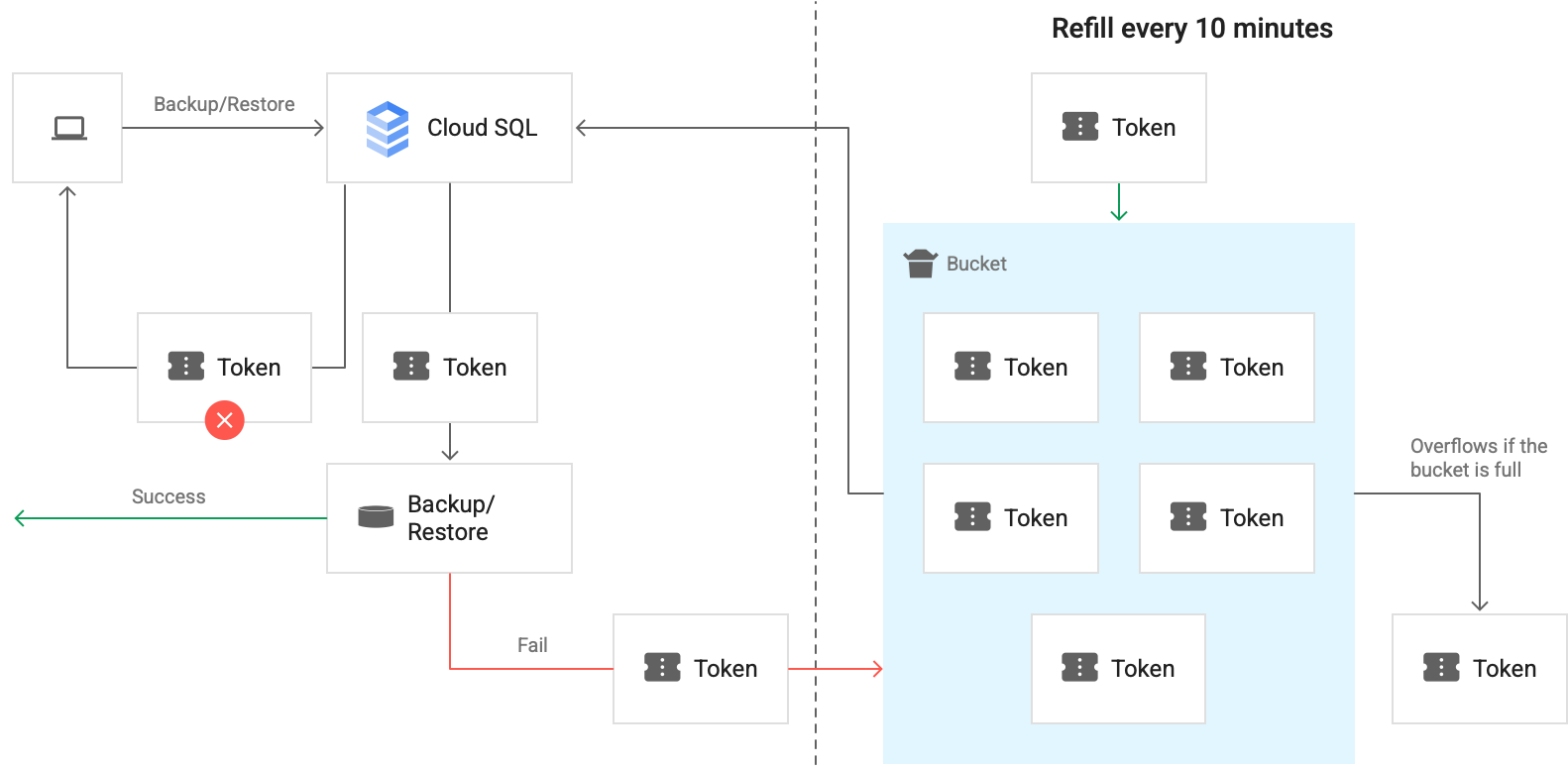
Cloud SQL limits the rate for backup operations on the data disk. You're allowed a maximum of five backup operations every 50 minutes per instance per project. If a backup operation fails, it doesn't count towards this quota. If you reach the limit, the operation fails with an error message that tells you when you can retry.
Cloud SQL uses tokens from a bucket to determine how many backup operations are available at any one time. Each instance has a bucket. There's a maximum of five tokens in the bucket that you can use for backup operations. Every 10 minutes, a new token is added to the bucket. If the bucket is full, the token overflows.
Each time you issue a backup operation, a token is granted from the bucket. If the operation succeeds, the token is removed from the bucket. If it fails, the token is returned to the bucket. The following diagram shows how this works:
Transaction log retention
Transaction logs are stored in your instance's storage location and retention is in days. For Cloud SQL Enterprise Plus edition instances, the range is from 1 to 35 days, with a default of 14 days. For Cloud SQL Enterprise edition instances, the range is from 1 to 7 days, with a default of 7 days. For both Cloud SQL Enterprise Plus edition and Cloud SQL Enterprise edition instances, the transaction log retention setting must be less than the backup retention setting.
Logs are purged once daily, not continuously. When the number of days of log retention is the same as the number of backups, it can result in insufficient log retention. For example, setting log retention to seven days and backup retention to seven backups means that between six and seven days of logs will be retained.
We recommend setting the number of backups retained to one number more than the number of days for log retention to make sure there are backups for every day of the log retention period.