
This document shows you how to create a regional external Application Load Balancer to route requests for static content to Cloud Storage buckets.
Before you begin
Make sure that your setup meets the following prerequisites.
Install the Google Cloud CLI
Some of the instructions in this guide can only be carried out using the Google Cloud CLI. To install it, see Install the gcloud CLI.
You can find commands related to load balancing in the API and gcloud CLI references document.
Required roles
If you are the project creator, you are granted the
Owner role
(roles/owner). By default, the Owner role (roles/owner) or
the Editor role (roles/editor) includes the permissions necessary
to follow this document.
If you aren't the project creator, required permissions must be granted on the project to the appropriate principal. For example, a principal can be a Google Account (for end users) or a service account.
To get the permissions that you need to to create Cloud Storage buckets and network resources, ask your administrator to grant you the following IAM roles on your project:
-
Create a VPC network and load balancing components:
Compute Network Admin role (
roles/compute.networkAdmin) -
Create Cloud Storage buckets:
Storage Object Admin role (
roles/storage.objectAdmin)
For more information about granting roles, see Manage access to projects, folders, and organizations.
You might also be able to get the required permissions through custom roles or other predefined roles.
For more information about roles and permissions for Cloud Load Balancing, see Roles and permissions. For more information about defining IAM policies with conditional grants for forwarding rules, see IAM Conditions for forwarding rules.
Set up an SSL certificate resource
For a regional external Application Load Balancer that uses HTTPS as the request-and-response protocol, you can create an SSL certificate resource using either a Compute Engine SSL certificate or a Certificate Manager certificate.
For this example, create an SSL certificate resource using Certificate Manager as described in one of the following documents:
- Deploy a regional Google-managed certificate with DNS authorization
- Deploy a regional Google-managed certificate with Certificate Authority Service
- Deploy a regional self-managed certificate
After you create the certificate, you can attach the certificate to the HTTPS target proxy.
We recommend using a Google-managed certificate.
Limitations
The following limitations apply to Cloud Storage buckets when serving as backends to a regional external Application Load Balancer:
Private bucket access isn't supported, so the backend bucket must be publicly accessible over the internet.
Signed URLs aren't supported.
Cloud CDN integration isn't available when creating backend buckets for a regional external Application Load Balancer.
When using a regional external Application Load Balancer to access backend buckets, only the HTTP
GETmethod is supported. You can download content from the bucket, but uploading content to the bucket through the regional external Application Load Balancer isn't available.For a regional external Application Load Balancer, Cloud Storage buckets are supported only in the region where the load balancer is configured. Dual-region or multi-region buckets aren't supported.
Setup overview
The following diagram shows a regional external Application Load Balancer with backend buckets located in the same region as the load balancer.
The forwarding rule of the regional external Application Load Balancer has an external IP address.
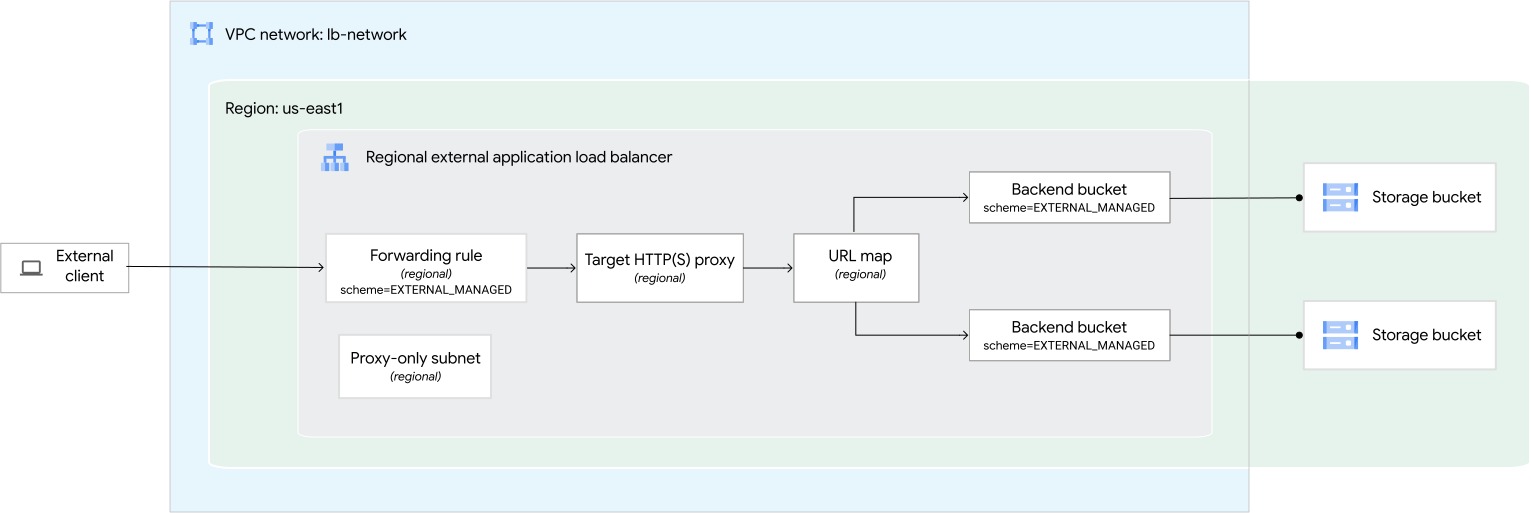
In the sections that follow, you configure the different resources as shown in the preceding diagram.
Configure the network and the proxy-only subnet
This example uses the following VPC network, region, and proxy-only subnet:
Network. The network is a custom mode VPC network named
lb-network.Subnet for Envoy proxies. A subnet named
proxy-only-subnet-usin theus-east1region uses10.129.0.0/23for its primary IP range.
Configure a custom mode VPC network
Console
In the Cloud de Confiance console, go to the VPC networks page.
Click Create VPC network.
For Name, enter
lb-network.Click Create.
gcloud
Create a custom VPC network, named
lb-network, with thegcloud compute networks createcommand.gcloud compute networks create lb-network --subnet-mode=custom
Configure the proxy-only subnet
A proxy-only subnet provides a set of IP addresses that Cloud de Confiance by S3NS uses to run Envoy proxies on your behalf. The proxies terminate connections from the client and create new connections to the backends.
This proxy-only subnet is used by all Envoy-based regional load balancers in the same region as the VPC network. There can only be one active proxy-only subnet for a given purpose, per region, per network.
Console
In the Cloud de Confiance console, go to the VPC networks page.
Click the name of the VPC network that you created.
On the Subnet tab, click Add subnet.
Enter the following information:
- Name:
proxy-only-subnet-us - Region:
us-east1 - Purpose: Regional Managed Proxy
- IP address range:
10.129.0.0/23
- Name:
Click Add.
gcloud
Create a proxy-only subnet in the
us-east1region with thegcloud compute networks subnets createcommand.gcloud compute networks subnets create proxy-only-subnet-us \ --purpose=REGIONAL_MANAGED_PROXY \ --role=ACTIVE \ --region=us-east1 \ --network=lb-network \ --range=10.129.0.0/23
Configure your Cloud Storage buckets
The process for configuring your Cloud Storage buckets is as follows:
- Create the buckets.
- Copy content to the buckets.
Create Cloud Storage buckets
In this example, you create two Cloud Storage buckets in the
us-east1 region.
Console
- In the Cloud de Confiance console, go to the Cloud Storage Buckets page.
Click Create.
In the Get started section, enter a globally unique name that follows the naming guidelines.
Click Choose where to store your data.
Set Location type to Region.
From the list of regions, select us-east1.
Click Create.
Click Buckets to return to the Cloud Storage Buckets page. Use these instructions to create a second bucket in the us-east1 region.
gcloud
Create the first bucket in the
us-east1region with thegcloud storage buckets createcommand.gcloud storage buckets create gs://BUCKET1_NAME \ --default-storage-class=standard \ --location=us-east1 \ --uniform-bucket-level-accessCreate the second bucket also in the
us-east1region with thegcloud storage buckets createcommand.gcloud storage buckets create gs://BUCKET2_NAME \ --default-storage-class=standard \ --location=us-east1 \ --uniform-bucket-level-access
Replace the variables BUCKET1_NAME
and BUCKET2_NAME
with your Cloud Storage bucket names.
Copy graphic files to your Cloud Storage buckets
To enable you to test the setup, copy a graphic file from a public Cloud Storage bucket to your own Cloud Storage buckets.
Run the following commands in Cloud Shell, replacing the bucket name variables with your unique Cloud Storage bucket names:
gcloud storage cp gs://gcp-external-http-lb-with-bucket/three-cats.jpg gs://BUCKET1_NAME/love-to-purr/
gcloud storage cp gs://gcp-external-http-lb-with-bucket/two-dogs.jpg gs://BUCKET2_NAME/love-to-fetch/
Make your Cloud Storage buckets publicly readable
To make all objects in a bucket readable to everyone on the public internet,
grant the principal allUsers the Storage Object Viewer role
(roles/storage.objectViewer).
Console
To grant all users access to view objects in your buckets, repeat the following procedure for each bucket:
- In the Cloud de Confiance console, go to the Cloud Storage Buckets page.
In the list of buckets, click the name of the bucket that you want to make public.
Select the Permissions tab.
In the Permissions section, click the Grant access button. The Grant access dialog appears.
In the New principals field, enter
allUsers.In the Select a role field, enter
Storage Object Viewerin the filter box and select the Storage Object Viewer from the filtered results.Click Save.
Click Allow public access.
gcloud
To grant all users access to view objects in your buckets, run the buckets add-iam-policy-binding command.
gcloud storage buckets add-iam-policy-binding gs://BUCKET1_NAME \
    --member=allUsers \
    --role=roles/storage.objectViewer
gcloud storage buckets add-iam-policy-binding gs://BUCKET2_NAME \
   --member=allUsers \
   --role=roles/storage.objectViewer
Reserve the load balancer's IP address
Reserve a static external IP address for the forwarding rule of the load balancer.
Console
In the Cloud de Confiance console, go to the Reserve a static address page.
Choose a Name for the new address.
For IP version, select IPv4.
For Type, select Regional.
For Region, select us-east1.
Leave the Attached to option set to None. After you create the load balancer, this IP address is attached to the load balancer's forwarding rule.
Click Reserve to reserve the IP address.
gcloud
To reserve a static external IP address, use the
gcloud compute addresses createcommand.gcloud compute addresses create ADDRESS_NAME \ --region=us-east1
Replace the following:
ADDRESS_NAME: the name you want to call this address.
Use the
gcloud compute addresses describecommand to view the result:gcloud compute addresses describe ADDRESS_NAME
The IP address returned is referred to as
RESERVED_IP_ADDRESS in the following section.
Configure the load balancer with backend buckets
This section shows you how to create the following resources for a regional external Application Load Balancer:
- Two backend buckets. The backend buckets serve as a wrapper to the Cloud Storage buckets that you created earlier.
- URL map
- Target proxy
- A forwarding rule with a regional IP addresses. The forwarding rule has an external IP address.
In this example, you can use HTTP or HTTPS as the request-and-response protocol between the client and the load balancer. To create an HTTPS load balancer, you must add an SSL certificate resource to the load balancer's frontend.
To create the aforementioned load balancing components using the gcloud CLI, follow these steps:
Create two backend buckets in the
us-east1region with thegcloud compute backend-buckets createcommand. The backend buckets have a load balancing scheme ofEXTERNAL_MANAGED.gcloud compute backend-buckets create backend-bucket-cats \ --gcs-bucket-name=BUCKET1_NAME \ --load-balancing-scheme=EXTERNAL_MANAGED \ --region=us-east1gcloud compute backend-buckets create backend-bucket-dogs \ --gcs-bucket-name=BUCKET2_NAME \ --load-balancing-scheme=EXTERNAL_MANAGED \ --region=us-east1Replace the variables
BUCKET1_NAMEandBUCKET2_NAMEwith your Cloud Storage bucket names.Create a URL map to route incoming requests to the backend bucket with the
gcloud compute url-maps createcommand.gcloud compute url-maps create URL_MAP_NAME \ --default-backend-bucket=backend-bucket-cats \ --region=us-east1Replace the variable
URL_MAP_NAMEwith the name of the URL map.Configure the host and path rules of the URL map with the
gcloud compute url-maps add-path-matchercommand.In this example, the default backend bucket is
backend-bucket-cats, which handles all the paths that exist within it. However, any request targetinghttp://FORWARDING_RULE_IP_ADDRESS/love-to-fetch/two-dogs.jpguses thebackend-bucket-dogsbackend. For example, if the/love-to-fetch/folder also exists within your default backend (backend-bucket-cats), the load balancer prioritizes thebackend-bucket-dogsbackend because there is a specific path rule for/love-to-fetch/*.gcloud compute url-maps add-path-matcher URL_MAP_NAME \ --path-matcher-name=path-matcher-pets \ --new-hosts=* \ --backend-bucket-path-rules="/love-to-fetch/*=backend-bucket-dogs" \ --default-backend-bucket=backend-bucket-catsReplace the variable
URL_MAP_NAMEwith the name of the URL map.Create a target proxy with the
gcloud compute target-http-proxies createcommand.For HTTP traffic, create a target HTTP proxy to route requests to the URL map:
gcloud compute target-http-proxies create http-proxy \
    --url-map=URL_MAP_NAME \
    --region=us-east1
Replace the variable
URL_MAP_NAMEwith the name of the URL map.For HTTPS traffic, create a target HTTPS proxy to route requests to the URL map. The proxy is the part of the load balancer that holds the SSL certificate for an HTTPS load balancer. After you create the certificate, you can attach the certificate to the HTTPS target proxy.
To attach a Certificate Manager certificate, run the following command:
gcloud compute target-https-proxies create https-proxy \
    --url-map=URL_MAP_NAME \
    --certificate-manager-certificates=CERTIFICATE_NAME \
    --region=us-east1
Replace the following:
URL_MAP_NAME: the name of the URL mapCERTIFICATE_NAME: the name of the SSL certificate you created using Certificate Manager.
Create a forwarding rule with an IP address in the
us-east1region by using thegcloud compute forwarding-rules createcommand.For HTTP traffic, create a regional forwarding rule to route incoming requests to the HTTP target proxy:
gcloud compute forwarding-rules create http-fw-rule \
    --load-balancing-scheme=EXTERNAL_MANAGED \
    --network=lb-network \
    --address=RESERVED_IP_ADDRESS \
    --ports=80 \
    --region=us-east1 \
    --target-http-proxy=http-proxy \
    --target-http-proxy-region=us-east1
For HTTPS traffic, create a regional forwarding rule to route incoming requests to the HTTPS target proxy:
gcloud compute forwarding-rules create https-fw-rule \
    --load-balancing-scheme=EXTERNAL_MANAGED \
    --network=lb-network \
    --address=RESERVED_IP_ADDRESS \
    --ports=443 \
    --region=us-east1 \
    --target-https-proxy=https-proxy \
    --target-https-proxy-region=us-east1
Send an HTTP request to the load balancer
Now that the load balancing service is running, you can send a request to the forwarding rule of the load balancer.
Get the IP address of the load balancer's forwarding rule (
http-fw-rule), which is in theus-east1region.gcloud compute forwarding-rules describe http-fw-rule \ --region=us-east1Copy the returned IP address to use as
FORWARDING_RULE_IP_ADDRESSin the next step.Make an HTTP request to the virtual IP address (VIP) of the forwarding rule using curl.
curl http://FORWARDING_RULE_IP_ADDRESS/love-to-purr/three-cats.jpg --output three-cats.jpg
curl http://FORWARDING_RULE_IP_ADDRESS/love-to-fetch/two-dogs.jpg --output two-dogs.jpg