
This page describes how to use the Fabric FAST Terraform framework to set up a new "starter" organization. While you can always manually create projects, folders, and more, using Fabric FAST's basic setup gets you up and running quickly with secure, well-tested defaults, and without the administrative overhead of a large enterprise setup.
This page is for administrators who need to configure a new organization in Cloud de Confiance. We recommend this option if the following scenarios apply to your organization:
- You have limited experience with cloud configuration and Terraform.
- You expect a single team (or even a single engineer) to manage the entire stack end-to-end. This might happen if you are a smaller organization or startup, or if you are developing a proof-of-concept.
After you have completed this setup, you can continue using Terraform to manage your new organization, or you can switch to using the Google Cloud CLI or the Cloud de Confiance console.
If you have more complex organizational or technical needs, or if you have used Fabric FAST before with Google Cloud, we recommend that you go straight to Enterprise setup with Fabric FAST to learn about FAST stages and get started with our classic configuration. If you're still not sure which option is for you, see Which Fabric FAST setup is for me?.
What should I know first?
Before you read this guide, you should:
Understand the basic Cloud de Confiance concepts described in the Cloud de Confiance overview.
Understand the Cloud de Confiance resource hierarchy, including organizations, folders, and projects.
Read the Setup overview, particularly About Fabric FAST. The basic setup described in this document uses a special Fabric FAST configuration that specifically targets your universe and provides a ready-to-use organization, all created in a single step.
It's useful to be familiar with Terraform, but you don't need to be an experienced Terraform user to use this guide.
What do I get with this setup?
The "starter" Fabric FAST configuration is relatively flat, providing a basic, usable starting point for your organization. This is in contrast to the "classic" setup, which has a deep, enterprise-grade resource hierarchy, and involves incrementally building the configuration in stages.
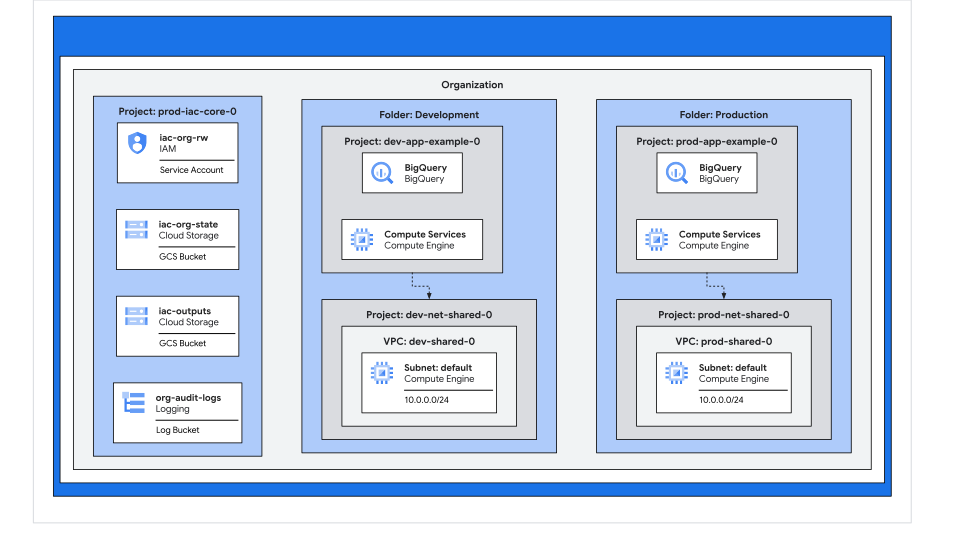
After running the setup, your organization resource contains the following:
- Two environment folders, one for development and one for production. They are automatically tagged to help you track costs and apply policies per environment.
- Two projects in each folder:
- A dedicated network project to contain the folder's single network.
- A first application project, created under the folder and configured as a service project of the folder's VPC.
- A single Virtual Private Cloud (VPC) network in each folder, with one subnet and basic, secure firewall rules pre-configured (for example, allowing secure Identity-Aware Proxy (IAP) login).
- A single top-level management project (
prod-iac-core-0). This project acts as the brain of your setup, securely storing your Terraform's state, automation service accounts, and central audit logs.
You can then add your own folders, projects, networks, and other resources as needed.
The following diagram shows the relationships between the "starter" resources:
Before you begin
Ensure the following:
- You have an identity provider (IdP) configured for your organization and that you are signed in to Cloud de Confiance with your administrator ID.
- You have set up the Google Cloud CLI for use with Cloud de Confiance.
- You have the
gitandterraformtools installed on your local machine:- Install Git
- Install Terraform (minimum version 1.12)
You have the following information ready:
- Your chosen principal who should be granted administrator permissions for your organization. This can either be your own ID or (recommended) an administrator user group of which you are a member.
- Your chosen essential contact email address for core projects
Your organization resource ID. You can find this in the Cloud de Confiance console, or by running the following Google Cloud CLI command:
gcloud organizations listThis lists all the organizations to which you belong (there should only be one!) and their corresponding IDs.
Grant required permissions
Run the following commands to grant the principal running the deployment the required IAM permissions:
export FAST_PRINCIPAL="PRINCIPAL_ID"

export FAST_ORG_ID="ORG_ID"

# set needed roles (billing role only needed for organization-owned account)
export FAST_ROLES="\
  roles/billing.admin \
  roles/logging.admin \
  roles/iam.organizationRoleAdmin \
  roles/orgpolicy.policyAdmin \
  roles/resourcemanager.folderAdmin \
  roles/resourcemanager.organizationAdmin \
  roles/resourcemanager.projectCreator \
  roles/resourcemanager.tagAdmin \
  roles/owner"

for role in $FAST_ROLES; do
  gcloud organizations add-iam-policy-binding $FAST_ORG_ID \
    --member $FAST_PRINCIPAL --role $role --condition None
done
Replace the following:
PRINCIPAL_ID: An identifier for the relevant principal. You can learn more about how to specify identities and groups from Workforce Identity Federation in Principal identifiers.ORG_ID: Your organization resource ID.
Create a temporary project
Fabric FAST Terraform requires at least one existing project to run, because organization policy services are not automatically available at the organization root during initial setup. If this is your first time applying the Terraform in an empty organization, create a temporary project at the root of your new organization with the following steps:
- Create a project in your organization and make a note of its project ID.
Set the project as your current project for the Google Cloud CLI:
gcloud config set project PROJECT_IDEnable the required services in your project by running the following command:
gcloud services enable \
 bigquery.googleapis.com \
 cloudbilling.googleapis.com \
 cloudresourcemanager.googleapis.com \
 essentialcontacts.googleapis.com \
 iam.googleapis.com \
 logging.googleapis.com \
 orgpolicy.googleapis.com \
 serviceusage.googleapis.com
You can delete this project if you like once you have finished your setup.
Get the Terraform
Clone the Fabric FAST repository to your local machine by running the following command:
git clone https://github.com/GoogleCloudPlatform/cloud-foundation-fabric.git
After the files are copied to your machine, change to the Fabric FAST organization setup stage root directory as your working directory to get started.
cd cloud-foundation-fabric/fast/stages/0-org-setup
Update config files
Before applying the Terraform, you need to update some config files used by Fabric FAST to specify details like your chosen configuration, your target universe, and your administrator account. Use your preferred text editor.
Create a providers file
A providers file ensures that Terraform targets the correct API endpoints for your universe.
- In the organization setup stage root directory (
0-org-setup) create a file calledproviders.tf. Add the following to your file:
provider "google" {
  universe_domain = "s3nsapis.fr"
}

provider "google-beta" {
  universe_domain = "s3nsapis.fr"
}
Save your new file.
Specify your dataset
The starter configuration is specified in the starter-gcd dataset. In Fabric FAST, a dataset is a YAML-based configuration that specifies the type and number of cloud resources you want to create, letting users select between best practices for different types of organization and different technical needs.
To specify that you want to use the starter-gcd dataset, complete the following steps:
- Still in the organization setup stage root directory, create a new file called
terraform.tfvars In this file, specify that you want to use the
starter-gcddataset as follows:factories_config = { dataset="datasets/starter-gcd" }Save your new file.
Specify setup defaults
Fabric FAST uses a defaults.yaml file for each dataset to specify values used throughout the setup, such as universe-specific values and your administrator details.
- Open the existing
defaults.yamlfile in the dataset's directory0-org-setup/datasets/starter-gcd. Update the defaults file as follows:
# ... existing configuration ...
projects:
  defaults:
    prefix: PREFIX
    locations:
      logging: global
      storage: u-france-east1
  overrides:
    universe:
      domain: s3nsapis.fr
      prefix: s3ns
      forced_jit_service_identities:
        - compute.googleapis.com
      unavailable_service_identities:
        - dns.googleapis.com
        - monitoring.googleapis.com
        - networksecurity.googleapis.com
context:
  email_addresses:
    gcp-organization-admins: CONTACT_EMAIL
  iam_principals:
    gcp-organization-admins: ADMIN_ID
  locations:
    primary: u-france-east1
# ... existing configuration ...
Replace the following:
PREFIX: An organization-specific prefix that is added to the ID of each created project, in addition to the automatic universe-specific prefix. This helps ensure that your project IDs are unique in your universe.CONTACT_EMAIL: The email address you want to set as the essential contact for core projects.ADMIN_ID: An identifier for the group or ID who should have administrator permissions for your organization.
Save
defaults.yaml.
Apply the Terraform
- Ensure that you are back in the organization setup stage's root directory.
Run the following command to initialize Terraform (you only have to do this once per directory):
terraform initRun the following command to apply the Terraform:
terraform apply
Verify your setup
To verify your setup, we recommend that you first check by using the Google Cloud CLI or the Cloud de Confiance console that your folder and project structure have been set up correctly.
You can then try deploying an application workload or workloads in one of the application projects, either using a workload of your choice or by following some of our quickstart tutorials. These are short tutorials that help you quickly get a simple example up and running on Cloud de Confiance. Find out more in What's next.
What's next
Explore your organization and verify your setup by trying a suggested tutorial
Extend and customize your initial setup, including:
- Create more projects and attach them to your networks.
- Further configure logging and monitoring, including if preferred configuring Cloud Monitoring to send metrics for visualization to Grafana.
Grant permissions to users and groups with IAM.