

Gemini のコンピュータ使用ツールを使用すると、アプリケーションがブラウザでタスクを操作して自動化できるようになります。コンピュータの使用が有効になっている場合、モデルはスクリーンショットを使用してコンピュータ画面に関する情報を取得し、マウスのクリックやキーボード入力などの特定の UI アクションを生成してアクションを実行します。
コンピュータ使用モデルを利用して、次のことができるエージェントを構築できます。
- ウェブサイトでのデータ入力やフォームへの記入など、繰り返し発生する作業を自動化します。
- ウェブサイトをナビゲートして情報を収集します。
- ウェブ アプリケーションで一連のアクションを実行して、ユーザーを支援します。
このガイドの内容は、次のとおりです。
- コンピュータ使用の仕組み
- コンピュータの使用を有効にする方法
- リクエストの送信、レスポンスの受信、エージェント ループの構築を行う方法
- サポートされているコンピュータ アクション
- 安全性とセキュリティのサポート
- プレビュー版の料金
関数呼び出しと同様に、クライアントサイドのアプリケーション コードを記述して、コンピュータ使用関数呼び出しを受信し、対応するアクションを実行する必要があります。
このガイドは、Google Gen AI SDK for Python を使用しており、Playwright API に精通していることを前提としています。コンピュータ使用はプレビュー リリースであり、このプレビュー期間中、他の SDK 言語や Cloud de Confiance コンソールではサポートされていません。
GitHub でコンピュータ使用のリファレンス実装を確認することができます。
サポートされているモデル
コンピュータの使用は、次のモデルでサポートされています。
クリックしてサポートされているモデルを開く
コンピュータ使用の仕組み
テキスト レスポンスを生成する代わりに、コンピュータ使用は、マウスのクリックなどの特定の UI アクションを実行するタイミングを判断し、これらのアクションを実行するために必要なパラメータを返します。クライアントサイドのアプリケーション コードを記述して、コンピュータ使用 function_call を受け取り、対応するアクションを実行する必要があります。
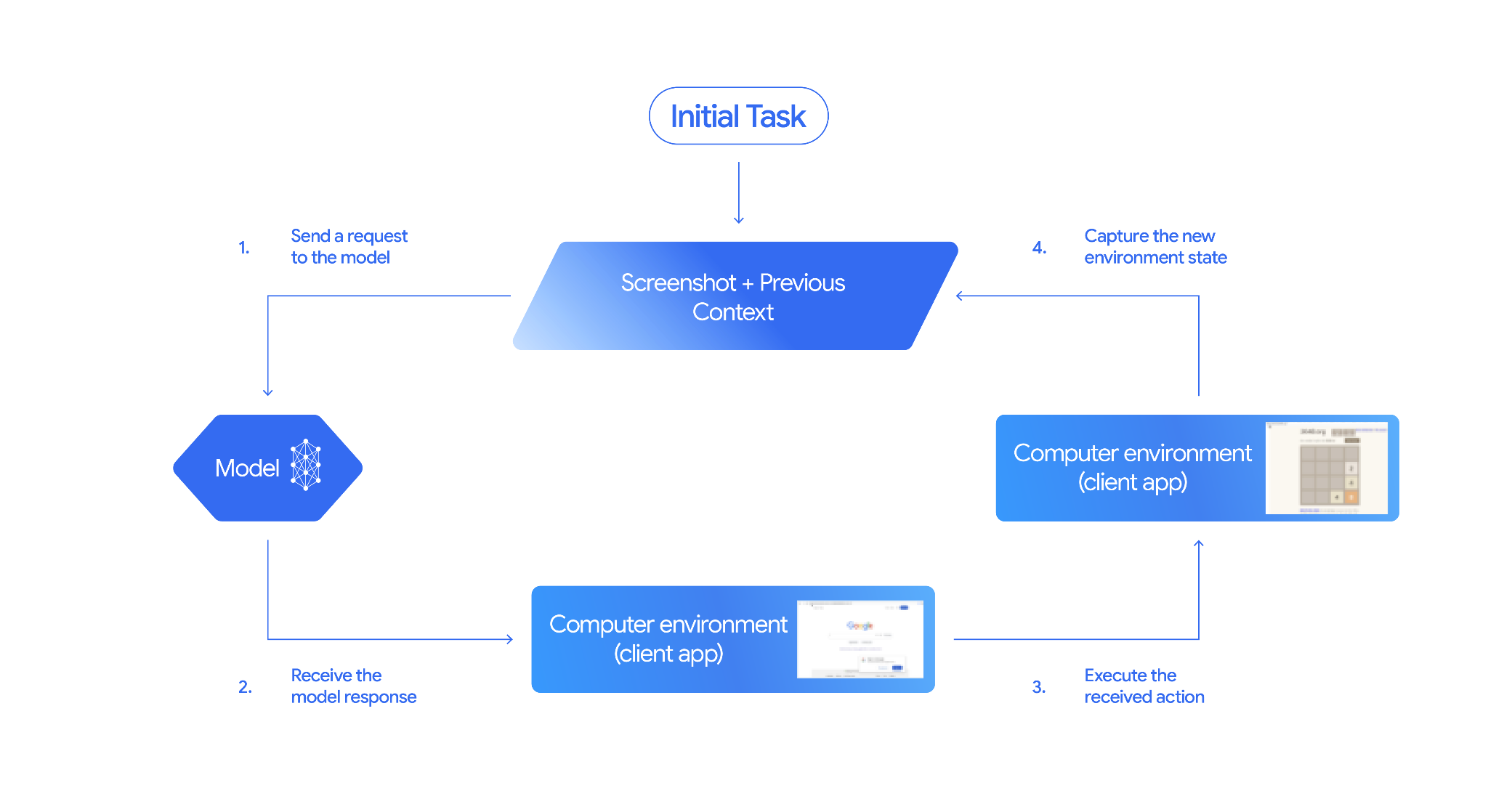
コンピュータ使用のインタラクションは、エージェント ループ プロセスに従います。
モデルにリクエストを送信する
- API リクエストに、コンピュータ使用(および必要に応じて別のツール)を追加します。
- ユーザーのリクエストと、GUI の現在の状態を表すスクリーンショットを含むプロンプトをモデルに送信します。
モデル レスポンスを受信する
- モデルはユーザーのリクエストとスクリーンショットを分析し、UI アクションを表す
function_call(「座標(x,y)をクリック」、「テキスト text を入力」など)を含むレスポンスを生成します。モデルで使用できるすべてのアクションの一覧については、サポートされているアクションをご覧ください。 - API レスポンスには、モデルの提案されたアクションをチェックした内部安全システムからの
safety_responseが含まれる場合もあります。このsafety_responseは、アクションを次のように分類します。- 通常または許可: アクションは安全であると見なされます。これは、
safety_responseが存在しないことでも表されます。 - 確認が必要: モデルがリスクの高い操作(「Cookie バナーに同意する」をクリックするなど)を実行しようとしています。
- 通常または許可: アクションは安全であると見なされます。これは、
- モデルはユーザーのリクエストとスクリーンショットを分析し、UI アクションを表す
受信したアクションを実行する
- クライアントサイドのコードは
function_callと、付随するsafety_responseを受け取ります。 safety_responseが「通常または許可」を示している場合(またはsafety_responseが存在しない場合)、クライアントサイドのコードはターゲット環境(ウェブブラウザなど)で指定されたfunction_callを実行できます。safety_responseが「確認が必要」を示している場合、アプリケーションはfunction_callを実行する前にエンドユーザーに確認を求める必要があります。ユーザーが承認した場合は、アクションの実行に進みます。ユーザーが拒否した場合は、アクションを実行しないでください。
- クライアントサイドのコードは
新しい環境の状態をキャプチャする
- アクションが実行されると、クライアントは GUI の新しいスクリーンショットと現在の URL をキャプチャし、
function_responseの一部としてモデルに送信します。 - アクションが安全システムによってブロックされた場合や、ユーザーによって拒否された場合、アプリはモデルに別の形式のフィードバックを送信するか、インタラクションを終了することがあります。
- アクションが実行されると、クライアントは GUI の新しいスクリーンショットと現在の URL をキャプチャし、
更新された状態で新しいリクエストがモデルに送信されます。ステップ 2 からプロセスが繰り返されます。モデルは、新しいスクリーンショット(提供されている場合)と進行中の目標を使用して、次のアクションを提案します。このループは、タスクが完了するか、エラーが発生するか、プロセスが終了するまで続きます(たとえば、レスポンスが安全フィルタまたはユーザーの決定によってブロックされた場合など)。
次の図は、コンピュータ使用の仕組みを示しています。
コンピュータの使用を有効にする
コンピュータ使用を有効にするには、アプリケーションがサポートされているモデルのいずれかを使用していることを確認し、有効なツールのリストにコンピュータ使用を追加します。
Python
from google import genai
from google.genai import types
from google.genai.types import Content, Part, FunctionResponse

client = genai.Client()

# Add computer use to the list of tools
generate_content_config = genai.types.GenerateContentConfig(
    tools=[
        types.Tool(
            computer_use=types.ComputerUse(
                environment=types.Environment.ENVIRONMENT_BROWSER,
                )
              ),
            ]
          )

# Example request using computer use
contents = [
    Content(
        role="user",
        parts=[
            Part(text="Go to google.com and search for 'weather in New York'"),
          ],
        )
      ]

response = client.models.generate_content(
    model="gemini-3-flash-preview",
    contents=contents,
    config=generate_content_config,
  )
リクエストを送信する
コンピュータ使用ツールを構成したら、ユーザーの目標と GUI の最初のスクリーンショットを含むプロンプトをモデルに送信します。
必要に応じて、次の情報を追加することもできます。
- 除外するアクション: サポートされている UI アクションのリストに、モデルに実行させたくないアクションがある場合は、
excluded_predefined_functionsでこれらのアクションを指定します。 - ユーザー定義関数: コンピュータの使用に加えて、カスタムのユーザー定義関数を含めることもできます。
次のサンプルコードは、コンピュータの使用を有効にして、モデルにリクエストを送信します。
Python
from google import genai
from google.genai import types
from google.genai.types import Content, Part

client = genai.Client()

# Specify predefined functions to exclude (optional)
excluded_functions = ["drag_and_drop"]

# Configuration for computer use with browser environment
generate_content_config = genai.types.GenerateContentConfig(
    tools=[
        # 1. Computer Use tool with browser environment
        types.Tool(
            computer_use=types.ComputerUse(
                environment=types.Environment.ENVIRONMENT_BROWSER,
                # Optional: Exclude specific predefined functions
                excluded_predefined_functions=excluded_functions
                )
              ),
        # 2. Optional: Custom user-defined functions (need to defined above)
        # types.Tool(
           # function_declarations=custom_functions
           #   )
    ],
)

# Create the content with user message
contents: list[Content] = [
    Content(
        role="user",
        parts=[
            Part(text="Search for highly rated smart fridges with touchscreen, 2 doors, around 25 cu ft, priced below 4000 dollars on Google Shopping. Create a bulleted list of the 3 cheapest options in the format of name, description, price in an easy-to-read layout."),
            # Optional: include a screenshot of the initial state
            # Part.from_bytes(
                 # data=screenshot_image_bytes,
                 # mime_type='image/png',
            # ),
        ],
    )
]

# Generate content with the configured settings
response = client.models.generate_content(
    model='gemini-3-flash-preview',
    contents=contents,
    config=generate_content_config,
)

# Print the response output
print(response.text)
カスタム ユーザー定義関数を含めて、モデルの機能を拡張することもできます。ブラウザ固有のアクションを除外しながら、open_app、long_press_at、go_home などのアクションを追加してモバイル ユースケースのコンピュータの使用状況を構成する方法については、モバイル ユースケースでコンピュータ使用状況を使用するをご覧ください。
レスポンスの受信
モデルは、タスクを完了するために UI アクションまたはユーザー定義関数が必要であると判断した場合、1 つ以上の FunctionCalls を返します。アプリのコードで、これらのアクションを解析して実行し、結果を収集する必要があります。コンピュータ使用は並列関数呼び出しをサポートしています。つまり、モデルは 1 回のターンで複数の独立したアクションを返すことができます。
{
  "content": {
    "parts": [
      {
        "text": "I will type the search query into the search bar. The search bar is in the center of the page."
      },
      {
        "function_call": {
          "name": "type_text_at",
          "args": {
            "x": 371,
            "y": 470,
            "text": "highly rated smart fridges with touchscreen, 2 doors, around 25 cu ft, priced below 4000 dollars on Google Shopping",
            "press_enter": true
          }
        }
      }
    ]
  }
}
アクションによっては、API レスポンスで safety_response が返されることもあります。
{
  "content": {
    "parts": [
      {
        "text": "I have evaluated step 2. It seems Google detected unusual traffic and is asking me to verify I'm not a robot. I need to click the 'I'm not a robot' checkbox located near the top left (y=98, x=95)."
      },
      {
        "function_call": {
          "name": "click_at",
          "args": {
            "x": 60,
            "y": 100,
            "safety_decision": {
              "explanation": "I have encountered a CAPTCHA challenge that requires interaction. I need you to complete the challenge by clicking the 'I'm not a robot' checkbox and any subsequent verification steps.",
              "decision": "require_confirmation"
            }
          }
        }
      }
    ]
  }
}
受信したアクションを実行する
レスポンスを受け取ったら、モデルは受け取ったアクションを実行する必要があります。
次のコードは、Gemini のレスポンスから関数呼び出しを抽出して、座標を 0~1000 の範囲から実際のピクセルに変換します。さらに、Playwright を使用してブラウザ アクションを実行し、各アクションの成功または失敗のステータスを返します。
import time
from typing import Any, List, Tuple


def normalize_x(x: int, screen_width: int) -> int:
    """Convert normalized x coordinate (0-1000) to actual pixel coordinate."""
    return int(x / 1000 * screen_width)


def normalize_y(y: int, screen_height: int) -> int:
    """Convert normalized y coordinate (0-1000) to actual pixel coordinate."""
    return int(y / 1000 * screen_height)


def execute_function_calls(response, page, screen_width: int, screen_height: int) -> List[Tuple[str, Any]]:
    """
    Extract and execute function calls from Gemini response.

    Args:
        response: Gemini API response object
        page: Playwright page object
        screen_width: Screen width in pixels
        screen_height: Screen height in pixels

    Returns:
        List of tuples: [(function_name, result), ...]
    """
    # Extract function calls and thoughts from the model's response
    candidate = response.candidates[0]
    function_calls = []
    thoughts = []

    for part in candidate.content.parts:
        if hasattr(part, 'function_call') and part.function_call:
            function_calls.append(part.function_call)
        elif hasattr(part, 'text') and part.text:
            thoughts.append(part.text)

    if thoughts:
        print(f"Model Reasoning: {' '.join(thoughts)}")

    # Execute each function call
    results = []
    for function_call in function_calls:
        result = None

        try:
            if function_call.name == "open_web_browser":
                print("Executing open_web_browser")
                # Browser is already open via Playwright, so this is a no-op
                result = "success"

            elif function_call.name == "click_at":
                actual_x = normalize_x(function_call.args["x"], screen_width)
                actual_y = normalize_y(function_call.args["y"], screen_height)

                print(f"Executing click_at: ({actual_x}, {actual_y})")
                page.mouse.click(actual_x, actual_y)
                result = "success"

            elif function_call.name == "type_text_at":
                actual_x = normalize_x(function_call.args["x"], screen_width)
                actual_y = normalize_y(function_call.args["y"], screen_height)
                text = function_call.args["text"]
                press_enter = function_call.args.get("press_enter", False)
                clear_before_typing = function_call.args.get("clear_before_typing", True)

                print(f"Executing type_text_at: ({actual_x}, {actual_y}) text='{text}'")

                # Click at the specified location
                page.mouse.click(actual_x, actual_y)
                time.sleep(0.1)

                # Clear existing text if requested
                if clear_before_typing:
                    page.keyboard.press("Control+A")
                    page.keyboard.press("Backspace")

                # Type the text
                page.keyboard.type(text)

                # Press enter if requested
                if press_enter:
                    page.keyboard.press("Enter")

                result = "success"

            else:
                # For any functions not parsed above
                print(f"Unrecognized function: {function_call.name}")
                result = "unknown_function"

        except Exception as e:
            print(f"Error executing {function_call.name}: {e}")
            result = f"error: {str(e)}"

        results.append((function_call.name, result))

    return results
返された safety_decision が require_confirmation の場合は、アクションの実行に進む前に、ユーザーに確認を求める必要があります。利用規約に基づき、人間による確認のリクエストを回避することは許可されていません。
次のコードでは、前のコードに安全ロジックを追加しています。
import termcolor


def get_safety_confirmation(safety_decision):
    """Prompt user for confirmation when safety check is triggered."""
    termcolor.cprint("Safety service requires explicit confirmation!", color="red")
    print(safety_decision["explanation"])

    decision = ""
    while decision.lower() not in ("y", "n", "ye", "yes", "no"):
        decision = input("Do you wish to proceed? [Y]es/[N]o\n")

    if decision.lower() in ("n", "no"):
        return "TERMINATE"
    return "CONTINUE"


def execute_function_calls(response, page, screen_width: int, screen_height: int):
    # ... Extract function calls from response ...

    for function_call in function_calls:
        extra_fr_fields = {}

        # Check for safety decision
        if 'safety_decision' in function_call.args:
            decision = get_safety_confirmation(function_call.args['safety_decision'])
            if decision == "TERMINATE":
                print("Terminating agent loop")
                break
            extra_fr_fields["safety_acknowledgement"] = "true"

        # ... Execute function call and append to results ...
新しい状態をキャプチャする
アクションを実行したら、関数実行の結果をモデルに送り返します。モデルはこの情報を使用して次のアクションを生成します。複数のアクション(並列呼び出し)が実行された場合は、後続のユーザーターンでそれぞれに対して FunctionResponse を送信する必要があります。ユーザー定義関数の場合、FunctionResponse には実行された関数の戻り値が含まれている必要があります。
function_response_parts = []

for name, result in results:
    # Take screenshot after each action
    screenshot = page.screenshot()
    current_url = page.url

    function_response_parts.append(
        FunctionResponse(
            name=name,
            response={"url": current_url},  # Include safety acknowledgement
            parts=[
                types.FunctionResponsePart(
                    inline_data=types.FunctionResponseBlob(
                       mime_type="image/png", data=screenshot
                    )
                )
            ]
        )
    )

# Create the user feedback content with all responses
user_feedback_content = Content(
    role="user",
    parts=function_response_parts
)

# Append this feedback to the 'contents' history list for the next API call
contents.append(user_feedback_content)
エージェント ループを作成する
前の手順をループに組み込んで、複数ステップのやり取りを可能にします。ループは並列関数呼び出しを処理する必要があります。モデルのレスポンスと関数のレスポンスの両方を追加して、会話履歴(contents 配列)を正しく管理してください。
Python
from google import genai
from google.genai.types import Content, Part
from playwright.sync_api import sync_playwright


def has_function_calls(response):
    """Check if response contains any function calls."""
    candidate = response.candidates[0]
    return any(hasattr(part, 'function_call') and part.function_call
               for part in candidate.content.parts)


def main():
    client = genai.Client()

    # ... (config setup from "Send a request to model" section) ...

    with sync_playwright() as p:
        browser = p.chromium.launch(headless=False)
        page = browser.new_page()
        page.goto("https://www.google.com")

        screen_width, screen_height = 1920, 1080

        # ... (initial contents setup from "Send a request to model" section) ...

        # Agent loop: iterate until model provides final answer
        for iteration in range(10):
            print(f"\nIteration {iteration + 1}\n")

            # 1. Send request to model (see "Send a request to model" section)
            response = client.models.generate_content(
                model='gemini-3-flash-preview',
                contents=contents,
                config=generate_content_config,
            )

            contents.append(response.candidates[0].content)

            # 2. Check if done - no function calls means final answer
            if not has_function_calls(response):
                print(f"FINAL RESPONSE:\n{response.text}")
                break

            # 3. Execute actions (see "Execute the received actions" section)
            results = execute_function_calls(response, page, screen_width, screen_height)
            time.sleep(1)

            # 4. Capture state and create feedback (see "Capture the New State" section)
            contents.append(create_feedback(results, page))

        input("\nPress Enter to close browser...")
        browser.close()


if __name__ == "__main__":
    main()
Gemini 3.5 Flash 以降とモバイルまたはパソコンのユースケース
パソコンの使用では、モバイル(ENVIRONMENT_MOBILE)、デスクトップ(ENVIRONMENT_DESKTOP)、ブラウザ(ENVIRONMENT_BROWSER)の環境を設定できます。デフォルトは ENVIRONMENT_BROWSER です。
次の例は、Gemini 3.5 Flash 以降でコンピュータの使用の実行環境を構成する方法を示しています。
REST API
リクエストのデータを使用する前に、次のように置き換えます。
- PROJECT_ID: プロジェクト ID。
HTTP メソッドと URL:
POST https://aiplatform.googleapis.com/v1/projects/PROJECT_ID/locations/global/publishers/google/models/gemini-3.5-flash:generateContent
リクエストの本文(JSON):
{
  "contents": [
    {
      "role": "user",
      "parts": {
        "text": "find me a flight from SF to Hawaii on Jun 30th, coming back on Jul 6th. start by navigating directly to flights.google.com"
      }
    }
  ],
  "generation_config": {
    "candidateCount": 1
  },
  "tools": [
    {
      "computer_use": {
        "environment": "ENVIRONMENT_BROWSER"
      }
    }
  ]
}
リクエストを送信するには、次のいずれかのオプションを展開します。
成功したことを示すステータス コード(2xx)と空のレスポンスが返されます。
Python
次の例では、python-genai バージョン 2.7.0 以降が必要です。
from google import genai
from google.genai.types import (
    Part,
    GenerateContentConfig,
    Content,
    Tool,
    ComputerUse,
    Environment,
    ThinkingConfig,
)
client = genai.Client()

response = client.models.generate_content(
    model="gemini-3.6-flash",
    contents=[
        Content(
            role="user",
            parts=[
                Part(text="find me a flight from SF to Hawaii on Jun 30th, coming back on Jul 6th"),
            ],
        )
    ],
    config=GenerateContentConfig(
        temperature=1,
        top_p=0.95,
        top_k=40,
        max_output_tokens=8192,
        tools=[
            Tool(
                computer_use=ComputerUse(
                    environment=Environment.ENVIRONMENT_MOBILE
                ),
            ),
        ],
        thinking_config=ThinkingConfig(
            include_thoughts=True
        ),
    )
)
Gemini 3 Flash とモバイルでの使用
Gemini 3 Flash の次の例は、カスタム関数(open_app、long_press_at、go_home など)を定義し、それらをコンピュータ使用と組み合わせて、ブラウザ固有の不要な関数を除外する方法を示しています。これらのカスタム関数を登録することで、モデルは標準の UI アクションとともにこれらの関数をインテリジェントに呼び出し、ブラウザ以外の環境でタスクを完了できます。
from typing import Optional, Dict, Any

from google import genai
from google.genai import types
from google.genai.types import Content, Part


client = genai.Client()

def open_app(app_name: str, intent: Optional[str] = None) -> Dict[str, Any]:
    """Opens an app by name.

    Args:
        app_name: Name of the app to open (any string).
        intent: Optional deep-link or action to pass when launching, if the app supports it.

    Returns:
        JSON payload acknowledging the request (app name and optional intent).
    """
    return {"status": "requested_open", "app_name": app_name, "intent": intent}


def long_press_at(x: int, y: int, duration_ms: int = 500) -> Dict[str, int]:
    """Long-press at a specific screen coordinate.

    Args:
        x: X coordinate (absolute), scaled to the device screen width (pixels).
        y: Y coordinate (absolute), scaled to the device screen height (pixels).
        duration_ms: Press duration in milliseconds. Defaults to 500.

    Returns:
        Object with the coordinates pressed and the duration used.
    """
    return {"x": x, "y": y, "duration_ms": duration_ms}


def go_home() -> Dict[str, str]:
    """Navigates to the device home screen.

    Returns:
        A small acknowledgment payload.
    """
    return {"status": "home_requested"}


#  Build function declarations
CUSTOM_FUNCTION_DECLARATIONS = [
    types.FunctionDeclaration.from_callable(client=client, callable=open_app),
    types.FunctionDeclaration.from_callable(client=client, callable=long_press_at),
    types.FunctionDeclaration.from_callable(client=client, callable=go_home),
]

# Exclude browser functions

EXCLUDED_PREDEFINED_FUNCTIONS = [
    "open_web_browser",
    "search",
    "navigate",
    "hover_at",
    "scroll_document",
    "go_forward",
    "key_combination",
    "drag_and_drop",
]

# Utility function to construct a GenerateContentConfig

def make_generate_content_config() -> genai.types.GenerateContentConfig:
    """Return a fixed GenerateContentConfig with Computer Use + custom functions."""
    return genai.types.GenerateContentConfig(
        tools=[
            types.Tool(
                computer_use=types.ComputerUse(
                    environment=types.Environment.ENVIRONMENT_BROWSER,
                    excluded_predefined_functions=EXCLUDED_PREDEFINED_FUNCTIONS,
                )
            ),
            types.Tool(function_declarations=CUSTOM_FUNCTION_DECLARATIONS),
        ]
    )


# Create the content with user message
contents: list[Content] = [
    Content(
        role="user",
        parts=[
            # text instruction
            Part(text="Open Chrome, then long-press at 200,400."),
            # optional screenshot attachment
            Part.from_bytes(
                data=screenshot_image_bytes,
                mime_type="image/png",
            ),
        ],
    )
]

# Build your fixed config (from helper)
config = make_generate_content_config()

# Generate content with the configured settings
response = client.models.generate_content(
        model="gemini-3-flash-preview",
        contents=contents,
        config=generate_content_config,
    )

    print(response)
サポートされているアクション
コンピュータ使用ツールを使用すると、モデルは FunctionCall を使用して次のアクションをリクエストできます。クライアントサイドのコードで、これらのアクションの実行ロジックを実装する必要があります。例については、リファレンス実装をご覧ください。次の表に、ブラウザ環境でサポートされているアクションを示します。Gemini 3 Flash と Gemini 3.5 Flash では FunctionCall の名前セットが異なります。
Gemini 3.5 Flash
Gemini 3.5 Flash: 選択した環境に応じて、さまざまな関数呼び出しにアクセスできます。モバイル環境
| コマンド名 | 説明 | 引数(関数呼び出し内) |
|---|---|---|
open_app |
名前でアプリケーションを開きます。 | intent: str |
click |
座標を左クリックします。 |
y: int(0 ~ 999)x: int(0 ~ 999)intent: str
|
list_apps |
デバイス上の利用可能なアプリを一覧表示し、その名前とパッケージ名を返します。 | intent: str |
wait |
指定された秒数だけ待機します。 |
intent: strseconds: int(省略可、デフォルトは 1)
|
go_back |
ブラウザの履歴で前のウェブページに戻ります。 | intent: str |
type |
テキストを入力します。 |
text: strintent: strpress_enter: bool(省略可、デフォルトは false)
|
drag_and_drop |
start_y と start_x から end_y と end_x にアイテムをドラッグします。 |
start_y: int(0 ~ 999)start_x: int(0 ~ 999)end_y: int(0 ~ 999)end_x: int(0 ~ 999)intent: str
|
long_press |
画面上の特定の y(0 ~ 999)、x(0 ~ 999)座標を長押しします。 |
y: int(0 ~ 999)x: int(0 ~ 999)intent: strseconds: int(省略可、デフォルトは 2)
|
press_key |
指定されたキーを押して離します。 |
key: strintent: str
|
take_screenshot |
現在の画面のスクリーンショットを返します。 | intent: str |
デスクトップ環境
| コマンド名 | 説明 | 引数(関数呼び出し内) |
|---|---|---|
click |
座標を左クリックします。 |
y: int(0 ~ 999)x: int(0 ~ 999)intent: str
|
double_click |
座標をダブルクリックします。 |
y: int(0 ~ 999)x: int(0 ~ 999)intent: str
|
triple_click |
座標をトリプルクリックします。 |
y: int(0 ~ 999)x: int(0 ~ 999)intent: str
|
middle_click |
座標を中ボタンでクリックします。 |
y: int(0 ~ 999)x: int(0 ~ 999)intent: str
|
right_click |
座標を右クリックします。 |
y: int(0 ~ 999)x: int(0 ~ 999)intent: str
|
mouse_down |
座標でマウスボタンを押して長押しします。 |
y: int(0 ~ 999)x: int(0 ~ 999)intent: str
|
mouse_up |
座標でマウスボタンを離します。 |
y: int(0 ~ 999)x: int(0 ~ 999)intent: str
|
move |
カーソルを指定した位置に移動します。 |
y: int(0 ~ 999)x: int(0 ~ 999)intent: str
|
type |
テキストを入力します。 |
text: strintent: strpress_enter: bool(省略可、デフォルトは false)
|
drag_and_drop |
項目を start_y と start_x から end_y と end_x までドラッグします。 |
start_y: int(0 ~ 999)start_x: int(0 ~ 999)end_y: int(0 ~ 999)end_x: int(0 ~ 999)intent: str
|
wait |
指定した秒数だけ待機します。 |
intent: strseconds: int(省略可、デフォルトは 1)
|
press_key |
指定されたキーを押して離します。 |
key: strintent: str
|
key_down |
指定されたキーを長押しします。 |
key: strintent: str
|
key_up |
指定されたキーを解放します。 |
key: strintent: str
|
hotkey |
指定されたキーの組み合わせを押します。 |
keys: List[str]intent: str
|
take_screenshot |
現在の画面のスクリーンショットを返します。 | intent: str |
scroll |
座標で上下左右にピクセル単位でスクロールします。 |
y: int(0 ~ 999)x: int(0 ~ 999)direction: str(up、down、left、right)intent: strmagnitude_in_pixels: int(0 ~ 999、省略可、デフォルトは 300)
|
Gemini 3 Flash
| コマンド名 | 説明 | 引数(関数呼び出し内) | 関数呼び出しの例 |
|---|---|---|---|
| open_web_browser | ウェブブラウザを開きます。 | なし | {"name": "open_web_browser", "args": {}} |
| wait_5_seconds | 動的コンテンツの読み込みやアニメーションの完了を待つため、実行を 5 秒間一時停止します。 | なし | {"name": "wait_5_seconds", "args": {}} |
| go_back | ブラウザの履歴の前のページに移動します。 | なし | {"name": "go_back", "args": {}} |
| go_forward | ブラウザの履歴の次のページに移動します。 | なし | {"name": "go_forward", "args": {}} |
| search | デフォルトの検索エンジン(Google など)のホームページに移動します。新しい検索タスクを開始するのに便利です。 | なし | {"name": "search", "args": {}} |
| navigate | ブラウザを指定された URL に直接移動します。 | url: str |
{"name": "navigate", "args": {"url": "https://www.wikipedia.org"}}
|
| click_at | ウェブページの特定の座標をクリックします。x 値と y 値は 1000x1000 のグリッドに基づいており、画面の寸法に合わせてスケーリングされます。 | y: int(0~999)、x: int(0~999) |
{"name": "click_at", "args": {"y": 300, "x": 500}}
|
| hover_at | 521963309 ウェブページの特定の座標にマウスを移動します。サブメニューを表示するのに役立ちます。x と y は 1000x1000 のグリッドに基づいています。 | y: int(0~999)、x: int(0~999) |
{"name": "hover_at", "args": {"y": 150, "x": 250}}
|
| type_text_at | 特定の座標にテキストを入力します。デフォルトでは、まずフィールドをクリアしてから入力後に Enter キーを押しますが、これらの動作は無効にできます。x と y は 1000x1000 のグリッドに基づいています。 |
y: int(0 ~ 999)、x: int(0 ~ 999)、text: str、press_enter: bool(省略可、デフォルトは True)、clear_before_typing: bool(省略可、デフォルトは True) |
{"name": "type_text_at", "args": {"y": 250, "x": 400,
              "text": "search query", "press_enter": false}}
|
| key_combination | Control+C や Enter などのキーまたはキーの組み合わせを押します。アクション(Enter キーによるフォームの送信など)やクリップボード操作のトリガーに役立ちます。 |
keys: str(例: enter、control+c。許可されているキーの完全なリストについては、API リファレンスをご覧ください) |
{"name": "key_combination", "args": {"keys":
              "Control+A"}}
|
| scroll_document | ウェブページ全体を上、下、左、右にスクロールします。 | direction: str(up、down、left、right) |
{"name": "scroll_document", "args": {"direction": "down"}}
|
| scroll_at | 指定された要素または領域の座標(x, y)を、指定された方向に一定の大きさだけスクロールします。座標と大きさ(デフォルトは 800)は 1000x1000 のグリッドに基づいています。 |
y: int(0 ~ 999)、x: int(0 ~ 999)、
direction: str(up、down、left、right)、
magnitude: int(0 ~ 999、省略可、デフォルトは 800)
|
{"name": "scroll_at", "args": {"y": 500, "x": 500,
              "direction": "down", "magnitude": 400}}
|
| drag_and_drop | 要素を開始座標 (x, y) からドラッグして、宛先座標 (destination_x, destination_y) にドロップします。すべての座標は 1000x1000 のグリッドに基づいています。 |
y: int(0 ~ 999)、x: int(0 ~ 999)、destination_y: int(0 ~ 999)、destination_x: int(0 ~ 999) |
{"name": "drag_and_drop", "args": {"y": 100, "x": 100,
              "destination_y": 500, "destination_x": 500}}
|
安全とセキュリティ
このセクションでは、ユーザーの制御を強化し、安全性を高めるために、コンピュータ使用ツールに組み込まれている保護機能について説明します。また、このツールがもたらす可能性のある新たなリスクを軽減するためのベスト プラクティスについても説明します。
安全性の判断を確認する
アクションによっては、モデルからのレスポンスに内部安全システムの safety_decision が含まれることがあります。この決定により、ツールが安全性について提案したアクションが検証されます。
{
  "content": {
    "parts": [
      {
        "text": "I have evaluated step 2. It seems Google detected unusual traffic and is asking me to verify I'm not a robot. I need to click the 'I'm not a robot' checkbox located near the top left (y=98, x=95)."
      },
      {
        "function_call": {
          "name": "click_at",
          "args": {
            "x": 60,
            "y": 100,
            "safety_decision": {
              "explanation": "I have encountered a CAPTCHA challenge that requires interaction. I need you to complete the challenge by clicking the 'I'm not a robot' checkbox and any subsequent verification steps.",
              "decision": "require_confirmation"
            }
          }
        }
      }
    ]
  }
}
safety_decision が require_confirmation の場合は、アクションの実行に進む前に、エンドユーザーに確認を求める必要があります。
次のコードサンプルでは、アクションを実行する前に確認を求めるプロンプトが表示されます。ユーザーがアクションを確認しない場合、ループは終了します。ユーザーがアクションを確認すると、アクションが実行され、safety_acknowledgement フィールドが True としてマークされます。
import termcolor

def get_safety_confirmation(safety_decision):
    """Prompt user for confirmation when safety check is triggered."""
    termcolor.cprint("Safety service requires explicit confirmation!", color="red")
    print(safety_decision["explanation"])

    decision = ""
    while decision.lower() not in ("y", "n", "ye", "yes", "no"):
        decision = input("Do you wish to proceed? [Y]es/[N]o\n")

    if decision.lower() in ("n", "no"):
        return "TERMINATE"
    return "CONTINUE"

def execute_function_calls(response, page, screen_width: int, screen_height: int):

    # ... Extract function calls from response ...

    for function_call in function_calls:
        extra_fr_fields = {}

        # Check for safety decision
        if 'safety_decision' in function_call.args:
            decision = get_safety_confirmation(function_call.args['safety_decision'])
            if decision == "TERMINATE":
                print("Terminating agent loop")
                break
            extra_fr_fields["safety_acknowledgement"] = "true" # Safety acknowledgement

        # ... Execute function call and append to results ...
ユーザーが確認した場合は、FunctionResponse に安全に関する確認事項を含める必要があります。
function_response_parts.append(
    FunctionResponse(
        name=name,
        response={"url": current_url,
                  **extra_fr_fields},  # Include safety acknowledgement
        parts=[
            types.FunctionResponsePart(
                inline_data=types.FunctionResponseBlob(
                    mime_type="image/png", data=screenshot
                )
             )
           ]
         )
       )
プロンプト インジェクションの検出
Gemini 3.5 Flash 以降のコンピュータ使用では、プロンプト インジェクション攻撃を検出する高度な安全性メカニズムがサポートされています。この機能を有効にすると、添付されたスクリーンショットにプロンプト インジェクション攻撃を引き起こす可能性があるかどうかがチェックされます。この機能は、パソコンの使用設定で設定できます。デフォルトは false です。
次の例は、コンピュータの使用構成を有効にして、プロンプト インジェクションの検出を有効にする方法を示しています。
REST API
リクエストのデータを使用する前に、次のように置き換えます。
- PROJECT_ID: プロジェクト ID。
HTTP メソッドと URL:
POST https://aiplatform.googleapis.com/v1/projects/PROJECT_ID/locations/global/publishers/google/models/gemini-3.5-flash:generateContent
リクエストの本文(JSON):
{
  "contents": [
    {
      "role": "user",
      "parts": {
        "text": "find me a flight from SF to Hawaii on Jun 30th, coming back on Jul 6th. start by navigating directly to flights.google.com"
      }
    }
  ],
  "generation_config": {
    "candidateCount": 1
  },
  "tools": [
    {
      "computer_use": {
        "environment": "ENVIRONMENT_BROWSER",
        "enable_prompt_injection_detection": true
      }
    }
  ]
}
リクエストを送信するには、次のいずれかのオプションを展開します。
成功したことを示すステータス コード(2xx)と空のレスポンスが返されます。
Python
次の例では、python-genai バージョン 2.7.0 以降が必要です。
from google import genai
from google.genai.types import (
    Part,
    GenerateContentConfig,
    Content,
    Tool,
    ComputerUse,
    Environment,
    ThinkingConfig,
)
client = genai.Client()

response = client.models.generate_content(
    model="gemini-3.6-flash",
    contents=[
        Content(
            role="user",
            parts=[
                Part(text="find me a flight from SF to Hawaii on Jun 30th, coming back on Jul 6th"),
            ],
        )
    ],
    config=GenerateContentConfig(
        temperature=1,
        top_p=0.95,
        top_k=40,
        max_output_tokens=8192,
        tools=[
            Tool(
                computer_use=ComputerUse(
                    environment=Environment.ENVIRONMENT_MOBILE,
                    enable_prompt_injection_detection=True
                ),
            ),
        ],
        thinking_config=ThinkingConfig(
            include_thoughts=True
        ),
    )
)
安全に使用するためのおすすめの方法
コンピュータの使用には、デベロッパーが注意すべきリスクがあります。
- 信頼できないコンテンツと詐欺: モデルがユーザーの目標を達成しようとする際に、信頼できない情報源や画面上の指示に依存する可能性があります。たとえば、ユーザーの目標が Google Pixel を購入することであり、モデルが「アンケートに回答すると Google Pixel が無料」という詐欺に遭遇した場合、モデルがアンケートに回答する可能性があります。
- 意図しないアクションが起こる可能性: モデルがユーザーの目標やウェブページの内容を誤って解釈し、間違ったボタンをクリックしたり、間違ったフォームに記入するなどの誤ったアクションを実行する可能性があります。これにより、タスクの失敗やデータ漏洩が発生する可能性があります。
- ポリシー違反: API の機能が、Google の利用規約とポリシーに違反するアクティビティに意図的または意図せず使用される可能性があります。これには、システムの完全性を損なう可能性のある行為、セキュリティを侵害する行為、CAPTCHA などのセキュリティ対策を回避する行為、医療機器を制御する行為などが含まれます。
これらのリスクに対処するには、次の安全対策とベスト プラクティスを実装します。
- 人間参加型(HITL):
- ユーザー確認を実装する: 安全レスポンスで require_confirmation が示されている場合は、実行前にユーザー確認を実装する必要があります。
- カスタムの安全に関する指示を提供する: 組み込みのユーザー確認チェックに加えて、デベロッパーは、特定のモデル アクションをブロックしたり、モデルが特定の不可逆的なアクションを実行する前にユーザーの確認を求める、安全に関する独自のポリシーを適用するカスタム システム指示を任意で追加できます。モデルとやり取りする際に含めることができるカスタムの安全システム指示の例を次に示します。
接続の作成例を表示するには、クリックします。
## **RULE 1: Seek User Confirmation (USER_CONFIRMATION)**

This is your first and most important check. If the next required action falls
into any of the following categories, you MUST stop immediately, and seek the
user's explicit permission.

**Procedure for Seeking Confirmation:**  * **For Consequential Actions:**
Perform all preparatory steps (e.g., navigating, filling out forms, typing a
message). You will ask for confirmation **AFTER** all necessary information is
entered on the screen, but **BEFORE** you perform the final, irreversible action
(e.g., before clicking "Send", "Submit", "Confirm Purchase", "Share").  * **For
Prohibited Actions:** If the action is strictly forbidden (e.g., accepting legal
terms, solving a CAPTCHA), you must first inform the user about the required
action and ask for their confirmation to proceed.

**USER_CONFIRMATION Categories:**

*   **Consent and Agreements:** You are FORBIDDEN from accepting, selecting, or
    agreeing to any of the following on the user's behalf. You must ask th e
    user to confirm before performing these actions.
    *   Terms of Service
    *   Privacy Policies
    *   Cookie consent banners
    *   End User License Agreements (EULAs)
    *   Any other legally significant contracts or agreements.
*   **Robot Detection:** You MUST NEVER attempt to solve or bypass the
    following. You must ask the user to confirm before performing these actions.
*   CAPTCHAs (of any kind)
    *   Any other anti-robot or human-verification mechanisms, even if you are
        capable.
*   **Financial Transactions:**
    *   Completing any purchase.
    *   Managing or moving money (e.g., transfers, payments).
    *   Purchasing regulated goods or participating in gambling.
*   **Sending Communications:**
    *   Sending emails.
    *   Sending messages on any platform (e.g., social media, chat apps).
    *   Posting content on social media or forums.
*   **Accessing or Modifying Sensitive Information:**
    *   Health, financial, or government records (e.g., medical history, tax
        forms, passport status).
    *   Revealing or modifying sensitive personal identifiers (e.g., SSN, bank
        account number, credit card number).
*   **User Data Management:**
    *   Accessing, downloading, or saving files from the web.
    *   Sharing or sending files/data to any third party.
    *   Transferring user data between systems.
*   **Browser Data Usage:**
    *   Accessing or managing Chrome browsing history, bookmarks, autofill data,
        or saved passwords.
*   **Security and Identity:**
    *   Logging into any user account.
    *   Any action that involves misrepresentation or impersonation (e.g.,
        creating a fan account, posting as someone else).
*   **Insurmountable Obstacles:** If you are technically unable to interact with
    a user interface element or are stuck in a loop you cannot resolve, ask the
    user to take over.
---

## **RULE 2: Default Behavior (ACTUATE)**

If an action does **NOT** fall under the conditions for `USER_CONFIRMATION`,
your default behavior is to **Actuate**.

**Actuation Means:**  You MUST proactively perform all necessary steps to move
the user's request forward. Continue to actuate until you either complete the
non-consequential task or encounter a condition defined in Rule 1.

*   **Example 1:** If asked to send money, you will navigate to the payment
    portal, enter the recipient's details, and enter the amount. You will then
    **STOP** as per Rule 1 and ask for confirmation before clicking the final
    "Send" button.
*   **Example 2:** If asked to post a message, you will navigate to the site,
    open the post composition window, and write the full message. You will then
    **STOP** as per Rule 1 and ask for confirmation before clicking the final
    "Post" button.

    After the user has confirmed, remember to get the user's latest screen
    before continuing to perform actions.

# Final Response Guidelines:
Write final response to the user in these cases:
- User confirmation
- When the task is complete or you have enough information to respond to the user
- 安全な実行環境: 安全なサンドボックス環境でエージェントを実行して、潜在的な影響を制限します。たとえば、サンドボックス化された仮想マシン(VM)、コンテナ(Docker など)、権限が制限された専用のブラウザ プロファイルなどを使用します。
- 入力のサニタイズ: プロンプト内のユーザーが生成したすべてのテキストをサニタイズして、意図しない指示やプロンプト インジェクションのリスクを軽減します。これはセキュリティの有用なレイヤですが、安全な実行環境の代わりにはなりません。
- 許可リストとブロックリスト: モデルが移動できる場所と実行できる操作を制御するフィルタリング メカニズムを実装します。禁止されているウェブサイトのブロックリストは適切な出発点ですが、より制限の厳しい許可リストを使用することで安全性を高めることができます。
- オブザーバビリティとロギング: デバッグ、監査、インシデント対応のために詳細なログを保持します。クライアントは、プロンプト、スクリーンショット、モデルが提案したアクション(
function_call)、安全性に関するレスポンス、クライアントが最終的に実行したすべてのアクションをログに記録する必要があります。
料金
コンピュータの使用は Gemini と同じ料金で、同じ SKU を使用します。コンピュータの使用費用を分割するには、カスタム メタデータ ラベルを使用します。費用のモニタリングにカスタム メタデータ ラベルを使用する方法については、カスタム メタデータ ラベルをご覧ください。