
שכפול דיסק באמצעות שיבוטים

במסמך הזה מוסבר איך שיבוט דיסקים פועל ואיך יוצרים שיבוט דיסק. שיבוט דיסקים מאפשר ליצור עותקים שמוכנים לשימוש מיידי של דיסקים קיימים באותו מיקום (אזור או אזור זמינות). יצירת שיבוט של דיסק בתרחישים שבהם רוצים עותק של דיסק קיים שאפשר לצרף באופן מיידי למכונה וירטואלית (VM), כמו במקרים הבאים:

  • יצירת סביבות Staging על ידי שכפול נתוני ייצור לניפוי באגים בלי להפריע לייצור
  • ביצוע סריקות לא פולשניות של דיסק לזיהוי תוכנות זדוניות בלי להשפיע על הביצועים של עומס עבודה בסביבת ייצור
  • יצירת עותקים לאימות גיבוי של מסד נתונים
  • העברת נתונים מדיסק שאינו דיסק אתחול לפרויקט חדש
  • שכפול דיסקים בזמן הרחבת המכונות הווירטואליות

כדי להפעיל תוכנית התאוששות מאסון (DR) של הנתונים, מגבים את הדיסק באמצעות תמונות מצב רגילות במקום להשתמש בשיבוטים של דיסקים. כדי לצלם את תוכן הדיסק במרווחי זמן קבועים בלי ליצור דיסקים חדשים, כדאי להשתמש בתמונות מצב מיידיות כי הן חוסכות יותר מקום באחסון בהשוואה לשיבוטים. אפשרויות נוספות להגנה על הדיסק מפורטות במאמר אפשרויות להגנה על נתונים.

לפני שמתחילים

סיכום של תרחישים לדוגמה

בנוסף לשכפול דיסק לצורך בדיקה וניפוי באגים מהירים, אפשר ליצור שיבוט אזורי מדיסק אזורי כדי להפעיל זמינות גבוהה לדיסק אזורי. כשיוצרים דיסק אזורי מדיסק אזורי, הדיסק האזורי כולל העתק של הדיסק בשני אזורים באותו אזור. אחרי שיוצרים את הדיסק האזורי, משתמשים בו במקום בדיסק האזורי. במקרה הנדיר של הפסקת חשמל באזור אחד, עדיין תוכלו לגשת לנתונים מהעותק באזור השני.

בטבלה הזו מפורטים הסוגים השונים של שיבוטים ש-Compute Engine תומך בהם.

סוג השיבוט מתי משתמשים סוגי דיסקים נתמכים
שיבוט אזורי מדיסק אזורי כדי ליצור עותק זהה של דיסק באותו אזור לכל אחת מהמשימות הבאות:
  • הרחבת נפח האחסון של עומסי עבודה על ידי שכפול דיסקים קיימים למכונות וירטואליות חדשות.
  • סביבות Staging, ניפוי באגים או בדיקה עם נתוני ייצור.
  • סריקת דיסק שנמצא בייצור לאיתור תוכנות זדוניות.
  • העברת דיסק לפרויקט חדש.
  • דיסק אחסון מתמיד (persistent disk): Standard,‏ Balanced ו-SSD Persistent Disk
  • Hyperdisk: כל סוגי ה-Hyperdisk, למעט Hyperdisk Balanced High Availability
שיבוט אזורי של דיסק אזורי
  • הפיכת עומס עבודה אזורי לזמין מאוד על ידי הוספת רפליקה של הנתונים באזור אחר.
  • סריקת דיסק שנמצא בייצור לאיתור תוכנות זדוניות.
  • דיסק אחסון מתמיד (persistent disk): Standard,‏ Balanced ו-SSD Persistent Disk
  • Hyperdisk: ‏ Hyperdisk Extreme ו-Hyperdisk Balanced
שיבוט אזורי של דיסק אזורי יוצרים עותק זהה של דיסק אזורי באותו אזור עבור:
  • בדיקה או הרחבה של עומסי עבודה אזוריים עם זמינות גבוהה (HA).
  • שמירה על יתירות נתונים בשני אזורים במהלך ביצוע משימות אדמיניסטרטיביות או בדיקות.
  • יצירת עותקים של נפחי מסד נתונים של HA לצורך אימות.
  • Persistent Disk: מאוזן אזורי, SSD ודיסק מתמיד סטנדרטי
  • Hyperdisk: Hyperdisk Balanced High Availability

איך שכפול דיסקים עובד

כשמשכפלים דיסק, יוצרים דיסק חדש שמכיל את כל הנתונים בדיסק המקור. אפשר ליצור שיבוט של דיסק גם אם הדיסק הקיים מצורף למופע של מכונה וירטואלית. אחרי שיבוט הדיסק, אפשר למחוק את דיסק המקור בלי סיכון למחיקת השיבוט.

כברירת מחדל, שיבוטים של דיסק יורשים את הגודל, מגבלות הביצועים, הסוג ואזור הזמינות או האזור המדויק שלו. אפשר לשנות חלק מהמאפיינים האלה, באופן הבא:

  • גודל: אפשר ליצור שיבוט בגודל גדול יותר מדיסק המקור, אבל לא בגודל קטן יותר.

  • ביצועים: בנפחי אחסון של Hyperdisk, אפשר לציין מגבלת ביצועים שונה לשיבוט. שיבוטים אזוריים של נפחי Hyperdisk אזוריים הם נפחי Hyperdisk Balanced High Availability, ויכול להיות שיש להם מגבלות ביצועים שונות.

  • מיקום: כברירת מחדל, שיבוט של דיסק אזורי נוצר באותו תחום, ושיבוט של דיסק אזורי נוצר באותו אזור. עם זאת, כדי ליצור שיבוט אזורי של דיסק אזורי, אפשר לציין אזור שני שנמצא באותו אזור של הדיסק האזורי. השיבוט החדש נקרא גם שיבוט אזורי, ויש לו עותק אחד בכל אחד מהאזורים: האזור של דיסק המקור והאזור השני שציינתם.

  • סוג: שיבוטים אזוריים של נפחי Hyperdisk Balanced או Hyperdisk Extreme אזוריים הם נפחי Hyperdisk Balanced High Availability.

זמן האחזור של שיבוט דיסקים של נתונים

בדרך כלל, Compute Engine משכפל דיסקים של נתונים (לא דיסקים של אתחול) בגודל של עד 32 גיגה-בייט תוך פחות מעשר שניות. בדיסקים של נתונים ברמת הארגון, עם נתונים של 1 TiB, שיבוטים מסתיימים בדרך כלל תוך פחות מדקה.

אפשר לצרף דיסקים משוכפלים למופעים וליהנות מביצועים מלאים מיד אחרי היצירה שלהם. כך נמנעים עיכובים בהפעלה ומקצרים משמעותית תהליכי עבודה בהיקף גדול, כמו סריקות אבטחה והגדרות של סביבות פיתוח ובדיקה.

העתקה של נפחי Hyperdisk אזוריים מנפחי Hyperdisk אזוריים

שיבוט אזורי של נפח Hyperdisk אזורי קיים הוא תמיד נפח Hyperdisk Balanced High Availability חדש. הסיבה לכך היא ש-Hyperdisk Balanced High Availability הוא ה-Hyperdisk האזורי היחיד שנתמך. הדרך ליצור Hyperdisk אזורי מ-Hyperdisk אזורי תלויה בסוג שלו.

  • במקרה של נפחי Hyperdisk ML אזוריים ונפחי Hyperdisk Throughput, אי אפשר ליצור דיסק אזורי על ידי שיבוט של דיסק המקור. אתם צריכים ליצור נפח חדש של Hyperdisk Balanced High Availability מ-snapshot של הדיסק האזורי.

  • כדי ליצור נפח אחסון חדש של Hyperdisk Balanced High Availability מנפחי אחסון אזוריים של Hyperdisk Balanced ו-Hyperdisk Extreme, צריך ליצור שיבוט אזורי של נפח אחסון אזורי של Hyperdisk Balanced או Hyperdisk Extreme.

ביצועים של נפחי Hyperdisk Balanced High Availability ששוכפלו מדיסקים אזוריים

כשיוצרים נפח אחסון חדש מסוג Hyperdisk Balanced High Availability מנפח אחסון מסוג Hyperdisk Balanced או Hyperdisk Extreme, הדיסק החדש מקבל בירושה את הגודל של דיסק המקור, אבל אפשר לציין גודל אחר.

יכול להיות שרמת הביצועים המקסימלית של הדיסק החדש תהיה נמוכה יותר מזו של דיסק המקור, כי ל-Hyperdisk Extreme ול-Hyperdisk Balanced יש מגבלות ביצועים גבוהות יותר מאשר ל-Hyperdisk Balanced High Availability, כפי שמפורט בטבלה הבאה.

סוג Hyperdisk מספר מקסימלי של פעולות קלט/פלט לשנייה (IOPS) תפוקה מקסימלית ( MiB/s)
Hyperdisk Balanced High Availability 100,000 2,400
Hyperdisk Balanced 160,000 2,400
Hyperdisk Extreme 350,000 5,000

אפשר לציין מגבלות לדיסק האזורי החדש, אבל המגבלות לא יכולות לחרוג מהמגבלות המקסימליות של הביצועים שמוצעים על ידי Hyperdisk Balanced High Availability – 100,000 IOPS ו-2,400 MiB/s.

אם לא מציינים מגבלת ביצועים לדיסק החדש, מערכת Compute Engine מקצה לדיסק את ערכי ברירת המחדל של IOPS ושל קצב העברת הנתונים, בהתאם לגודל של נפח האחסון Hyperdisk Balanced High Availability. המגבלות שמוגדרות כברירת מחדל מפורטות במאמר מגבלות ברירת המחדל של גודל וביצועים ב-Hyperdisk Balanced High Availability.

כדי להגיע ל-100,000 IOPS, הגודל של נפח אחסון Hyperdisk Balanced High Availability צריך להיות לפחות 200 GiB, לכן יכול להיות שתצטרכו גם להגדיל את הגודל המוקצה של השיבוט האזורי.

דוגמה

נניח שיש לכם נפח אחסון של 150 GiB Hyperdisk Extreme, ‏ hdx-1, עם הקצאה של 180,000 IOPS.

אם יוצרים שיבוט אזורי של hdx-1 ולא מציינים גודל חדש או מגבלת ביצועים, מערכת Compute Engine יוצרת נפח אחסון של Hyperdisk Balanced High Availability בגודל 150‎ GiB עם מגבלת ברירת המחדל של IOPS לגודל הזה: 3,900 IOPS.

אם לא מגדילים את הגודל, אפשר לציין עד 75,000 IOPS לשכפול האזורי.

נפחי אחסון מתמיד (persistent disk) אזוריים ששוכפלו מנפחי אחסון מתמיד (persistent disk) אזוריים

נפח אחסון מתמיד (Persistent Disk) אזורי ששוכפל מדיסק אחסון מתמיד (Persistent Disk) אזורי הוא מאותו סוג כמו השכפול. לדוגמה, אם משכפלים נפח של Standard Persistent Disk אזורי, נוצר נפח של Standard Persistent Disk אזורי.

עם זאת, יכול להיות שלשיבוטים אזוריים של נפחי Persistent Disk יהיו מגבלות שונות על הגודל והביצועים מאשר לדיסק המקור האזורי, כמו שמתואר בהמשך.

  • מגבלות ביצועים נמוכות יותר: יכול להיות שלשיבוטים אזוריים של Persistent Disk יהיו מגבלות ביצועים נמוכות יותר של IOPS ותפוקה מאשר לדיסק המקור. הסיבה לכך היא שמגבלות הביצועים המקסימליות של מופע דיסק מתמשך אזורי גבוהות יותר. לדוגמה, לדיסק אחסון מתמיד מאוזן אזורי יש מגבלת מופעים מקסימלית של 80,000 IOPS של כתיבה, אבל לדיסק אחסון מתמיד מאוזן אזורי יש מגבלה של 60,000 IOPS של כתיבה.

    כדי לראות את מגבלות הביצועים המפורטות, אפשר להשוות בין מגבלות הביצועים של דיסק אחסון מתמיד (persistent disk) אזורי לבין מגבלות הביצועים של דיסק אחסון מתמיד (persistent disk) של תחום מוגדר.

  • לדיסק מתמיד סטנדרטי אזורי, גודל מינימלי של 200 GiB: לדיסק מתמיד סטנדרטי אזורי יש גודל מינימלי של 200 GiB. לכן, כדי ליצור שיבוט אזורי של נפח של דיסק מתמיד סטנדרטי אזורי בגודל 10 עד 199 GiB, צריך לציין גודל של לפחות 200 GiB לדיסק האזורי.

סוגי דיסקים נתמכים

אפשר לשכפל את כל סוגי הדיסקים המתמידים והדיסקים מסוג Hyperdisk אם השכפול מתבצע באותו מיקום (אזור או אזור זמינות) של דיסק המקור.

שכפול של דיסק אזורי לדיסק אזורי נתמך רק בסוגי הדיסקים הבאים:

  • Google Cloud Hyperdisk:

    • Hyperdisk Balanced
    • Hyperdisk Extreme

    כדי ליצור דיסק אזורי מנפח אחסון מסוג Hyperdisk ML או Hyperdisk Throughput, יוצרים קובץ snapshot ואז יוצרים נפח אחסון מסוג Hyperdisk Balanced High Availability מתוך קובץ ה-snapshot.

  • Persistent Disk:

    • דיסק אחסון מתמיד מאוזן
    • דיסק מתמיד שמבוסס על SSD
    • Standard Persistent Disk

הגבלות

ההגבלות הבאות חלות על שיבוטים של דיסקים:

  • אי אפשר ליצור נפח אחסון מסוג Hyperdisk Balanced High Availability על ידי שיבוט של נפח אחסון אזורי מסוג Hyperdisk ML או Hyperdisk Throughput. כדי ליצור נפח אחסון מסוג Hyperdisk Balanced High Availability עבור סוגי ה-Hyperdisk האלה, פועלים לפי השלבים שמפורטים במאמר בנושא שינוי דיסק אזורי לנפח אחסון אזורי מסוג Hyperdisk Balanced High Availability.
  • אי אפשר לשכפל דיסק שנמצא במאגר אחסון.
  • אי אפשר ליצור שיבוט של דיסק אזורי קיים בדיסק אזורי באזור אחר.
  • גודל השיבוט צריך להיות לפחות כגודל דיסק המקור. אם יוצרים שיבוט באמצעות Cloud de Confiance המסוף, אי אפשר לציין גודל דיסק, והשיבוט יהיה באותו גודל כמו דיסק המקור.
  • אם משכפלים נפח של Hyperdisk או Persistent Disk ממסוף Cloud de Confiance , אי אפשר לציין את הביצועים שהוקצו לדיסק המשוכפל.
  • אם השתמשתם במפתח הצפנה באספקת הלקוח (CSEK) או במפתח הצפנה בניהול הלקוח (CMEK) כדי להצפין את דיסק המקור, אתם צריכים להשתמש באותו מפתח כדי להצפין את השיבוט. מידע נוסף זמין במאמר בנושא יצירת שיבוט של דיסק מקור מוצפן.
  • אי אפשר למחוק את דיסק המקור בזמן שנוצר השיבוט שלו.
  • לא תהיה אפשרות להפעיל את מופע המחשוב שאליו מצורף דיסק המקור בזמן יצירת השיבוט.
  • אם דיסק המקור סומן למחיקה יחד עם המכונה הווירטואלית שהוא מצורף אליה, אי אפשר למחוק את המכונה הווירטואלית בזמן יצירת השיבוט.
  • אפשר ליצור לכל היותר שיבוט אחד של דיסק מקור נתון או של השיבוטים שלו כל 30 שניות.
  • אפשר ליצור לכל היותר 1,000 שיבוטים בו-זמניים של דיסק מקור נתון או של השיבוטים שלו. חריגה מהמגבלה הזו מחזירה את השגיאה internalError. עם זאת, אם יוצרים שיבוט של דיסק ומוחקים אותו מאוחר יותר, השיבוט שנמחק לא נכלל במגבלה הזו.
  • אחרי שיבוט דיסק, כל שיבוט נוסף של הדיסק הזה או של השיבוטים שלו ייספר במסגרת המגבלה של 1,000 שיבוטים בו-זמניים של דיסקים עבור דיסק המקור המקורי, וייספר במסגרת המגבלה של יצירת שיבוט אחד לכל היותר כל 30 שניות.
  • אם יוצרים דיסק אזורי על ידי שיבוט של דיסק אזורי, אפשר לשבט קיבולת של עד ‎1 TiB כל 15 דקות, עם מגבלה של ‎257 TiB על בקשות לשיבוט.
  • אי אפשר ליצור שיבוט של דיסק אזורי מדיסק אזורי.
  • כדי ליצור שיבוט של דיסק אזורי מדיסק מקור אזורי, אחד מאזורי ההעתקה של השיבוט של הדיסק האזורי צריך להיות זהה לאזור של דיסק המקור.
  • אחרי היצירה, אפשר להשתמש בשיבוט של דיסק אזורי תוך 3 דקות בממוצע. עם זאת, יכול להיות שיעברו עשרות דקות עד שהדיסק ישוכפל באופן מלא ויגיע למצב שבו היעד להתאוששות מאסון (RPO) קרוב לאפס.
  • אם יצרתם דיסק אזורי מתמונה, לא תוכלו להשתמש בדיסק האזורי הזה כדי ליצור שיבוט של דיסק אזורי.

הודעות שגיאה

אם חורגים ממגבלות התדירות של שיבוט, הבקשה נכשלת ומוצגת השגיאה הבאה:

RATE LIMIT: ERROR: (gcloud.compute.disks.create) Could not fetch resource:
 - Operation rate exceeded for resource RESOURCE. Too frequent operations from the source resource.

יצירת שיבוטים של דיסקים

בקטע הזה מוסבר איך לשכפל דיסק קיים וליצור שיבוט של דיסק.

שלבים מפורטים, בהתאם לסוג השכפול של הדיסק, מופיעים באחד מהקטעים הבאים במסמך הזה:

יצירת שיבוט של דיסק באותו מיקום של המקור

אפשר ליצור שיבוט של דיסק אזורי או אזורי קיים שנמצא באותו אזור או באותו אזור, בהתאמה, כמו דיסק המקור באמצעות מסוףCloud de Confiance , Google Cloud CLI,‏ REST או ספריות לקוח ב-Cloud.

מסוף Cloud de Confiance

  1. נכנסים לדף Disks במסוף Cloud de Confiance .

    לפתיחת הדף Disks

  2. ברשימת הדיסקים, עוברים לדיסק שרוצים לשכפל.

  3. בעמודה פעולות, לוחצים על לחצן התפריט ובוחרים באפשרות שיבוט הדיסק.
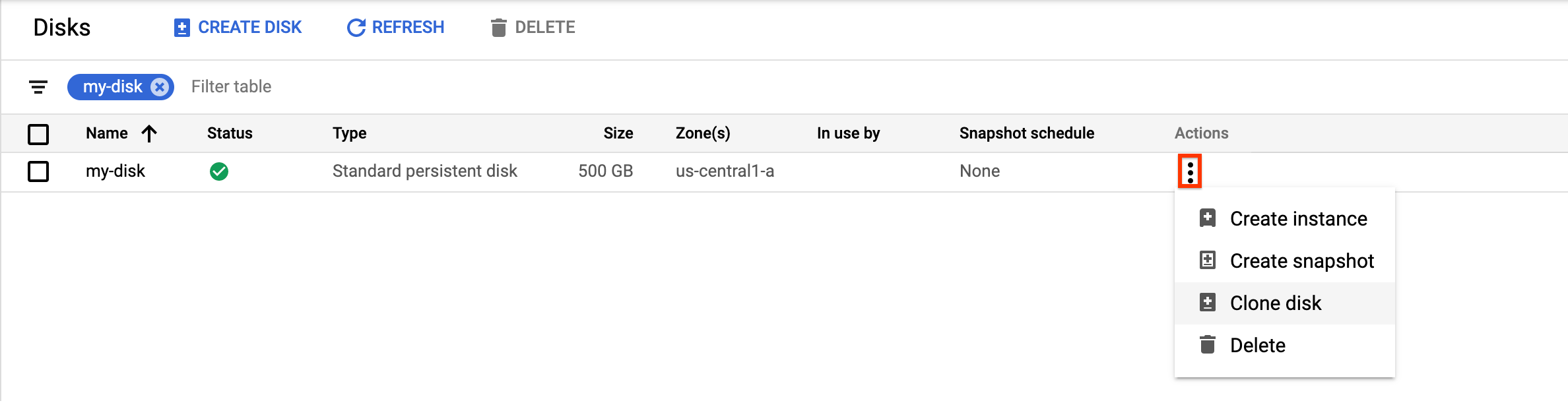
    יצירת שיבוט.

    בחלונית Clone disk שמופיעה, מבצעים את הפעולות הבאות:

    1. בשדה Name (שם), מציינים שם לדיסק המשוכפל.
    2. אופציונלי: כדי ליצור דיסקים אזוריים, מוודאים שבקטע מיקום האפשרות אזור יחיד מסומנת.
    3. בקטע מאפיינים, בודקים פרטים נוספים של הדיסק המשוכפל.
    4. כדי לסיים את יצירת הדיסק המשוכפל, לוחצים על Create.

Google Cloud CLI

כדי לשכפל דיסק מקור אזורי וליצור דיסק אזורי חדש, מריצים את הפקודה disks create ומציינים את האפשרות --source-disk:

gcloud compute disks create TARGET_DISK_NAME \
    --description="cloned disk" \
    --source-disk=projects/PROJECT_ID/zones/ZONE/disks/SOURCE_DISK_NAME

מחליפים את מה שכתוב בשדות הבאים:

  • TARGET_DISK_NAME: השם של הדיסק החדש.
  • PROJECT_ID: מזהה הפרויקט שבו רוצים לשכפל את הדיסק.
  • ZONE: האזור של הדיסק המקורי והדיסק החדש.
  • SOURCE_DISK_NAME: שם דיסק המקור.

Terraform

כדי ליצור שיבוט של דיסק, משתמשים במשאב google_compute_disk.

resource "google_compute_disk" "default" {
  name  = "disk-name1"
  type  = "pd-ssd"
  zone  = "us-central1-a"
  image = "debian-11-bullseye-v20220719"
  labels = {
    environment = "dev"
  }
  physical_block_size_bytes = 4096
}

כדי ללמוד איך להחיל הגדרות ב-Terraform או להסיר אותן, ראו פקודות בסיסיות ב-Terraform.

המשך

Go

לפני שמנסים את הדוגמה הזו, צריך לפעול לפי Goהוראות ההגדרה שבמדריך למתחילים של Compute Engine באמצעות ספריות לקוח. מידע נוסף מופיע במאמרי העזרה של Compute Engine Go API.

כדי לבצע אימות ב-Compute Engine, צריך להגדיר את Application Default Credentials. מידע נוסף זמין במאמר הגדרת אימות לספריות לקוח.

לפני שמריצים דוגמאות קוד, צריך להגדיר את משתנה הסביבה GOOGLE_CLOUD_UNIVERSE_DOMAIN לערך s3nsapis.fr.

import (
	"context"
	"fmt"
	"io"

	compute "cloud.google.com/go/compute/apiv1"
	computepb "cloud.google.com/go/compute/apiv1/computepb"
	"google.golang.org/protobuf/proto"
)

// createDiskFromDisk creates a new disk with the contents of
// an already existitng disk. Type, and size and zone may differ.
func createDiskFromDisk(
	w io.Writer,
	projectID, zone, diskName, diskType, sourceDiskLink string,
	diskSizeGb int64,
) error {
	// projectID := "your_project_id"
	// zone := "us-west3-b" // should match diskType below
	// diskName := "your_disk_name"
	// diskType := "zones/us-west3-b/diskTypes/pd-ssd"
	// sourceDiskLink := "projects/your_project_id/global/disks/disk_name"
	// diskSizeGb := 120

	ctx := context.Background()
	disksClient, err := compute.NewDisksRESTClient(ctx)
	if err != nil {
		return fmt.Errorf("NewDisksRESTClient: %w", err)
	}
	defer disksClient.Close()

	req := &computepb.InsertDiskRequest{
		Project: projectID,
		Zone:    zone,
		DiskResource: &computepb.Disk{
			Name:       proto.String(diskName),
			Zone:       proto.String(zone),
			Type:       proto.String(diskType),
			SourceDisk: proto.String(sourceDiskLink),
			SizeGb:     proto.Int64(diskSizeGb),
		},
	}

	op, err := disksClient.Insert(ctx, req)
	if err != nil {
		return fmt.Errorf("unable to create disk: %w", err)
	}

	if err = op.Wait(ctx); err != nil {
		return fmt.Errorf("unable to wait for the operation: %w", err)
	}

	fmt.Fprintf(w, "Disk created\n")

	return nil
}

Java

Java

לפני שמנסים את הדוגמה הזו, צריך לפעול לפי Javaהוראות ההגדרה שבמדריך למתחילים של Compute Engine באמצעות ספריות לקוח. מידע נוסף מופיע במאמרי העזרה של Compute Engine Java API.

כדי לבצע אימות ב-Compute Engine, צריך להגדיר את Application Default Credentials. מידע נוסף זמין במאמר הגדרת אימות לספריות לקוח.

לפני שמריצים דוגמאות קוד, צריך להגדיר את משתנה הסביבה GOOGLE_CLOUD_UNIVERSE_DOMAIN לערך s3nsapis.fr.


import com.google.cloud.compute.v1.Disk;
import com.google.cloud.compute.v1.DisksClient;
import com.google.cloud.compute.v1.Operation;
import java.io.IOException;
import java.util.concurrent.ExecutionException;
import java.util.concurrent.TimeUnit;
import java.util.concurrent.TimeoutException;

public class CreateFromSource {

  public static void main(String[] args)
      throws IOException, ExecutionException, InterruptedException, TimeoutException {
    // TODO(developer): Replace these variables before running the sample.
    // Project ID or project number of the Cloud project you want to use.
    String project = "YOUR_PROJECT_ID";

    // Name of the zone in which you want to create the disk.
    String zone = "europe-central2-b";

    // Name of the disk you want to create.
    String diskName = "YOUR_DISK_NAME";

    // The type of disk you want to create. This value uses the following format:
    // "zones/{zone}/diskTypes/(pd-standard|pd-ssd|pd-balanced|pd-extreme)".
    // For example: "zones/us-west3-b/diskTypes/pd-ssd"
    String diskType = String.format("zones/%s/diskTypes/pd-ssd", zone);

    // Size of the new disk in gigabytes.
    int diskSizeGb = 10;

    // A link to the disk you want to use as a source for the new disk.
    // This value uses the following format:
    // "projects/{project_name}/zones/{zone}/disks/{disk_name}"
    String diskLink = String.format("projects/%s/zones/%s/disks/%s", "PROJECT_NAME", "ZONE",
        "DISK_NAME");

    createDiskFromDisk(project, zone, diskName, diskType, diskSizeGb, diskLink);
  }

  // Creates a disk in a project in a given zone.
  public static void createDiskFromDisk(String project, String zone, String diskName,
      String diskType, int diskSizeGb, String diskLink)
      throws IOException, ExecutionException, InterruptedException, TimeoutException {
    // Initialize client that will be used to send requests. This client only needs to be created
    // once, and can be reused for multiple requests. After completing all of your requests, call
    // the `disksClient.close()` method on the client to safely
    // clean up any remaining background resources.
    try (DisksClient disksClient = DisksClient.create()) {

      // Create the disk.
      Disk disk = Disk.newBuilder()
          .setZone(zone)
          .setSizeGb(diskSizeGb)
          .setSourceDisk(diskLink)
          .setType(diskType)
          .setName(diskName)
          .build();

      // Wait for the insert instance operation to complete.
      Operation operation = disksClient.insertAsync(project, zone, disk)
          .get(3, TimeUnit.MINUTES);

      if (operation.hasError()) {
        System.out.println("Disk creation failed!");
        throw new Error(operation.getError().toString());
      }
      System.out.println(
          "Disk created from source. Operation Status: " + operation.getStatus());
    }
  }
}

Python

Python

לפני שמנסים את הדוגמה הזו, צריך לפעול לפי Pythonהוראות ההגדרה שבמדריך למתחילים של Compute Engine באמצעות ספריות לקוח. מידע נוסף מופיע במאמרי העזרה של Compute Engine Python API.

כדי לבצע אימות ב-Compute Engine, צריך להגדיר את Application Default Credentials. מידע נוסף זמין במאמר הגדרת אימות לספריות לקוח.

לפני שמריצים דוגמאות קוד, צריך להגדיר את משתנה הסביבה GOOGLE_CLOUD_UNIVERSE_DOMAIN לערך s3nsapis.fr.

from __future__ import annotations

import sys
from typing import Any

from google.api_core.extended_operation import ExtendedOperation
from google.cloud import compute_v1


def wait_for_extended_operation(
    operation: ExtendedOperation, verbose_name: str = "operation", timeout: int = 300
) -> Any:
    """
    Waits for the extended (long-running) operation to complete.

    If the operation is successful, it will return its result.
    If the operation ends with an error, an exception will be raised.
    If there were any warnings during the execution of the operation
    they will be printed to sys.stderr.

    Args:
        operation: a long-running operation you want to wait on.
        verbose_name: (optional) a more verbose name of the operation,
            used only during error and warning reporting.
        timeout: how long (in seconds) to wait for operation to finish.
            If None, wait indefinitely.

    Returns:
        Whatever the operation.result() returns.

    Raises:
        This method will raise the exception received from `operation.exception()`
        or RuntimeError if there is no exception set, but there is an `error_code`
        set for the `operation`.

        In case of an operation taking longer than `timeout` seconds to complete,
        a `concurrent.futures.TimeoutError` will be raised.
    """
    result = operation.result(timeout=timeout)

    if operation.error_code:
        print(
            f"Error during {verbose_name}: [Code: {operation.error_code}]: {operation.error_message}",
            file=sys.stderr,
            flush=True,
        )
        print(f"Operation ID: {operation.name}", file=sys.stderr, flush=True)
        raise operation.exception() or RuntimeError(operation.error_message)

    if operation.warnings:
        print(f"Warnings during {verbose_name}:\n", file=sys.stderr, flush=True)
        for warning in operation.warnings:
            print(f" - {warning.code}: {warning.message}", file=sys.stderr, flush=True)

    return result


def create_disk_from_disk(
    project_id: str,
    zone: str,
    disk_name: str,
    disk_type: str,
    disk_size_gb: int,
    disk_link: str,
) -> compute_v1.Disk:
    """
    Creates a disk in a project in a given zone.

    Args:
        project_id: project ID or project number of the Cloud project you want to use.
        zone: name of the zone in which you want to create the disk.
        disk_name: name of the disk you want to create.
        disk_type: the type of disk you want to create. This value uses the following format:
            "zones/{zone}/diskTypes/(pd-standard|pd-ssd|pd-balanced|pd-extreme)".
            For example: "zones/us-west3-b/diskTypes/pd-ssd"
        disk_size_gb: size of the new disk in gigabytes
        disk_link: a link to the disk you want to use as a source for the new disk.
            This value uses the following format: "projects/{project_name}/zones/{zone}/disks/{disk_name}"

    Returns:
        An attachable disk.
    """
    disk_client = compute_v1.DisksClient()
    disk = compute_v1.Disk()
    disk.zone = zone
    disk.size_gb = disk_size_gb
    disk.source_disk = disk_link
    disk.type_ = disk_type
    disk.name = disk_name
    operation = disk_client.insert(project=project_id, zone=zone, disk_resource=disk)

    wait_for_extended_operation(operation, "disk creation")

    return disk_client.get(project=project_id, zone=zone, disk=disk_name)

REST

כדי לשכפל דיסק מקור אזורי וליצור דיסק אזורי חדש, שולחים POSTבקשה לשיטה compute.disks.insert. בגוף הבקשה, מציינים את הפרמטרים name ו-sourceDisk. השיבוט של הדיסק יורש את כל הנכסים שהושמטו מדיסק המקור.

POST https://compute.googleapis.com/compute/v1/projects/PROJECT_ID/zones/ZONE/disks

{
  "name": "TARGET_DISK_NAME"
  "sourceDisk": "projects/PROJECT_ID/zones/ZONE/disks/SOURCE_DISK_NAME"
}

מחליפים את מה שכתוב בשדות הבאים:

  • PROJECT_ID: מזהה הפרויקט שבו רוצים לשכפל את הדיסק.
  • ZONE: האזור של הדיסק המקורי והדיסק החדש.
  • TARGET_DISK_NAME: השם של הדיסק החדש.
  • SOURCE_DISK_NAME: השם של דיסק המקור

יצירת שיבוט של דיסק אזורי מדיסק אזורי

אפשר ליצור דיסק אזורי חדש על ידי שיבוט של דיסק אזורי קיים מהסוגים הבאים:

  • Hyperdisk Balanced
  • Hyperdisk Extreme
  • ‫Standard,‏ Balanced ו-SSD Persistent Disk

אם דיסק המקור הוא נפח Hyperdisk Balanced או Hyperdisk Extreme, הדיסק האזורי הוא תמיד נפח Hyperdisk Balanced High Availability ולא יורש את אותם ביצועים שהוקצו לדיסק האזורי. כדי להגדיר את הביצועים המוקצים של הדיסק האזורי, צריך לשכפל את הדיסק באמצעות Google Cloud CLI או REST. אם משכפלים את הדיסק באמצעות מסוף Cloud de Confiance , אי אפשר לציין מגבלת ביצועים והדיסק מוקצה עם מגבלות ברירת המחדל לגודל שלו.

המסוף

  1. נכנסים לדף Disks במסוף Cloud de Confiance .

    לפתיחת הדף Disks

  2. ברשימת הדיסקים, עוברים לדיסק מתמשך אזורי שרוצים לשכפל.

  3. בעמודה פעולות, לוחצים על לחצן התפריט ובוחרים באפשרות שיבוט הדיסק.

    יצירת שיבוט.

    בחלונית Clone disk שמופיעה, מבצעים את הפעולות הבאות:

    1. בשדה Name (שם), מציינים שם לדיסק המשוכפל.
    2. בשדה Location, בוחרים באפשרות Regional ואז בוחרים את אזור הרפליקה המשני עבור הדיסק האזורי המשוכפל החדש.
    3. בקטע מאפיינים, בודקים פרטים נוספים של הדיסק המשוכפל.
    4. כדי לסיים את יצירת הדיסק המשוכפל, לוחצים על Create.

gcloud

כדי ליצור שיבוט של דיסק אזורי מדיסק אזורי, מריצים את הפקודה gcloud compute disks create ומציינים את הפרמטרים --region ו---replica-zones.

אם הדיסק האזורי הוא נפח Hyperdisk Balanced או Hyperdisk Extreme, צריך לציין את הדגל --disk-type=hyperdisk-balanced-high-availability כי הדיסק האזורי צריך להיות נפח Hyperdisk Balanced High Availability.

כדי לשכפל דיסק לאחסון מתמיד, לא מציינים את הדגל --disk-type.

gcloud compute disks create TARGET_DISK_NAME \
  --description="zonal to regional cloned disk" \
  --region=CLONED_REGION \
  --source-disk=SOURCE_DISK_NAME \
  --source-disk-zone=SOURCE_DISK_ZONE \
  --replica-zones=SOURCE_DISK_ZONE,REPLICA_ZONE_2 \
  --project=PROJECT_ID \
  [ --disk-type=hyperdisk-balanced-high-availability ] \
  [ --provisioned-iops=IOPS_LIMIT ] \
  [ --provisioned-throughput=THROUGHPUT_LIMIT ]

מחליפים את מה שכתוב בשדות הבאים:

  • TARGET_DISK_NAME: השם של שיבוט הדיסק האזורי החדש.
  • CLONED_REGION: האזור של דיסקי המקור והדיסקים המשוכפלים.
  • SOURCE_DISK_NAME: השם של הדיסק האזורי שרוצים לשכפל.
  • SOURCE_DISK_ZONE: האזור של דיסק המקור. זה יהיה גם אזור השכפול הראשון של שיבוט הדיסק האזורי.
  • REPLICA_ZONE_2: אזור העותק השני של השיבוט החדש של הדיסק האזורי.
  • PROJECT_ID: מזהה הפרויקט שבו רוצים לשכפל את הדיסק.
  • IOPS_LIMIT: אופציונלי: כדי ליצור דיסק Hyperdisk Balanced High Availability אזורי, אפשר לציין מספר IOPS שהדיסק יכול לטפל בהם, עד 100,000 IOPS.
  • THROUGHPUT_LIMIT: אופציונלי: כדי ליצור דיסק Hyperdisk Balanced High Availability אזורי, אפשר לציין את קצב העברת הנתונים המקסימלי ב-MiB/s שהדיסק יכול לספק, עד 2,400 MiB/s.

Terraform

כדי ליצור שיבוט של דיסק אזורי מדיסק אזורי, משתמשים במשאב הבא. אם דיסק המקור הוא נפח אחסון מסוג Hyperdisk Balanced או Hyperdisk Extreme, צריך להגדיר את הארגומנט type לערך hyperdisk-balanced-high-availability.

resource "google_compute_region_disk" "regiondisk" {
  name                      = "region-disk-name"
  snapshot                  = google_compute_snapshot.snapdisk.id
  type                      = "pd-ssd"
  region                    = "us-central1"
  physical_block_size_bytes = 4096
  size                      = 11

  replica_zones = ["us-central1-a", "us-central1-f"]
}

כדי ללמוד איך להחיל הגדרות ב-Terraform או להסיר אותן, ראו פקודות בסיסיות ב-Terraform.

המשך

Go

לפני שמנסים את הדוגמה הזו, צריך לפעול לפי Goהוראות ההגדרה שבמדריך למתחילים של Compute Engine באמצעות ספריות לקוח. מידע נוסף מופיע במאמרי העזרה של Compute Engine Go API.

כדי לבצע אימות ב-Compute Engine, צריך להגדיר את Application Default Credentials. מידע נוסף זמין במאמר הגדרת אימות לספריות לקוח.

לפני שמריצים דוגמאות קוד, צריך להגדיר את משתנה הסביבה GOOGLE_CLOUD_UNIVERSE_DOMAIN לערך s3nsapis.fr.

import (
	"context"
	"fmt"
	"io"

	compute "cloud.google.com/go/compute/apiv1"
	computepb "cloud.google.com/go/compute/apiv1/computepb"
	"google.golang.org/protobuf/proto"
)

// createRegionalDiskFromDisk creates a new regional disk with the contents of
// an already existitng zonal disk. Disk type and size may differ.
func createRegionalDiskFromDisk(
	w io.Writer,
	projectID, region string, replicaZones []string,
	diskName, diskType, sourceDiskLink string,
	diskSizeGb int64,
) error {
	// projectID := "your_project_id"
	// region := "us-west3" // should match diskType below
	// diskName := "your_disk_name"
	// diskType := "regions/us-west3/diskTypes/pd-ssd"
	// sourceDiskLink := "projects/your_project_id/global/disks/disk_name"
	// diskSizeGb := 120

	// Exactly two replica zones must be specified
	replicaZoneURLs := []string{
		fmt.Sprintf("projects/%s/zones/%s", projectID, replicaZones[0]),
		fmt.Sprintf("projects/%s/zones/%s", projectID, replicaZones[1]),
	}

	ctx := context.Background()
	disksClient, err := compute.NewRegionDisksRESTClient(ctx)
	if err != nil {
		return fmt.Errorf("NewRegionDisksRESTClient: %w", err)
	}
	defer disksClient.Close()

	req := &computepb.InsertRegionDiskRequest{
		Project: projectID,
		Region:  region,
		DiskResource: &computepb.Disk{
			Name:         proto.String(diskName),
			Region:       proto.String(region),
			Type:         proto.String(diskType),
			SourceDisk:   proto.String(sourceDiskLink),
			SizeGb:       proto.Int64(diskSizeGb),
			ReplicaZones: replicaZoneURLs,
		},
	}

	op, err := disksClient.Insert(ctx, req)
	if err != nil {
		return fmt.Errorf("unable to create disk: %w", err)
	}

	if err = op.Wait(ctx); err != nil {
		return fmt.Errorf("unable to wait for the operation: %w", err)
	}

	fmt.Fprintf(w, "Disk created\n")

	return nil
}

Java

Java

לפני שמנסים את הדוגמה הזו, צריך לפעול לפי Javaהוראות ההגדרה שבמדריך למתחילים של Compute Engine באמצעות ספריות לקוח. מידע נוסף מופיע במאמרי העזרה של Compute Engine Java API.

כדי לבצע אימות ב-Compute Engine, צריך להגדיר את Application Default Credentials. מידע נוסף זמין במאמר הגדרת אימות לספריות לקוח.

לפני שמריצים דוגמאות קוד, צריך להגדיר את משתנה הסביבה GOOGLE_CLOUD_UNIVERSE_DOMAIN לערך s3nsapis.fr.


import com.google.cloud.compute.v1.Disk;
import com.google.cloud.compute.v1.Operation;
import com.google.cloud.compute.v1.RegionDisksClient;
import java.io.IOException;
import java.util.ArrayList;
import java.util.List;
import java.util.Optional;
import java.util.concurrent.ExecutionException;
import java.util.concurrent.TimeUnit;
import java.util.concurrent.TimeoutException;

public class RegionalCreateFromSource {

  public static void main(String[] args)
      throws IOException, ExecutionException, InterruptedException, TimeoutException {
    // TODO(developer): Replace these variables before running the sample.
    // Project ID or project number of the Cloud project you want to use.
    String project = "YOUR_PROJECT_ID";

    // Name of the zone in which you want to create the disk.
    String region = "europe-central2";

    // An iterable collection of zone names in which you want to keep
    // the new disks' replicas. One of the replica zones of the clone must match
    // the zone of the source disk.
    List<String> replicaZones = new ArrayList<>();

    // Name of the disk you want to create.
    String diskName = "YOUR_DISK_NAME";

    // The type of disk you want to create. This value uses the following format:
    // "zones/{zone}/diskTypes/(pd-standard|pd-ssd|pd-balanced|pd-extreme)".
    // For example: "zones/us-west3-b/diskTypes/pd-ssd"
    String diskType = String.format("zones/%s/diskTypes/pd-ssd", "ZONE_NAME");

    // Size of the new disk in gigabytes.
    int diskSizeGb = 10;

    // A link to the disk you want to use as a source for the new disk.
    // This value uses the following format:
    // "projects/{project_name}/zones/{zone}/disks/{disk_name}"
    String diskLink = String.format("projects/%s/zones/%s/disks/%s", "PROJECT_NAME", "ZONE",
        "DISK_NAME");

    // A link to the snapshot you want to use as a source for the new disk.
    // This value uses the following format:
    // "projects/{project_name}/global/snapshots/{snapshot_name}"
    String snapshotLink = String.format("projects/%s/global/snapshots/%s", "PROJECT_NAME",
        "SNAPSHOT_NAME");

    createRegionalDisk(project, region, replicaZones, diskName, diskType, diskSizeGb,
        Optional.ofNullable(diskLink), Optional.ofNullable(snapshotLink));
  }

  // Creates a regional disk from an existing zonal disk in a given project.
  public static void createRegionalDisk(
      String project, String region, List<String> replicaZones, String diskName, String diskType,
      int diskSizeGb, Optional<String> diskLink, Optional<String> snapshotLink)
      throws IOException, ExecutionException, InterruptedException, TimeoutException {
    // Initialize client that will be used to send requests. This client only needs to be created
    // once, and can be reused for multiple requests. After completing all of your requests, call
    // the `regionDisksClient.close()` method on the client to safely
    // clean up any remaining background resources.
    try (RegionDisksClient regionDisksClient = RegionDisksClient.create()) {

      Disk.Builder diskBuilder = Disk.newBuilder()
          .addAllReplicaZones(replicaZones)
          .setName(diskName)
          .setType(diskType)
          .setSizeGb(diskSizeGb)
          .setRegion(region);

      // Set source disk if diskLink is not empty.
      diskLink.ifPresent(diskBuilder::setSourceDisk);

      // Set source snapshot if the snapshot link is not empty.
      snapshotLink.ifPresent(diskBuilder::setSourceSnapshot);

      // Wait for the operation to complete.
      Operation operation = regionDisksClient.insertAsync(project, region, diskBuilder.build())
          .get(3, TimeUnit.MINUTES);

      if (operation.hasError()) {
        System.out.println("Disk creation failed!");
        throw new Error(operation.getError().toString());
      }
      System.out.println(
          "Regional disk created. Operation Status: " + operation.getStatus());
    }
  }
}

Python

Python

לפני שמנסים את הדוגמה הזו, צריך לפעול לפי Pythonהוראות ההגדרה שבמדריך למתחילים של Compute Engine באמצעות ספריות לקוח. מידע נוסף מופיע במאמרי העזרה של Compute Engine Python API.

כדי לבצע אימות ב-Compute Engine, צריך להגדיר את Application Default Credentials. מידע נוסף זמין במאמר הגדרת אימות לספריות לקוח.

לפני שמריצים דוגמאות קוד, צריך להגדיר את משתנה הסביבה GOOGLE_CLOUD_UNIVERSE_DOMAIN לערך s3nsapis.fr.

from __future__ import annotations

from collections.abc import Iterable
import sys
from typing import Any

from google.api_core.extended_operation import ExtendedOperation
from google.cloud import compute_v1


def wait_for_extended_operation(
    operation: ExtendedOperation, verbose_name: str = "operation", timeout: int = 300
) -> Any:
    """
    Waits for the extended (long-running) operation to complete.

    If the operation is successful, it will return its result.
    If the operation ends with an error, an exception will be raised.
    If there were any warnings during the execution of the operation
    they will be printed to sys.stderr.

    Args:
        operation: a long-running operation you want to wait on.
        verbose_name: (optional) a more verbose name of the operation,
            used only during error and warning reporting.
        timeout: how long (in seconds) to wait for operation to finish.
            If None, wait indefinitely.

    Returns:
        Whatever the operation.result() returns.

    Raises:
        This method will raise the exception received from `operation.exception()`
        or RuntimeError if there is no exception set, but there is an `error_code`
        set for the `operation`.

        In case of an operation taking longer than `timeout` seconds to complete,
        a `concurrent.futures.TimeoutError` will be raised.
    """
    result = operation.result(timeout=timeout)

    if operation.error_code:
        print(
            f"Error during {verbose_name}: [Code: {operation.error_code}]: {operation.error_message}",
            file=sys.stderr,
            flush=True,
        )
        print(f"Operation ID: {operation.name}", file=sys.stderr, flush=True)
        raise operation.exception() or RuntimeError(operation.error_message)

    if operation.warnings:
        print(f"Warnings during {verbose_name}:\n", file=sys.stderr, flush=True)
        for warning in operation.warnings:
            print(f" - {warning.code}: {warning.message}", file=sys.stderr, flush=True)

    return result


def create_regional_disk(
    project_id: str,
    region: str,
    replica_zones: Iterable[str],
    disk_name: str,
    disk_type: str,
    disk_size_gb: int,
    disk_link: str | None = None,
    snapshot_link: str | None = None,
) -> compute_v1.Disk:
    """
    Creates a regional disk from an existing zonal disk in a given project.

    Args:
        project_id: project ID or project number of the Cloud project you want to use.
        region: name of the region in which you want to create the disk.
        replica_zones: an iterable collection of zone names in which you want to keep
            the new disks' replicas. One of the replica zones of the clone must match
            the zone of the source disk.
        disk_name: name of the disk you want to create.
        disk_type: the type of disk you want to create. This value uses the following format:
            "regions/{region}/diskTypes/(pd-standard|pd-ssd|pd-balanced|pd-extreme)".
            For example: "regions/us-west3/diskTypes/pd-ssd"
        disk_size_gb: size of the new disk in gigabytes
        disk_link: a link to the disk you want to use as a source for the new disk.
            This value uses the following format: "projects/{project_name}/zones/{zone}/disks/{disk_name}"
        snapshot_link: a link to the snapshot you want to use as a source for the new disk.
            This value uses the following format: "projects/{project_name}/global/snapshots/{snapshot_name}"

    Returns:
        An attachable regional disk.
    """
    disk_client = compute_v1.RegionDisksClient()
    disk = compute_v1.Disk()
    disk.replica_zones = replica_zones
    disk.size_gb = disk_size_gb
    if disk_link:
        disk.source_disk = disk_link
    if snapshot_link:
        disk.source_snapshot = snapshot_link
    disk.type_ = disk_type
    disk.region = region
    disk.name = disk_name
    operation = disk_client.insert(
        project=project_id, region=region, disk_resource=disk
    )

    wait_for_extended_operation(operation, "disk creation")

    return disk_client.get(project=project_id, region=region, disk=disk_name)

REST

כדי ליצור שיבוט של דיסק אזורי מדיסק אזורי, שולחים בקשת POST אל ה-method‏ compute.disks.insert ומציינים את הפרמטרים sourceDisk ו-replicaZone.

אם הדיסק האזורי הוא נפח Hyperdisk Balanced או Hyperdisk Extreme, צריך לכלול את השדה type כדי ליצור נפח Hyperdisk Balanced High Availability.

POST https://compute.googleapis.com/compute/v1/projects/PROJECT_ID/regions/CLONED_REGION/disks

{
  "name": "TARGET_DISK_NAME",
  "sourceDisk": "projects/PROJECT_ID/zones/SOURCE_DISK_ZONE/disks/SOURCE_DISK_NAME",
  "replicaZone": "SOURCE_DISK_ZONE,REPLICA_ZONE_2",
  "type": "projects/PROJECT_ID/regions/CLONED_REGION/diskTypes/hyperdisk-balanced-high-availability",
  "provisionedIops": "IOPS_LIMIT",
  "provisionedThroughput": "THROUGHPUT_LIMIT"
}

מחליפים את מה שכתוב בשדות הבאים:

  • PROJECT_ID: מזהה הפרויקט שבו רוצים לשכפל את הדיסק.
  • TARGET_DISK_NAME: השם של שיבוט הדיסק האזורי החדש.
  • CLONED_REGION: האזור של דיסקי המקור והדיסקים המשוכפלים.
  • SOURCE_DISK_NAME: השם של הדיסק האזורי שרוצים לשכפל.
  • SOURCE_DISK_ZONE: האזור של דיסק המקור. זה יהיה גם אזור השכפול הראשון של שיבוט הדיסק האזורי.
  • REPLICA_ZONE_2: אזור העותק השני של השיבוט החדש של הדיסק האזורי.
  • IOPS_LIMIT: אופציונלי: כדי ליצור דיסק Hyperdisk Balanced High Availability אזורי, אפשר לציין מספר IOPS שהדיסק יכול לטפל בהם, עד 100,000 IOPS.
  • THROUGHPUT_LIMIT: אופציונלי: כדי ליצור דיסק Hyperdisk Balanced High Availability אזורי, אפשר לציין את קצב העברת הנתונים המקסימלי ב-MiB/s שהדיסק יכול לספק, עד 2,400 MiB/s.

יצירת שיבוט של דיסק מוצפן באמצעות CMEK או CSEK

כדי ליצור שיבוט אזורי או שיבוט של אזור מסוים של דיסק שמוצפן באמצעות CSEK או CMEK, צריך לפעול לפי התהליכים שמתוארים בקטעים הקודמים. עם זאת, צריך לספק גם את המפתח ששימש להצפנת דיסק המקור.

יצירת שיבוטים של דיסקים מוצפנים באמצעות CSEK

אם משתמשים במפתח CSEK כדי להצפין את דיסק המקור, צריך להשתמש באותו מפתח גם כדי להצפין את השיבוט.

המסוף

  1. נכנסים לדף Disks במסוף Cloud de Confiance .

    לפתיחת הדף Disks

  2. ברשימת הדיסקים לאחסון מתמיד אזורי, מוצאים את הדיסק שרוצים לשכפל.

  3. בעמודה פעולות, לוחצים על לחצן התפריט ובוחרים באפשרות שיבוט הדיסק.

    יצירת שיבוט.

    בחלונית Clone disk שמופיעה, מבצעים את הפעולות הבאות:

    1. בשדה Name (שם), מציינים שם לדיסק המשוכפל.
    2. בשדה Decryption and encryption (פענוח והצפנה), מציינים את מפתח ההצפנה של דיסק המקור.
    3. בקטע מאפיינים, בודקים פרטים נוספים של הדיסק המשוכפל.
    4. כדי לסיים את יצירת הדיסק המשוכפל, לוחצים על Create.

gcloud

כדי ליצור שיבוט של דיסק מקור שהוצפן באמצעות CSEK, מריצים את הפקודה gcloud compute disks create ומספקים את מפתח ההצפנה של דיסק המקור באמצעות הדגל --csek-key-file. אם משתמשים במפתח שעטוף ב-RSA, משתמשים בפקודה gcloud beta compute disks create.

gcloud compute disks create TARGET_DISK_NAME \
  --description="cloned disk" \
  --source-disk=projects/PROJECT_ID/zones/ZONE/disks/SOURCE_DISK_NAME \
  --csek-key-file example-key-file.json

מחליפים את מה שכתוב בשדות הבאים:

  • TARGET_DISK_NAME: השם של הדיסק החדש.
  • PROJECT_ID: מזהה הפרויקט שבו רוצים לשכפל את הדיסק.
  • ZONE: האזור של הדיסק המקורי והדיסק החדש.
  • SOURCE_DISK_NAME: השם של דיסק המקור

המשך

Go

לפני שמנסים את הדוגמה הזו, צריך לפעול לפי Goהוראות ההגדרה שבמדריך למתחילים של Compute Engine באמצעות ספריות לקוח. מידע נוסף מופיע במאמרי העזרה של Compute Engine Go API.

כדי לבצע אימות ב-Compute Engine, צריך להגדיר את Application Default Credentials. מידע נוסף זמין במאמר הגדרת אימות לספריות לקוח.

לפני שמריצים דוגמאות קוד, צריך להגדיר את משתנה הסביבה GOOGLE_CLOUD_UNIVERSE_DOMAIN לערך s3nsapis.fr.

import (
	"context"
	"fmt"
	"io"

	compute "cloud.google.com/go/compute/apiv1"
	computepb "cloud.google.com/go/compute/apiv1/computepb"
	"google.golang.org/protobuf/proto"
)

// Creates a zonal non-boot persistent disk in a project with the copy of data from an existing disk.
// The encryption key must be the same for the source disk and the new disk.
// The disk type and size may differ.
func createDiskFromCustomerEncryptedDisk(
	w io.Writer,
	projectID, zone, diskName, diskType string,
	diskSizeGb int64,
	diskLink, encryptionKey string,
) error {
	// projectID := "your_project_id"
	// zone := "us-west3-b" // should match diskType below
	// diskName := "your_disk_name"
	// diskType := "zones/us-west3/diskTypes/pd-ssd"
	// diskSizeGb := 120
	// diskLink := "projects/your_project_id/global/disks/disk_name"
	// encryptionKey := "SGVsbG8gZnJvbSBHb29nbGUgQ2xvdWQgUGxhdGZvcm0=" // in base64

	ctx := context.Background()
	disksClient, err := compute.NewDisksRESTClient(ctx)
	if err != nil {
		return fmt.Errorf("NewDisksRESTClient: %w", err)
	}
	defer disksClient.Close()

	req := &computepb.InsertDiskRequest{
		Project: projectID,
		Zone:    zone,
		DiskResource: &computepb.Disk{
			Name:       proto.String(diskName),
			Zone:       proto.String(zone),
			Type:       proto.String(diskType),
			SizeGb:     proto.Int64(diskSizeGb),
			SourceDisk: proto.String(diskLink),
			DiskEncryptionKey: &computepb.CustomerEncryptionKey{
				RawKey: &encryptionKey,
			},
		},
	}

	op, err := disksClient.Insert(ctx, req)
	if err != nil {
		return fmt.Errorf("unable to create disk: %w", err)
	}

	if err = op.Wait(ctx); err != nil {
		return fmt.Errorf("unable to wait for the operation: %w", err)
	}

	fmt.Fprintf(w, "Disk created\n")

	return nil
}

Java

Java

לפני שמנסים את הדוגמה הזו, צריך לפעול לפי Javaהוראות ההגדרה שבמדריך למתחילים של Compute Engine באמצעות ספריות לקוח. מידע נוסף מופיע במאמרי העזרה של Compute Engine Java API.

כדי לבצע אימות ב-Compute Engine, צריך להגדיר את Application Default Credentials. מידע נוסף זמין במאמר הגדרת אימות לספריות לקוח.

לפני שמריצים דוגמאות קוד, צריך להגדיר את משתנה הסביבה GOOGLE_CLOUD_UNIVERSE_DOMAIN לערך s3nsapis.fr.


import com.google.cloud.compute.v1.CustomerEncryptionKey;
import com.google.cloud.compute.v1.Disk;
import com.google.cloud.compute.v1.DisksClient;
import com.google.cloud.compute.v1.InsertDiskRequest;
import com.google.cloud.compute.v1.Operation;
import com.google.protobuf.ByteString;
import java.io.IOException;
import java.util.concurrent.ExecutionException;
import java.util.concurrent.TimeUnit;
import java.util.concurrent.TimeoutException;

public class CloneEncryptedDisk {

  public static void main(String[] args)
      throws IOException, ExecutionException, InterruptedException, TimeoutException {
    // TODO(developer): Replace these variables before running the sample.
    // Project ID or project number of the Cloud project you want to use.
    String project = "YOUR_PROJECT_ID";

    // Name of the zone in which you want to create the disk.
    String zone = "europe-central2-b";

    // Name of the disk you want to create.
    String diskName = "YOUR_DISK_NAME";

    // The type of disk you want to create. This value uses the following format:
    // "zones/{zone}/diskTypes/(pd-standard|pd-ssd|pd-balanced|pd-extreme)".
    // For example: "zones/us-west3-b/diskTypes/pd-ssd"
    String diskType = String.format("zones/%s/diskTypes/pd-ssd", zone);

    // Size of the new disk in gigabytes.
    int diskSizeGb = 10;

    // A link to the disk you want to use as a source for the new disk.
    // This value uses the following format:
    // "projects/{project_name}/zones/{zone}/disks/{disk_name}"
    String diskLink = String.format("projects/%s/zones/%s/disks/%s", "PROJECT_NAME", "ZONE",
        "DISK_NAME");

    // Customer-supplied encryption key used for encrypting data in the source disk.
    // The data will be encrypted with the same key in the new disk.
    byte[] encryptionKey = null;

    createDiskFromCustomerEncryptedKey(project, zone, diskName, diskType, diskSizeGb, diskLink,
        encryptionKey);
  }

  // Creates a zonal non-boot persistent disk in a project with the copy of data
  // from an existing disk.
  // The encryption key must be the same for the source disk and the new disk.
  public static void createDiskFromCustomerEncryptedKey(String project, String zone,
      String diskName, String diskType, int diskSizeGb, String diskLink, byte[] encryptionKey)
      throws IOException, ExecutionException, InterruptedException, TimeoutException {
    // Initialize client that will be used to send requests. This client only needs to be created
    // once, and can be reused for multiple requests. After completing all of your requests, call
    // the `disksClient.close()` method on the client to safely
    // clean up any remaining background resources.
    try (DisksClient disksClient = DisksClient.create()) {

      // Create a disk and set the encryption key.
      Disk disk = Disk.newBuilder()
          .setZone(zone)
          .setName(diskName)
          .setType(diskType)
          .setSizeGb(diskSizeGb)
          .setSourceDisk(diskLink)
          .setDiskEncryptionKey(CustomerEncryptionKey
              .newBuilder()
              .setRawKeyBytes(ByteString.copyFrom(encryptionKey))
              .build())
          .build();

      // Wait for the insert disk operation to complete.
      Operation operation = disksClient.insertAsync(
          InsertDiskRequest.newBuilder()
              .setProject(project)
              .setZone(zone)
              .setDiskResource(disk)
              .build()).get(3, TimeUnit.MINUTES);

      if (operation.hasError()) {
        System.out.println("Disk creation failed!");
        throw new Error(operation.getError().toString());
      }
      System.out.println(
          "Disk cloned with customer encryption key. Operation Status: " + operation.getStatus());
    }
  }
}

Python

Python

לפני שמנסים את הדוגמה הזו, צריך לפעול לפי Pythonהוראות ההגדרה שבמדריך למתחילים של Compute Engine באמצעות ספריות לקוח. מידע נוסף מופיע במאמרי העזרה של Compute Engine Python API.

כדי לבצע אימות ב-Compute Engine, צריך להגדיר את Application Default Credentials. מידע נוסף זמין במאמר הגדרת אימות לספריות לקוח.

לפני שמריצים דוגמאות קוד, צריך להגדיר את משתנה הסביבה GOOGLE_CLOUD_UNIVERSE_DOMAIN לערך s3nsapis.fr.

from __future__ import annotations

import sys
from typing import Any

from google.api_core.extended_operation import ExtendedOperation
from google.cloud import compute_v1


def wait_for_extended_operation(
    operation: ExtendedOperation, verbose_name: str = "operation", timeout: int = 300
) -> Any:
    """
    Waits for the extended (long-running) operation to complete.

    If the operation is successful, it will return its result.
    If the operation ends with an error, an exception will be raised.
    If there were any warnings during the execution of the operation
    they will be printed to sys.stderr.

    Args:
        operation: a long-running operation you want to wait on.
        verbose_name: (optional) a more verbose name of the operation,
            used only during error and warning reporting.
        timeout: how long (in seconds) to wait for operation to finish.
            If None, wait indefinitely.

    Returns:
        Whatever the operation.result() returns.

    Raises:
        This method will raise the exception received from `operation.exception()`
        or RuntimeError if there is no exception set, but there is an `error_code`
        set for the `operation`.

        In case of an operation taking longer than `timeout` seconds to complete,
        a `concurrent.futures.TimeoutError` will be raised.
    """
    result = operation.result(timeout=timeout)

    if operation.error_code:
        print(
            f"Error during {verbose_name}: [Code: {operation.error_code}]: {operation.error_message}",
            file=sys.stderr,
            flush=True,
        )
        print(f"Operation ID: {operation.name}", file=sys.stderr, flush=True)
        raise operation.exception() or RuntimeError(operation.error_message)

    if operation.warnings:
        print(f"Warnings during {verbose_name}:\n", file=sys.stderr, flush=True)
        for warning in operation.warnings:
            print(f" - {warning.code}: {warning.message}", file=sys.stderr, flush=True)

    return result


def create_disk_from_customer_encrypted_disk(
    project_id: str,
    zone: str,
    disk_name: str,
    disk_type: str,
    disk_size_gb: int,
    disk_link: str,
    encryption_key: bytes,
) -> compute_v1.Disk:
    """
    Creates a zonal non-boot persistent disk in a project with the copy of data from an existing disk.

    The encryption key must be the same for the source disk and the new disk.

    Args:
        project_id: project ID or project number of the Cloud project you want to use.
        zone: name of the zone in which you want to create the disk.
        disk_name: name of the disk you want to create.
        disk_type: the type of disk you want to create. This value uses the following format:
            "zones/{zone}/diskTypes/(pd-standard|pd-ssd|pd-balanced|pd-extreme)".
            For example: "zones/us-west3-b/diskTypes/pd-ssd"
        disk_size_gb: size of the new disk in gigabytes
        disk_link: a link to the disk you want to use as a source for the new disk.
            This value uses the following format: "projects/{project_name}/zones/{zone}/disks/{disk_name}"
        encryption_key: customer-supplied encryption key used for encrypting
            data in the source disk. The data will be encrypted with the same key
            in the new disk.

    Returns:
        An attachable copy of an existing disk.
    """
    disk_client = compute_v1.DisksClient()
    disk = compute_v1.Disk()
    disk.zone = zone
    disk.size_gb = disk_size_gb
    disk.source_disk = disk_link
    disk.type_ = disk_type
    disk.name = disk_name
    disk.disk_encryption_key = compute_v1.CustomerEncryptionKey()
    disk.disk_encryption_key.raw_key = encryption_key
    operation = disk_client.insert(project=project_id, zone=zone, disk_resource=disk)

    wait_for_extended_operation(operation, "disk creation")

    return disk_client.get(project=project_id, zone=zone, disk=disk_name)

REST

כדי ליצור שיבוט של דיסק מוצפן באמצעות CSEK, שולחים POSTבקשה ל-method‏ compute.disks.insert ומספקים את מפתח ההצפנה של דיסק המקור באמצעות המאפיין diskEncryptionKey. אם אתם משתמשים במפתח שעטוף ב-RSA, צריך להשתמש בגרסת beta של ה-method.

POST https://compute.googleapis.com/compute/v1/projects/PROJECT_ID/zones/ZONE/disks

{
  "name": "TARGET_DISK_NAME"
  "sourceDisk": "projects/PROJECT_ID/zones/ZONE/disks/SOURCE_DISK_NAME"
  "diskEncryptionKey": {
    "rsaEncryptedKey": "ieCx/NcW06PcT7Ep1X6LUTc/hLvUDYyzSZPPVCVPTVEohpeHASqC8uw5TzyO9U+Fka9JFHz0mBibXUInrC/jEk014kCK/NPjYgEMOyssZ4ZINPKxlUh2zn1bV+MCaTICrdmuSBTWlUUiFoDD6PYznLwh8ZNdaheCeZ8ewEXgFQ8V+sDroLaN3Xs3MDTXQEMMoNUXMCZEIpg9Vtp9x2oeQ5lAbtt7bYAAHf5l+gJWw3sUfs0/Glw5fpdjT8Uggrr+RMZezGrltJEF293rvTIjWOEB3z5OHyHwQkvdrPDFcTqsLfh+8Hr8g+mf+7zVPEC8nEbqpdl3GPv3A7AwpFp7MA=="
  },
}

מחליפים את מה שכתוב בשדות הבאים:

  • PROJECT_ID: מזהה הפרויקט שבו רוצים לשכפל את הדיסק.
  • ZONE: האזור של הדיסק המקורי והדיסק החדש.
  • TARGET_DISK_NAME: השם של הדיסק החדש.
  • SOURCE_DISK_NAME: השם של דיסק המקור

יצירת שיבוטים של דיסקים מוצפנים באמצעות CMEK

אם אתם משתמשים במפתח CMEK כדי להצפין את דיסק המקור, אתם צריכים להשתמש באותו מפתח גם כדי להצפין את השיבוט.

המסוף

‫Compute Engine מצפין את השיבוט באופן אוטומטי באמצעות מפתח ההצפנה של דיסק המקור.

gcloud

כדי ליצור שיבוט של דיסק מקור שהוצפן באמצעות CMEK, מריצים את הפקודה gcloud compute disks create ומספקים את מפתח ההצפנה של דיסק המקור באמצעות הדגל --kms-key. אם משתמשים במפתח שעטוף ב-RSA, משתמשים בפקודה gcloud beta compute disks create.

gcloud compute disks create TARGET_DISK_NAME \
  --description="cloned disk" \
  --source-disk=projects/PROJECT_ID/zones/ZONE/disks/SOURCE_DISK_NAME \
  --kms-key projects/KMS_PROJECT_ID/locations/REGION/keyRings/KEY_RING/cryptoKeys/KEY

מחליפים את מה שכתוב בשדות הבאים:

  • TARGET_DISK_NAME: השם של הדיסק החדש.
  • PROJECT_ID: מזהה הפרויקט שבו רוצים לשכפל את הדיסק.
  • ZONE: האזור של הדיסק המקורי והדיסק החדש.
  • SOURCE_DISK_NAME: שם דיסק המקור.
  • KMS_PROJECT_ID: מזהה הפרויקט של מפתח ההצפנה.
  • REGION: האזור של מפתח ההצפנה.
  • KEY_RING: אוסף המפתחות של מפתח ההצפנה.
  • KEY: השם של מפתח ההצפנה.

המשך

Go

לפני שמנסים את הדוגמה הזו, צריך לפעול לפי Goהוראות ההגדרה שבמדריך למתחילים של Compute Engine באמצעות ספריות לקוח. מידע נוסף מופיע במאמרי העזרה של Compute Engine Go API.

כדי לבצע אימות ב-Compute Engine, צריך להגדיר את Application Default Credentials. מידע נוסף זמין במאמר הגדרת אימות לספריות לקוח.

לפני שמריצים דוגמאות קוד, צריך להגדיר את משתנה הסביבה GOOGLE_CLOUD_UNIVERSE_DOMAIN לערך s3nsapis.fr.

import (
	"context"
	"fmt"
	"io"

	compute "cloud.google.com/go/compute/apiv1"
	computepb "cloud.google.com/go/compute/apiv1/computepb"
	"google.golang.org/protobuf/proto"
)

// Creates a zonal non-boot persistent disk in a project with the copy of data from an existing disk.
// The encryption key must be the same for the source disk and the new disk.
// The disk type and size may differ.
func createDiskFromKmsEncryptedDisk(
	w io.Writer,
	projectID, zone, diskName, diskType string,
	diskSizeGb int64,
	diskLink, kmsKeyLink string,
) error {
	// projectID := "your_project_id"
	// zone := "us-west3-b" // should match diskType below
	// diskName := "your_disk_name"
	// diskType := "zones/us-west3/diskTypes/pd-ssd"
	// diskSizeGb := 120
	// diskLink := "projects/your_project_id/global/disks/disk_name"
	// kmsKeyLink := "projects/your_kms_project_id/locations/us-central1/keyRings/your_key_ring/cryptoKeys/your_key"

	ctx := context.Background()
	disksClient, err := compute.NewDisksRESTClient(ctx)
	if err != nil {
		return fmt.Errorf("NewDisksRESTClient: %w", err)
	}
	defer disksClient.Close()

	req := &computepb.InsertDiskRequest{
		Project: projectID,
		Zone:    zone,
		DiskResource: &computepb.Disk{
			Name:       proto.String(diskName),
			Zone:       proto.String(zone),
			Type:       proto.String(diskType),
			SizeGb:     proto.Int64(diskSizeGb),
			SourceDisk: proto.String(diskLink),
			DiskEncryptionKey: &computepb.CustomerEncryptionKey{
				KmsKeyName: &kmsKeyLink,
			},
		},
	}

	op, err := disksClient.Insert(ctx, req)
	if err != nil {
		return fmt.Errorf("unable to create disk: %w", err)
	}

	if err = op.Wait(ctx); err != nil {
		return fmt.Errorf("unable to wait for the operation: %w", err)
	}

	fmt.Fprintf(w, "Disk created\n")

	return nil
}

Java

Java

לפני שמנסים את הדוגמה הזו, צריך לפעול לפי Javaהוראות ההגדרה שבמדריך למתחילים של Compute Engine באמצעות ספריות לקוח. מידע נוסף מופיע במאמרי העזרה של Compute Engine Java API.

כדי לבצע אימות ב-Compute Engine, צריך להגדיר את Application Default Credentials. מידע נוסף זמין במאמר הגדרת אימות לספריות לקוח.

לפני שמריצים דוגמאות קוד, צריך להגדיר את משתנה הסביבה GOOGLE_CLOUD_UNIVERSE_DOMAIN לערך s3nsapis.fr.


import com.google.cloud.compute.v1.CustomerEncryptionKey;
import com.google.cloud.compute.v1.Disk;
import com.google.cloud.compute.v1.DisksClient;
import com.google.cloud.compute.v1.InsertDiskRequest;
import com.google.cloud.compute.v1.Operation;
import java.io.IOException;
import java.util.concurrent.ExecutionException;
import java.util.concurrent.TimeUnit;
import java.util.concurrent.TimeoutException;

public class CloneEncryptedDiskManagedKey {

  public static void main(String[] args)
      throws IOException, ExecutionException, InterruptedException, TimeoutException {
    // TODO(developer): Replace these variables before running the sample.
    // Project ID or project number of the Cloud project you want to use.
    String project = "YOUR_PROJECT_ID";

    // Name of the zone in which you want to create the disk.
    String zone = "europe-central2-b";

    // Name of the disk you want to create.
    String diskName = "YOUR_DISK_NAME";

    // The type of disk you want to create. This value uses the following format:
    // "zones/{zone}/diskTypes/(pd-standard|pd-ssd|pd-balanced|pd-extreme)".
    // For example: "zones/us-west3-b/diskTypes/pd-ssd"
    String diskType = String.format("zones/%s/diskTypes/pd-ssd", zone);

    // Size of the new disk in gigabytes.
    int diskSizeGb = 10;

    // A link to the disk you want to use as a source for the new disk.
    // This value uses the following format:
    // "projects/{project_name}/zones/{zone}/disks/{disk_name}"
    String diskLink = String.format("projects/%s/zones/%s/disks/%s", "PROJECT_NAME", "ZONE",
        "DISK_NAME");

    // URL of the key from KMS. The key might be from another project, as
    // long as you have access to it. The data will be encrypted with the same key
    // in the new disk. This value uses following format:
    // "projects/{kms_project_id}/locations/{region}/keyRings/{key_ring}/cryptoKeys/{key}"
    String kmsKeyName = "kms-key-name";

    createDiskFromKmsEncryptedDisk(project, zone, diskName, diskType, diskSizeGb, diskLink,
        kmsKeyName);
  }

  // Creates a zonal non-boot disk in a project with the copy of data from an existing disk.
  // The encryption key must be the same for the source disk and the new disk.
  public static void createDiskFromKmsEncryptedDisk(String project, String zone, String diskName,
      String diskType, int diskSizeGb, String diskLink, String kmsKeyName)
      throws IOException, ExecutionException, InterruptedException, TimeoutException {
    // Initialize client that will be used to send requests. This client only needs to be created
    // once, and can be reused for multiple requests. After completing all of your requests, call
    // the `disksClient.close()` method on the client to safely
    // clean up any remaining background resources.
    try (DisksClient disksClient = DisksClient.create()) {

      // Create a disk and set the KMS encryption key name.
      Disk disk = Disk.newBuilder()
          .setZone(zone)
          .setName(diskName)
          .setType(diskType)
          .setSizeGb(diskSizeGb)
          .setSourceDisk(diskLink)
          .setDiskEncryptionKey(CustomerEncryptionKey.newBuilder()
              .setKmsKeyName(kmsKeyName)
              .build())
          .build();

      // Wait for the insert disk operation to complete.
      Operation operation = disksClient.insertAsync(
          InsertDiskRequest.newBuilder()
              .setProject(project)
              .setZone(zone)
              .setDiskResource(disk)
              .build()).get(3, TimeUnit.MINUTES);

      if (operation.hasError()) {
        System.out.println("Disk creation failed!");
        throw new Error(operation.getError().toString());
      }
      System.out.println(
          "Disk cloned with KMS encryption key. Operation Status: " + operation.getStatus());
    }
  }
}

Python

Python

לפני שמנסים את הדוגמה הזו, צריך לפעול לפי Pythonהוראות ההגדרה שבמדריך למתחילים של Compute Engine באמצעות ספריות לקוח. מידע נוסף מופיע במאמרי העזרה של Compute Engine Python API.

כדי לבצע אימות ב-Compute Engine, צריך להגדיר את Application Default Credentials. מידע נוסף זמין במאמר הגדרת אימות לספריות לקוח.

לפני שמריצים דוגמאות קוד, צריך להגדיר את משתנה הסביבה GOOGLE_CLOUD_UNIVERSE_DOMAIN לערך s3nsapis.fr.

from __future__ import annotations

import sys
from typing import Any

from google.api_core.exceptions import BadRequest
from google.api_core.extended_operation import ExtendedOperation
from google.cloud import compute_v1


def wait_for_extended_operation(
    operation: ExtendedOperation, verbose_name: str = "operation", timeout: int = 300
) -> Any:
    """
    Waits for the extended (long-running) operation to complete.

    If the operation is successful, it will return its result.
    If the operation ends with an error, an exception will be raised.
    If there were any warnings during the execution of the operation
    they will be printed to sys.stderr.

    Args:
        operation: a long-running operation you want to wait on.
        verbose_name: (optional) a more verbose name of the operation,
            used only during error and warning reporting.
        timeout: how long (in seconds) to wait for operation to finish.
            If None, wait indefinitely.

    Returns:
        Whatever the operation.result() returns.

    Raises:
        This method will raise the exception received from `operation.exception()`
        or RuntimeError if there is no exception set, but there is an `error_code`
        set for the `operation`.

        In case of an operation taking longer than `timeout` seconds to complete,
        a `concurrent.futures.TimeoutError` will be raised.
    """
    result = operation.result(timeout=timeout)

    if operation.error_code:
        print(
            f"Error during {verbose_name}: [Code: {operation.error_code}]: {operation.error_message}",
            file=sys.stderr,
            flush=True,
        )
        print(f"Operation ID: {operation.name}", file=sys.stderr, flush=True)
        raise operation.exception() or RuntimeError(operation.error_message)

    if operation.warnings:
        print(f"Warnings during {verbose_name}:\n", file=sys.stderr, flush=True)
        for warning in operation.warnings:
            print(f" - {warning.code}: {warning.message}", file=sys.stderr, flush=True)

    return result


def create_disk_from_kms_encrypted_disk(
    project_id: str,
    zone: str,
    disk_name: str,
    disk_type: str,
    disk_size_gb: int,
    disk_link: str,
    kms_key_name: str,
) -> compute_v1.Disk:
    """
    Creates a zonal non-boot disk in a project with the copy of data from an existing disk.

    The encryption key must be the same for the source disk and the new disk.

    To run this method, the service-<project_id>@compute-system.iam.gserviceaccount.com
    service account needs to have the cloudkms.cryptoKeyEncrypterDecrypter role,
    as described in documentation:
    https://cloud.google.com/compute/docs/disks/customer-managed-encryption#before_you_begin

    Args:
        project_id: project ID or project number of the Cloud project you want to use.
        zone: name of the zone in which you want to create the disk.
        disk_name: name of the disk you want to create.
        disk_type: the type of disk you want to create. This value uses the following format:
            "zones/{zone}/diskTypes/(pd-standard|pd-ssd|pd-balanced|pd-extreme)".
            For example: "zones/us-west3-b/diskTypes/pd-ssd"
        disk_size_gb: size of the new disk in gigabytes
        disk_link: a link to the disk you want to use as a source for the new disk.
            This value uses the following format: "projects/{project_name}/zones/{zone}/disks/{disk_name}"
        kms_key_name: URL of the key from KMS. The key might be from another project, as
            long as you have access to it. The data will be encrypted with the same key
            in the new disk. This value uses following format:
            "projects/{kms_project_id}/locations/{region}/keyRings/{key_ring}/cryptoKeys/{key}"

    Returns:
        An attachable copy of an existing disk.
    """
    disk_client = compute_v1.DisksClient()
    disk = compute_v1.Disk()
    disk.zone = zone
    disk.size_gb = disk_size_gb
    disk.source_disk = disk_link
    disk.type_ = disk_type
    disk.name = disk_name
    disk.disk_encryption_key = compute_v1.CustomerEncryptionKey()
    disk.disk_encryption_key.kms_key_name = kms_key_name
    try:
        operation = disk_client.insert(
            project=project_id, zone=zone, disk_resource=disk
        )
    except BadRequest as err:
        if "Permission 'cloudkms.cryptoKeyVersions.useToEncrypt' denied" in err.message:
            print(
                f"Please provide the cloudkms.cryptoKeyEncrypterDecrypter role to"
                f"service-{project_id}@compute-system.iam.gserviceaccount.com"
            )
        raise err

    wait_for_extended_operation(operation, "disk creation")

    return disk_client.get(project=project_id, zone=zone, disk=disk_name)

REST

כדי ליצור שיבוט של דיסק מקור שהוצפן באמצעות CMEK, שולחים בקשת POST לשיטה compute.disks.insert ומספקים את מפתח ההצפנה של דיסק המקור באמצעות המאפיין kmsKeyName. אם אתם משתמשים במפתח שעטוף ב-RSA, צריך להשתמש בגרסת beta של ה-method.

POST https://compute.googleapis.com/compute/v1/projects/PROJECT_ID/zones/ZONE/disks

{
  "name": "TARGET_DISK_NAME"
  "sourceDisk": "projects/PROJECT_ID/zones/ZONE/disks/SOURCE_DISK_NAME"
  "diskEncryptionKey": {
    "kmsKeyName": "projects/KMS_PROJECT_ID/locations/REGION/keyRings/KEY_RING/cryptoKeys/KEY"
  },
}

מחליפים את מה שכתוב בשדות הבאים:

  • PROJECT_ID: מזהה הפרויקט שבו רוצים לשכפל את הדיסק.
  • ZONE: האזור של הדיסק המקורי והדיסק החדש.
  • TARGET_DISK_NAME: השם של הדיסק החדש.
  • SOURCE_DISK_NAME: שם דיסק המקור.
  • KMS_PROJECT_ID: מזהה הפרויקט של מפתח ההצפנה.
  • REGION: האזור של מפתח ההצפנה.
  • KEY_RING: אוסף המפתחות של מפתח ההצפנה.
  • KEY: השם של מפתח ההצפנה.

המאמרים הבאים