

Dengan cloning disk, Anda dapat membuat salinan disk yang ada dan dapat langsung digunakan di lokasi yang sama (zona atau region) dengan disk sumber. Buat clone disk dalam skenario saat Anda menginginkan salinan disk yang ada yang dapat Anda pasang dengan cepat ke instance, seperti berikut:
- Membuat lingkungan staging dengan menduplikasi data produksi untuk melakukan debug tanpa mengganggu produksi
- Melakukan pemindaian malware yang tidak mengganggu pada disk tanpa memengaruhi performa workload produksi
- Membuat salinan untuk verifikasi pencadangan database
- Memindahkan data disk non-boot ke project baru
- Menduplikasi disk saat menskalakan VM
Dokumen ini memberikan informasi tentang cara kerja clone disk dan cara membuat clone disk.
Untuk mengaktifkan disaster recovery bagi data Anda, cadangkan disk dengan snapshot standar, bukan menggunakan clone disk. Untuk merekam konten disk secara berkala tanpa membuat disk baru, gunakan instant snapshot karena lebih efisien dalam penggunaan penyimpanan dibandingkan clone. Untuk opsi perlindungan disk tambahan, lihat Opsi perlindungan data.
Sebelum memulai
-
Siapkan autentikasi jika Anda belum melakukannya.
Autentikasi memverifikasi identitas Anda untuk mengakses layanan Cloud de Confiance by S3NS dan API. Untuk menjalankan
kode atau sampel dari lingkungan pengembangan lokal, Anda dapat melakukan autentikasi ke
Compute Engine dengan memilih salah satu opsi berikut:
Pilih tab untuk melihat bagaimana Anda berencana menggunakan contoh di halaman ini:
Konsol
Saat menggunakan konsol Cloud de Confiance untuk mengakses layanan Cloud de Confiance by S3NS dan API, Anda tidak perlu menyiapkan autentikasi.
gcloud
-
Instal Google Cloud CLI, lalu login ke gcloud CLI dengan identitas gabungan Anda. Setelah login, inisialisasi Google Cloud CLI dengan menjalankan perintah berikut:
gcloud init
-
- Tetapkan region dan zona default.
-
Instal Google Cloud CLI.
-
Konfigurasi gcloud CLI agar menggunakan identitas gabungan Anda.
Untuk mengetahui informasi selengkapnya, lihat Login ke gcloud CLI dengan identitas gabungan Anda.
-
Buat kredensial autentikasi lokal untuk akun pengguna Anda:
gcloud auth application-default login
Jika error autentikasi ditampilkan, pastikan Anda telah login ke gcloud CLI dengan identitas gabungan Anda.
-
Instal Google Cloud CLI.
-
Konfigurasi gcloud CLI agar menggunakan identitas gabungan Anda.
Untuk mengetahui informasi selengkapnya, lihat Login ke gcloud CLI dengan identitas gabungan Anda.
-
Buat kredensial autentikasi lokal untuk akun pengguna Anda:
gcloud auth application-default login
Jika error autentikasi ditampilkan, pastikan Anda telah login ke gcloud CLI dengan identitas gabungan Anda.
-
Instal Google Cloud CLI.
-
Konfigurasi gcloud CLI agar menggunakan identitas gabungan Anda.
Untuk mengetahui informasi selengkapnya, lihat Login ke gcloud CLI dengan identitas gabungan Anda.
-
Buat kredensial autentikasi lokal untuk akun pengguna Anda:
gcloud auth application-default login
Jika error autentikasi ditampilkan, pastikan Anda telah login ke gcloud CLI dengan identitas gabungan Anda.
-
Instal Google Cloud CLI.
-
Konfigurasi gcloud CLI agar menggunakan identitas gabungan Anda.
Untuk mengetahui informasi selengkapnya, lihat Login ke gcloud CLI dengan identitas gabungan Anda.
-
Buat kredensial autentikasi lokal untuk akun pengguna Anda:
gcloud auth application-default login
Jika error autentikasi ditampilkan, pastikan Anda telah login ke gcloud CLI dengan identitas gabungan Anda.
Terraform
Untuk menggunakan contoh Terraform di halaman ini dalam lingkungan pengembangan lokal, instal dan lakukan inisialisasi gcloud CLI, lalu siapkan Kredensial Default Aplikasi dengan kredensial pengguna Anda.
Untuk mengetahui informasi selengkapnya, lihat Menyiapkan autentikasi untuk lingkungan pengembangan lokal.
Go
Untuk menggunakan contoh Go di halaman ini dalam lingkungan pengembangan lokal, instal dan lakukan inisialisasi gcloud CLI, lalu siapkan Kredensial Default Aplikasi dengan kredensial pengguna Anda.
Untuk mengetahui informasi selengkapnya, lihat Menyiapkan autentikasi untuk lingkungan pengembangan lokal.
Java
Untuk menggunakan contoh Java di halaman ini dalam lingkungan pengembangan lokal, instal dan lakukan inisialisasi gcloud CLI, lalu siapkan Kredensial Default Aplikasi dengan kredensial pengguna Anda.
Untuk mengetahui informasi selengkapnya, lihat Menyiapkan autentikasi untuk lingkungan pengembangan lokal.
Python
Untuk menggunakan contoh Python di halaman ini dalam lingkungan pengembangan lokal, instal dan lakukan inisialisasi gcloud CLI, lalu siapkan Kredensial Default Aplikasi dengan kredensial pengguna Anda.
Untuk mengetahui informasi selengkapnya, lihat Menyiapkan autentikasi untuk lingkungan pengembangan lokal.
REST
Untuk menggunakan contoh REST API di halaman ini dalam lingkungan pengembangan lokal, gunakan kredensial yang Anda berikan ke gcloud CLI.
Instal Google Cloud CLI, lalu login ke gcloud CLI dengan identitas gabungan Anda.
Untuk mengetahui informasi selengkapnya, lihat Melakukan autentikasi untuk menggunakan REST dalam dokumentasi autentikasi Cloud de Confiance .
Ringkasan kasus penggunaan
Selain menduplikasi disk untuk pengujian dan proses debug yang cepat, Anda dapat mengaktifkan ketersediaan tinggi untuk disk zonal dengan membuat clone regional dari disk zonal. Saat Anda membuat disk regional dari disk zona, disk regional memiliki replika disk di dua zona dalam region yang sama. Setelah membuat disk regional, Anda akan menggunakan disk regional baru, bukan disk zonal. Jika terjadi pemadaman layanan yang jarang terjadi di satu zona, Anda masih dapat mengakses data dari replika di zona lain.
Tabel ini merangkum berbagai jenis clone yang didukung Compute Engine.
| Jenis cloning | Kapan digunakan | Jenis disk yang didukung |
|---|---|---|
| Clone zona dari disk zona |
Buat salinan disk yang identik di zona yang sama untuk salah satu tugas berikut:
|
|
| Clone regional dari disk zonal |
|
|
| Clone regional dari disk regional |
Buat salinan identik dari disk regional di region yang sama untuk:
|
|
Cara kerja cloning disk
Saat meng-clone disk, Anda membuat disk baru yang berisi semua data di disk sumber. Anda dapat membuat clone disk meskipun disk yang ada terpasang ke instance VM. Setelah meng-clone disk, Anda dapat menghapus disk sumber tanpa risiko menghapus clone.
Secara default, clone disk mewarisi ukuran, batas performa, jenis, dan zona atau region yang sama. Anda dapat mengubah beberapa properti ini, sebagai berikut:
Ukuran: Anda dapat membuat clone yang memiliki ukuran lebih besar daripada disk sumbernya, tetapi tidak lebih kecil.
Performa: untuk volume Hyperdisk, Anda dapat menentukan batas performa yang berbeda untuk clone. Clone regional volume Hyperdisk zonal adalah volume Hyperdisk Balanced High Availability dan mungkin memiliki batas performa yang berbeda.
Location: secara default, clone disk dibuat di zona yang sama untuk disk zona dan region yang sama untuk disk regional. Namun, untuk membuat clone regional dari disk zonal, Anda dapat menentukan zona kedua yang berada dalam region yang sama dengan disk zonal. Clone baru juga disebut sebagai clone regional dan memiliki satu replika di zona disk sumber dan zona kedua yang Anda tentukan.
Jenis: Clone regional dari volume Hyperdisk Balanced atau Hyperdisk Extreme zonal adalah volume Hyperdisk Balanced High Availability.
Latensi cloning untuk disk data
Compute Engine biasanya meng-clone disk data skala developer (non-boot) hingga 32 GiB dalam waktu kurang dari sepuluh detik. Untuk disk data skala perusahaan, yang diukur pada 1 TiB, clone biasanya selesai dalam waktu kurang dari satu menit.
Disk yang di-clone tidak memerlukan pra-pemanasan, dapat dihubungkan ke instance, dan mencapai performa penuh segera setelah pembuatan, sehingga menghilangkan penundaan inisialisasi dan mempercepat alur kerja berskala tinggi secara signifikan seperti pemindaian keamanan dan penyiapan lingkungan pengujian dev.
Volume Hyperdisk regional yang di-clone dari volume Hyperdisk zonal
Clone regional dari volume Hyperdisk zona yang ada selalu merupakan volume Hyperdisk Balanced High Availability baru. Hal ini karena Hyperdisk Balanced High Availability adalah satu-satunya Hyperdisk regional yang didukung.
Cara Anda membuat Hyperdisk regional dari Hyperdisk zona bergantung pada jenisnya.
Anda dapat membuat disk regional dengan meng-clone disk sumber jika disk sumber adalah volume Hyperdisk Balanced atau Hyperdisk Extreme.
Anda tidak dapat membuat disk regional dengan meng-clone disk sumber jika disk sumber adalah volume Hyperdisk ML atau Hyperdisk Throughput. Anda harus membuat volume Hyperdisk Balanced High Availability baru dari snapshot disk zona.
Performa volume Hyperdisk Balanced High Availability yang di-clone dari disk zona
Saat Anda membuat volume Hyperdisk Balanced High Availability baru dari volume Hyperdisk Balanced atau Hyperdisk Extreme, disk baru akan mewarisi ukuran disk sumber, tetapi Anda dapat menentukan ukuran yang berbeda.
Performa maksimum yang disediakan disk baru mungkin lebih rendah daripada disk sumber, karena Hyperdisk Extreme dan Hyperdisk Balanced memiliki batas performa yang lebih tinggi daripada Hyperdisk Balanced High Availability, seperti yang tercantum dalam tabel berikut.
| Jenis Hyperdisk | Operasi I/O maksimum per detik (IOPS) | Throughput maksimum ( MiB/dtk) |
|---|---|---|
| Hyperdisk Balanced High Availability | 100.000 | 2.400 |
| Hyperdisk Balanced | 160.000 | 2.400 |
| Ekstrem Hyperdisk | 350.000 | 5.000 |
Anda dapat menentukan batas untuk disk regional baru, tetapi batas tersebut tidak boleh melebihi batas performa maksimum yang ditawarkan oleh Hyperdisk Balanced High Availability—100.000 IOPS dan 2.400 MiB/dtk.
Jika Anda tidak menentukan batas performa untuk disk baru, Compute Engine akan menyediakan disk dengan IOPS dan throughput default yang bergantung pada ukuran volume Hyperdisk Balanced High Availability. Untuk batas default, lihat Batas ukuran dan performa default Hyperdisk Balanced High Availability.
Untuk mencapai 100.000 IOPS, ukuran volume Hyperdisk Balanced High Availability harus minimal 200 GiB, jadi Anda mungkin juga perlu meningkatkan ukuran yang disediakan dari clone regional.
Contoh
Pertimbangkan volume Hyperdisk Extreme 150 GiB, hdx-1, yang disediakan dengan 180.000 IOPS.
Jika Anda membuat clone regional hdx-1 dan tidak menentukan ukuran atau batas performa baru, disk regional baru akan menjadi volume Hyperdisk Balanced High Availability 150 GiB yang memiliki batas IOPS default untuk ukuran tersebut: 3.900 IOPS.
IOPS maksimum yang dapat Anda tentukan untuk volume Hyperdisk Balanced High Availability 150 GiB adalah 75.000 IOPS, berdasarkan formula yang dijelaskan dalam Batas IOPS yang dapat dikonfigurasi untuk volume Hyperdisk Balanced High Availability.
Oleh karena itu, jika Anda tidak meningkatkan ukuran disk regional baru, Anda dapat menentukan hingga 75.000 IOPS untuk disk regional baru.
Volume Persistent Disk regional yang di-clone dari volume Persistent Disk zona
Volume Persistent Disk regional yang di-clone dari Persistent Disk zona memiliki jenis yang sama dengan clone. Misalnya, jika Anda meng-clone Persistent Disk Standar zona, Anda akan membuat volume Persistent Disk Standar regional.
Namun, clone regional volume Persistent Disk mungkin memiliki batas ukuran dan performa yang berbeda dengan disk sumber zona, sebagai berikut.
Batas performa yang lebih rendah: Kloning regional Persistent Disk mungkin memiliki batas performa IOPS dan throughput yang lebih rendah daripada disk sumber. Hal ini karena Persistent Disk zonal menawarkan batas performa instance maksimum yang lebih tinggi. Misalnya, Persistent Disk Seimbang zona memiliki batas instance maksimum 80.000 IOPS tulis, tetapi Persistent Disk Seimbang regional memiliki batas 60.000 IOPS tulis.
Untuk mengetahui batas performa yang mendetail, bandingkan batas performa untuk Persistent Disk zona dan batas performa untuk Persistent Disk regional.
Untuk Persistent Disk Standar regional, ukuran minimumnya adalah 200 GiB: Persistent Disk Standar regional memiliki ukuran minimum 200 GiB. Jadi, untuk membuat clone regional dari volume Persistent Disk Standar zona berukuran 10 hingga 199 GiB, Anda harus menentukan ukuran minimal 200 GiB untuk disk regional.
Jenis disk yang didukung
Anda dapat meng-clone semua jenis Persistent Disk dan Hyperdisk jika clone berada di lokasi yang sama (zona atau region) dengan disk sumber.
Cloning disk zona ke disk regional hanya didukung untuk jenis disk berikut:
Hyperdisk:
- Hyperdisk Balanced
- Hyperdisk Extreme Untuk membuat disk regional dari volume Hyperdisk ML atau Hyperdisk Throughput, ikuti langkah-langkah di bagian Mengubah disk zona menjadi volume Hyperdisk Balanced High Availability.
Persistent Disk:
- Persistent Disk Seimbang
- Persistent Disk SSD
- Persistent Disk Standar
Volume Persistent Disk Extreme hanya tersedia berdasarkan zona dan tidak mendukung disk regional.
Pembatasan
Batasan dan batasan berikut berlaku untuk clone disk.
Batasan umum
Batasan berikut berlaku untuk semua operasi cloning disk.
- Anda tidak dapat meng-clone disk yang berada di kumpulan Hyperdisk.
- Ukuran clone minimal harus sama dengan ukuran disk sumber. Jika Anda membuat clone menggunakan konsol Cloud de Confiance , Anda tidak dapat menentukan ukuran disk, dan clone akan memiliki ukuran yang sama dengan disk sumber.
- Anda tidak dapat membuat clone disk zonal dari disk zonal yang ada di zona berbeda.
- Anda tidak dapat menghapus disk sumber saat clone-nya sedang dibuat.
- Instance komputasi yang terpasang ke disk sumber tidak akan dapat diaktifkan saat clone sedang dibuat.
- Jika disk sumber ditandai untuk dihapus bersama dengan instance yang terpasang, Anda tidak dapat menghapus instance saat clone sedang dibuat.
- Jika Anda meng-clone volume Hyperdisk atau Persistent Disk dari konsol Cloud de Confiance , Anda tidak dapat menentukan performa yang disediakan untuk disk yang di-clone.
Jika Anda menggunakan kunci enkripsi yang disediakan pelanggan (CSEK) (Tidak digunakan lagi) atau kunci enkripsi yang dikelola pelanggan (CMEK) untuk mengenkripsi disk sumber, Anda harus menggunakan kunci yang sama untuk mengenkripsi clone tersebut.
Untuk informasi selengkapnya, lihat Membuat clone disk sumber yang dienkripsi.
Anda tidak dapat membuat disk zona dengan meng-clone disk regional.
Untuk membuat clone disk regional dari disk sumber zona, salah satu zona replika clone disk regional harus cocok dengan zona disk sumber.
Setelah pembuatan, clone disk regional rata-rata dapat digunakan dalam waktu tiga menit. Namun, disk mungkin memerlukan waktu puluhan menit untuk direplikasi sepenuhnya dan mencapai status dengan tujuan titik pemulihan (RPO) mendekati nol.
Membuat disk regional dari boot disk zona yang dibuat dari image lebih lambat daripada meng-clone disk data zona atau boot disk zona yang dibuat dari snapshot. Durasi proses ini sebanding dengan durasi pengambilan snapshot disk sumber, lalu pembuatan disk regional dari snapshot tersebut.
Untuk disk zona yang dibuat dari image atau dengan meng-clone disk yang dibuat dari image, pembuatan clone regional dari disk tersebut dapat memakan waktu lebih lama jika Anda membuat snapshot standar dari disk lain pada saat yang sama.
Anda tidak dapat membuat disk regional dengan meng-clone disk sumber jika disk sumber adalah volume Hyperdisk ML atau Hyperdisk Throughput. Anda harus membuat volume Hyperdisk Balanced High Availability baru dari snapshot disk zona.
Batas kecepatan untuk meng-clone disk
Batasan berikut berlaku untuk frekuensi Anda dapat meng-clone disk.
Untuk clone regional dari boot disk zonal, jika disk zonal dibuat dari image atau dengan meng-clone disk yang dibuat dari image, batasan berikut berlaku:
- Anda dapat membuat maksimal enam clone regional dari disk sumber dalam jangka waktu 60 menit, setelah itu operasi dibatasi menjadi satu clone regional dari disk sumber setiap sepuluh menit.
- Batas enam clone regional dalam 60 menit digunakan bersama dengan snapshot disk sumber. Artinya, jumlah maksimum clone dan snapshot regional dari disk zona yang sama yang dapat Anda buat dalam waktu 60 menit adalah enam. Jika Anda membuat lima snapshot standar disk sumber dalam 60 menit, Anda dapat membuat satu clone regional atau satu snapshot lagi dari disk yang sama dalam periode 60 menit yang sama.
Untuk clone disk regional atau zonal lainnya, batasan berikut berlaku:
- Anda dapat membuat satu clone disk sumber tertentu atau clone-nya setiap 30 detik.
- Anda dapat memiliki maksimal 1.000 clone disk secara bersamaan dari disk sumber tertentu atau clone-nya. Jika batas ini terlampaui,
internalErrorakan muncul. Namun, jika Anda membuat clone disk dan menghapusnya nanti, clone disk yang telah dihapus tersebut tidak akan disertakan dalam batasan ini. - Setelah disk di-clone, setiap clone berikutnya dari disk tersebut atau clone-nya akan dihitung dalam batas 1.000 clone disk simultan untuk disk sumber asli,dan dihitung dalam batas pembuatan maksimal satu clone setiap 30 detik.
Jika Anda membuat disk regional dengan meng-clone disk zona, Anda dapat meng-clone kapasitas maksimal 1 TiB setiap 15 menit, dengan batas permintaan burst sebesar 257 TiB.
Pesan error
Jika Anda melebihi batas frekuensi clone, permintaan akan gagal dengan error berikut:
RATE LIMIT: ERROR: (gcloud.compute.disks.create) Could not fetch resource:
 - Operation rate exceeded for resource RESOURCE. Too frequent operations from the source resource.
Membuat clone disk
Bagian ini menjelaskan cara menduplikasi disk yang ada dan membuat clone disk.
Untuk mengetahui langkah-langkah mendetail, bergantung pada jenis pembuatan clone disk, lihat salah satu bagian berikut dalam dokumen ini:
- Untuk meng-clone disk untuk pengujian, proses debug, atau penyebaran skala cepat, Buat clone disk di lokasi yang sama dengan sumber
- Untuk membuat disk zona dengan tingkat ketersediaan tinggi, Buat clone disk regional dari disk zona
- Membuat clone disk sumber terenkripsi
Membuat clone disk di lokasi yang sama dengan sumber
Bagian ini menjelaskan cara membuat clone dari disk yang ada di zona yang sama, untuk disk zona, atau region yang sama, untuk disk regional, seperti disk sumber. Anda dapat menggunakan konsol Cloud de Confiance , Google Cloud CLI, REST, atau Library Klien Cloud.
Untuk membuat disk regional dengan meng-clone disk zonal, lihat Membuat clone disk regional dari disk zonal.
Konsol Cloud de Confiance
Di konsol Cloud de Confiance , buka halaman Disks.
Dalam daftar disk, buka disk yang ingin Anda clone.
Di kolom Tindakan, klik tombol menu , lalu pilih Clone disk.
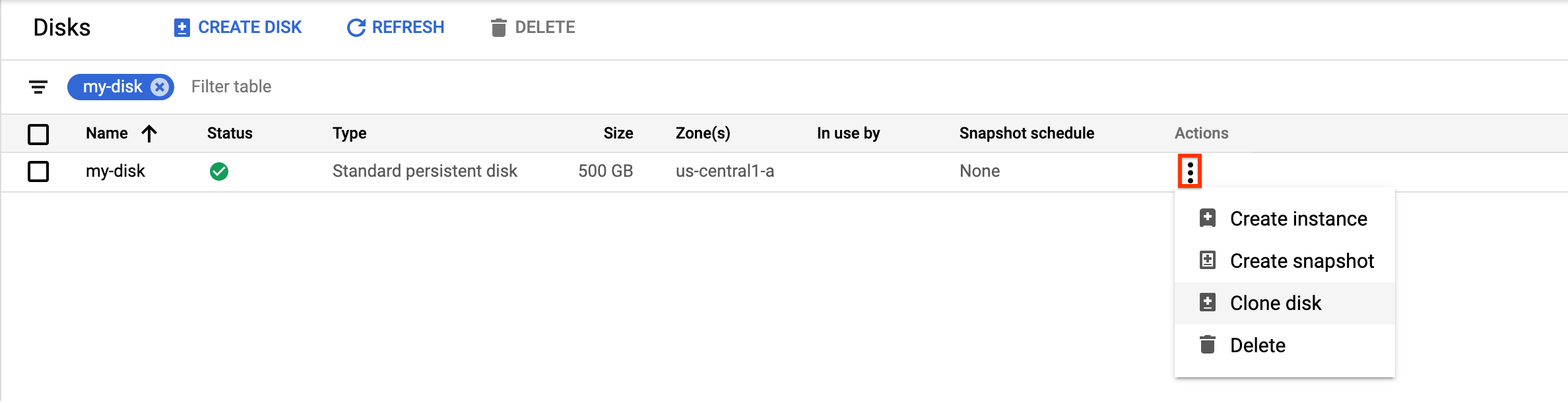
Di panel Clone disk yang muncul, lakukan hal berikut:
- Di kolom Name, tentukan nama untuk disk yang di-clone.
- Opsional: Untuk disk zonal, di bagian Location, pastikan Single zone dipilih.
- Di bagian Properties, tinjau detail lain untuk disk yang di-clone.
- Untuk menyelesaikan pembuatan disk yang di-clone, klik Buat.
Google Cloud CLI
Untuk meng-clone disk sumber zonal dan membuat disk zonal baru, jalankan
perintah disks create
dan tentukan flag --source-disk:
gcloud compute disks create TARGET_DISK_NAME \
    --description="cloned disk" \
    --source-disk=projects/PROJECT_ID/zones/ZONE/disks/SOURCE_DISK_NAME
Ganti kode berikut:
TARGET_DISK_NAME: nama disk baru.PROJECT_ID: ID project tempat Anda ingin meng-clone disk.ZONE: zona sumber dan disk baru.SOURCE_DISK_NAME: nama disk sumber.
Terraform
Untuk membuat clone disk, gunakan resource google_compute_disk.
Untuk mempelajari cara menerapkan atau menghapus konfigurasi Terraform, lihat Perintah dasar Terraform.
Go
Go
Sebelum mencoba contoh ini, ikuti petunjuk penyiapan Go di panduan memulai Compute Engine menggunakan library klien. Untuk informasi selengkapnya, lihat dokumentasi referensi API Go Compute Engine.
Untuk melakukan autentikasi ke Compute Engine, siapkan Kredensial Default Aplikasi. Untuk mengetahui informasi selengkapnya, lihat Menyiapkan autentikasi untuk library klien.
Sebelum menjalankan contoh kode, tetapkan variabel
lingkungan GOOGLE_CLOUD_UNIVERSE_DOMAIN ke s3nsapis.fr.
Java
Java
Sebelum mencoba contoh ini, ikuti petunjuk penyiapan Java di panduan memulai Compute Engine menggunakan library klien. Untuk informasi selengkapnya, lihat dokumentasi referensi API Java Compute Engine.
Untuk melakukan autentikasi ke Compute Engine, siapkan Kredensial Default Aplikasi. Untuk mengetahui informasi selengkapnya, lihat Menyiapkan autentikasi untuk library klien.
Sebelum menjalankan contoh kode, tetapkan variabel
lingkungan GOOGLE_CLOUD_UNIVERSE_DOMAIN ke s3nsapis.fr.
Python
Python
Sebelum mencoba contoh ini, ikuti petunjuk penyiapan Python di panduan memulai Compute Engine menggunakan library klien. Untuk informasi selengkapnya, lihat dokumentasi referensi API Python Compute Engine.
Untuk melakukan autentikasi ke Compute Engine, siapkan Kredensial Default Aplikasi. Untuk mengetahui informasi selengkapnya, lihat Menyiapkan autentikasi untuk library klien.
Sebelum menjalankan contoh kode, tetapkan variabel
lingkungan GOOGLE_CLOUD_UNIVERSE_DOMAIN ke s3nsapis.fr.
REST
Untuk meng-clone disk sumber zona dan membuat disk zona baru, buat permintaan POST
ke
metode compute.disks.insert.
Dalam isi permintaan, tentukan parameter name dan sourceDisk. Clone disk mewarisi semua properti yang dihilangkan dari disk sumber.
POST https://compute.googleapis.com/compute/v1/projects/PROJECT_ID/zones/ZONE/disks

{
  "name": "TARGET_DISK_NAME"
  "sourceDisk": "projects/PROJECT_ID/zones/ZONE/disks/SOURCE_DISK_NAME"
}
Ganti kode berikut:
PROJECT_ID: ID project tempat Anda ingin meng-clone disk.ZONE: zona sumber dan disk baru.TARGET_DISK_NAME: nama disk baru.SOURCE_DISK_NAME: nama disk sumber
Membuat clone disk regional dari disk zona
Anda dapat membuat disk regional baru dengan meng-clone boot disk atau disk data zona yang ada dari salah satu jenis berikut:
- Hyperdisk Balanced
- Ekstrem Hyperdisk
- Persistent Disk Standar, Seimbang, dan SSD
Anda tidak dapat membuat disk regional dengan meng-clone disk sumber jika disk sumber adalah volume Hyperdisk ML atau Hyperdisk Throughput. Anda harus membuat volume Hyperdisk Balanced High Availability baru dari snapshot disk zona.
Jika disk sumber adalah volume Hyperdisk Balanced atau Hyperdisk Extreme, disk regional akan selalu berupa volume Hyperdisk Balanced High Availability dan tidak mewarisi performa yang disediakan dari disk zona. Jika Anda tidak menentukan ukuran, atau jika Anda meng-clone disk dengan konsol Cloud de Confiance , Compute Engine akan membuat disk baru dengan batas performa default untuk ukurannya.
Untuk menetapkan ukuran, dan untuk disk Hyperdisk Balanced High Availability, performa yang disediakan dari disk regional, Anda harus meng-clone disk dengan Google Cloud CLI atau REST; Anda tidak dapat menggunakan konsol Cloud de Confiance .
Konsol
Di konsol Cloud de Confiance , buka halaman Disks.
Dalam daftar disk, buka volume Persistent Disk zona yang ingin Anda clone.
Di kolom Tindakan, klik tombol menu , lalu pilih Clone disk.
Di panel Clone disk yang muncul, lakukan hal berikut:
- Di kolom Name, tentukan nama untuk disk yang di-clone.
- Untuk Location, pilih Regional, lalu pilih zona replika sekunder untuk disk regional yang dikloning baru.
- Di bagian Properties, tinjau detail lain untuk disk yang di-clone.
- Untuk menyelesaikan pembuatan disk yang di-clone, klik Create.
gcloud
Untuk membuat clone disk regional dari disk zonal, jalankan
perintah gcloud compute disks create
dan tentukan parameter --region dan --replica-zones.
Jika disk zonal adalah volume Hyperdisk Balanced atau Hyperdisk Extreme, tentukan tanda --type=hyperdisk-balanced-high-availability karena disk regional harus berupa volume Hyperdisk Balanced High Availability. Jika menentukan performa yang disediakan, Anda juga harus menentukan ukuran disk, meskipun ukurannya sama dengan disk sumber.
Untuk meng-clone volume Persistent Disk, hapus flag --type.
gcloud compute disks create TARGET_DISK_NAME \
  --description="zonal to regional cloned disk" \
  --region=CLONED_REGION \
  --source-disk=SOURCE_DISK_NAME \
  --source-disk-zone=SOURCE_DISK_ZONE \
  --replica-zones=SOURCE_DISK_ZONE,REPLICA_ZONE_2 \
  --project=PROJECT_ID \
  --type=hyperdisk-balanced-high-availability  \
  --size=DISK_SIZE \
  --provisioned-iops=IOPS_LIMIT  \
  --provisioned-throughput=THROUGHPUT_LIMIT
Ganti kode berikut:
TARGET_DISK_NAME: nama untuk clone disk regional baru.CLONED_REGION: region disk sumber dan disk yang di-clone.SOURCE_DISK_NAME: nama disk zona yang akan di-clone.SOURCE_DISK_ZONE: zona untuk disk sumber. Zona ini juga akan menjadi zona replika pertama untuk clone disk regional.REPLICA_ZONE_2: zona replika kedua untuk clone disk regional baru.PROJECT_ID: ID project tempat Anda ingin meng-clone disk.DISK_SIZE: Opsional: Ukuran disk regional baru, dalam GB. Ukuran harus minimal sama dengan ukuran disk sumber. Jika Anda menentukan batas IOPS atau throughput, Anda harus menggunakan flag ini untuk menentukan ukuran disk, meskipun ukurannya sama dengan disk sumber.IOPS_LIMIT: Opsional: Untuk membuat disk Hyperdisk Balanced High Availability regional, Anda dapat menentukan jumlah IOPS yang dapat dicapai disk, hingga 100.000 IOPS. Jika menyertakan flag ini, Anda juga harus menentukan ukuran disk dengan flag--size.THROUGHPUT_LIMIT: Opsional: Untuk membuat disk Hyperdisk Balanced High Availability regional, Anda dapat menentukan throughput maksimum dalam MiB/dtk yang dapat dicapai disk, hingga 2.400 MiB/dtk. Jika menyertakan flag ini, Anda juga harus menentukan ukuran disk dengan flag--size.
Terraform
Untuk membuat clone disk regional dari disk zonal, gunakan resource berikut. Jika disk sumber adalah volume Hyperdisk Balanced atau Hyperdisk Extreme,
tetapkan argumen type ke hyperdisk-balanced-high-availability.
Untuk mempelajari cara menerapkan atau menghapus konfigurasi Terraform, lihat Perintah dasar Terraform.
Go
Go
Sebelum mencoba contoh ini, ikuti petunjuk penyiapan Go di panduan memulai Compute Engine menggunakan library klien. Untuk informasi selengkapnya, lihat dokumentasi referensi API Go Compute Engine.
Untuk melakukan autentikasi ke Compute Engine, siapkan Kredensial Default Aplikasi. Untuk mengetahui informasi selengkapnya, lihat Menyiapkan autentikasi untuk library klien.
Sebelum menjalankan contoh kode, tetapkan variabel
lingkungan GOOGLE_CLOUD_UNIVERSE_DOMAIN ke s3nsapis.fr.
Java
Java
Sebelum mencoba contoh ini, ikuti petunjuk penyiapan Java di panduan memulai Compute Engine menggunakan library klien. Untuk informasi selengkapnya, lihat dokumentasi referensi API Java Compute Engine.
Untuk melakukan autentikasi ke Compute Engine, siapkan Kredensial Default Aplikasi. Untuk mengetahui informasi selengkapnya, lihat Menyiapkan autentikasi untuk library klien.
Sebelum menjalankan contoh kode, tetapkan variabel
lingkungan GOOGLE_CLOUD_UNIVERSE_DOMAIN ke s3nsapis.fr.
Python
Python
Sebelum mencoba contoh ini, ikuti petunjuk penyiapan Python di panduan memulai Compute Engine menggunakan library klien. Untuk informasi selengkapnya, lihat dokumentasi referensi API Python Compute Engine.
Untuk melakukan autentikasi ke Compute Engine, siapkan Kredensial Default Aplikasi. Untuk mengetahui informasi selengkapnya, lihat Menyiapkan autentikasi untuk library klien.
Sebelum menjalankan contoh kode, tetapkan variabel
lingkungan GOOGLE_CLOUD_UNIVERSE_DOMAIN ke s3nsapis.fr.
REST
Untuk membuat clone disk regional dari disk zona, buat permintaan POST ke metode compute.disks.insert dan tentukan parameter sourceDisk dan replicaZone.
Jika disk zona adalah volume Hyperdisk Balanced atau Hyperdisk Extreme, sertakan kolom type untuk
membuat volume Hyperdisk Balanced High Availability. Jika Anda menentukan performa yang disediakan, Anda juga harus
menentukan ukuran disk, meskipun ukurannya sama dengan disk sumber.
POST https://compute.googleapis.com/compute/v1/projects/PROJECT_ID/regions/CLONED_REGION/disks

{
  "name": "TARGET_DISK_NAME",
  "sourceDisk": "projects/PROJECT_ID/zones/SOURCE_DISK_ZONE/disks/SOURCE_DISK_NAME",
  "replicaZone": "SOURCE_DISK_ZONE,REPLICA_ZONE_2",
  "type": "projects/PROJECT_ID/regions/CLONED_REGION/diskTypes/hyperdisk-balanced-high-availability",
  "sizeGb": "DISK_SIZE",
  "provisionedIops": "IOPS_LIMIT",
  "provisionedThroughput": "THROUGHPUT_LIMIT"
}
Ganti kode berikut:
PROJECT_ID: project ID tempat Anda ingin meng-clone disk.TARGET_DISK_NAME: nama untuk clone disk regional baru.CLONED_REGION: region disk sumber dan disk yang di-clone.SOURCE_DISK_NAME: nama disk zona yang akan di-clone.SOURCE_DISK_ZONE: zona untuk disk sumber. Zona ini juga akan menjadi zona replika pertama untuk clone disk regional.REPLICA_ZONE_2: zona replika kedua untuk clone disk regional baru.DISK_SIZE: Opsional: Ukuran disk regional baru, dalam GB. Ukuran harus minimal sama dengan ukuran disk sumber. Jika Anda menentukan batas IOPS atau throughput, Anda harus menyertakan kolom ini untuk menentukan ukuran disk, meskipun sama dengan disk sumber.IOPS_LIMIT: Opsional: Untuk membuat disk Hyperdisk Balanced High Availability regional, Anda dapat menentukan jumlah IOPS yang dapat ditangani disk, hingga 100.000 IOPS. Jika menyertakan kolom ini, Anda juga harus menentukan ukuran disk dengan kolomsize.THROUGHPUT_LIMIT: Opsional: Untuk membuat disk Hyperdisk Balanced High Availability regional, Anda dapat menentukan throughput maksimum dalam MiB/dtk, yang dapat disediakan disk, hingga 2.400 MiB/dtk. Jika menyertakan kolom ini, Anda juga harus menentukan ukuran disk dengan kolomsize.
Membuat clone disk dari disk sumber yang dienkripsi dengan CMEK atau CSEK
Untuk membuat clone zona atau regional dari disk yang dienkripsi dengan CSEK atau CMEK, ikuti prosedur yang dijelaskan di bagian sebelumnya. Namun, Anda juga harus memberikan kunci yang digunakan untuk mengenkripsi disk sumber.
Membuat clone disk untuk disk yang dienkripsi dengan CSEK
Jika menggunakan CSEK untuk mengenkripsi disk sumber, Anda juga harus menggunakan kunci yang sama untuk mengenkripsi clone tersebut.
Konsol
Di konsol Cloud de Confiance , buka halaman Disks.
Dalam daftar persistent disk zona, temukan disk yang ingin di-clone.
Di kolom Actions, klik tombol menu dan pilih Clone disk.
Di panel Clone disk yang muncul, lakukan hal berikut:
- Di kolom Name, tentukan nama untuk disk yang di-clone.
- Di kolom Decryption and encryption, berikan kunci enkripsi disk sumber.
- Di bagian Properties, tinjau detail lain untuk disk yang di-clone.
- Untuk menyelesaikan pembuatan disk yang di-clone, klik Create.
gcloud
Untuk membuat clone disk bagi disk sumber yang dienkripsi CSEK, jalankan
perintah gcloud compute disks create
dan berikan kunci enkripsi disk sumber menggunakan flag --csek-key-file. Jika Anda menggunakan kunci yang digabungkan RSA, gunakan
perintah gcloud beta compute disks create.
gcloud compute disks create TARGET_DISK_NAME \
  --description="cloned disk" \
  --source-disk=projects/PROJECT_ID/zones/ZONE/disks/SOURCE_DISK_NAME \
  --csek-key-file example-key-file.json
Ganti kode berikut:
TARGET_DISK_NAME: nama disk baru.PROJECT_ID: ID project tempat Anda ingin meng-clone disk.ZONE: zona sumber dan disk baru.SOURCE_DISK_NAME: nama disk sumber
Go
Go
Sebelum mencoba contoh ini, ikuti petunjuk penyiapan Go di panduan memulai Compute Engine menggunakan library klien. Untuk informasi selengkapnya, lihat dokumentasi referensi API Go Compute Engine.
Untuk melakukan autentikasi ke Compute Engine, siapkan Kredensial Default Aplikasi. Untuk mengetahui informasi selengkapnya, lihat Menyiapkan autentikasi untuk library klien.
Sebelum menjalankan contoh kode, tetapkan variabel
lingkungan GOOGLE_CLOUD_UNIVERSE_DOMAIN ke s3nsapis.fr.
Java
Java
Sebelum mencoba contoh ini, ikuti petunjuk penyiapan Java di panduan memulai Compute Engine menggunakan library klien. Untuk informasi selengkapnya, lihat dokumentasi referensi API Java Compute Engine.
Untuk melakukan autentikasi ke Compute Engine, siapkan Kredensial Default Aplikasi. Untuk mengetahui informasi selengkapnya, lihat Menyiapkan autentikasi untuk library klien.
Sebelum menjalankan contoh kode, tetapkan variabel
lingkungan GOOGLE_CLOUD_UNIVERSE_DOMAIN ke s3nsapis.fr.
Python
Python
Sebelum mencoba contoh ini, ikuti petunjuk penyiapan Python di panduan memulai Compute Engine menggunakan library klien. Untuk informasi selengkapnya, lihat dokumentasi referensi API Python Compute Engine.
Untuk melakukan autentikasi ke Compute Engine, siapkan Kredensial Default Aplikasi. Untuk mengetahui informasi selengkapnya, lihat Menyiapkan autentikasi untuk library klien.
Sebelum menjalankan contoh kode, tetapkan variabel
lingkungan GOOGLE_CLOUD_UNIVERSE_DOMAIN ke s3nsapis.fr.
REST
Untuk membuat clone disk untuk disk sumber yang dienkripsi CSEK, buat permintaan POST
ke metode compute.disks.insert
dan berikan kunci enkripsi disk sumber menggunakan properti
diskEncryptionKey. Jika Anda menggunakan kunci yang digabungkan RSA, gunakan
versi beta dari metode.
POST https://compute.googleapis.com/compute/v1/projects/PROJECT_ID/zones/ZONE/disks

{
  "name": "TARGET_DISK_NAME"
  "sourceDisk": "projects/PROJECT_ID/zones/ZONE/disks/SOURCE_DISK_NAME"
  "diskEncryptionKey": {
    "rsaEncryptedKey": "ieCx/NcW06PcT7Ep1X6LUTc/hLvUDYyzSZPPVCVPTVEohpeHASqC8uw5TzyO9U+Fka9JFHz0mBibXUInrC/jEk014kCK/NPjYgEMOyssZ4ZINPKxlUh2zn1bV+MCaTICrdmuSBTWlUUiFoDD6PYznLwh8ZNdaheCeZ8ewEXgFQ8V+sDroLaN3Xs3MDTXQEMMoNUXMCZEIpg9Vtp9x2oeQ5lAbtt7bYAAHf5l+gJWw3sUfs0/Glw5fpdjT8Uggrr+RMZezGrltJEF293rvTIjWOEB3z5OHyHwQkvdrPDFcTqsLfh+8Hr8g+mf+7zVPEC8nEbqpdl3GPv3A7AwpFp7MA=="
  },
}
Ganti kode berikut:
PROJECT_ID: ID project tempat Anda ingin meng-clone disk.ZONE: zona sumber dan disk baru.TARGET_DISK_NAME: nama disk baru.SOURCE_DISK_NAME: nama disk sumber
Membuat clone disk untuk disk yang dienkripsi CMEK
Jika menggunakan CMEK untuk mengenkripsi disk sumber, Anda juga harus menggunakan kunci yang sama untuk mengenkripsi clone tersebut.
Konsol
Compute Engine otomatis mengenkripsi clone menggunakan kunci enkripsi disk sumber.
gcloud
Untuk membuat clone disk bagi disk sumber yang dienkripsi CMEK, jalankan perintah gcloud compute disks create dan berikan kunci enkripsi disk sumber menggunakan flag --kms-key.
Jika Anda menggunakan kunci yang digabungkan RSA, gunakan
perintah gcloud beta compute disks create.
gcloud compute disks create TARGET_DISK_NAME \
  --description="cloned disk" \
  --source-disk=projects/PROJECT_ID/zones/ZONE/disks/SOURCE_DISK_NAME \
  --kms-key projects/KMS_PROJECT_ID/locations/REGION/keyRings/KEY_RING/cryptoKeys/KEY
Ganti kode berikut:
TARGET_DISK_NAME: nama disk baru.PROJECT_ID: ID project tempat Anda ingin meng-clone disk.ZONE: zona sumber dan disk baru.SOURCE_DISK_NAME: nama disk sumber.KMS_PROJECT_ID: project ID untuk kunci enkripsi.REGION: region kunci enkripsi.KEY_RING: key ring kunci enkripsi.KEY: nama kunci enkripsi.
Go
Go
Sebelum mencoba contoh ini, ikuti petunjuk penyiapan Go di panduan memulai Compute Engine menggunakan library klien. Untuk informasi selengkapnya, lihat dokumentasi referensi API Go Compute Engine.
Untuk melakukan autentikasi ke Compute Engine, siapkan Kredensial Default Aplikasi. Untuk mengetahui informasi selengkapnya, lihat Menyiapkan autentikasi untuk library klien.
Sebelum menjalankan contoh kode, tetapkan variabel
lingkungan GOOGLE_CLOUD_UNIVERSE_DOMAIN ke s3nsapis.fr.
Java
Java
Sebelum mencoba contoh ini, ikuti petunjuk penyiapan Java di panduan memulai Compute Engine menggunakan library klien. Untuk informasi selengkapnya, lihat dokumentasi referensi API Java Compute Engine.
Untuk melakukan autentikasi ke Compute Engine, siapkan Kredensial Default Aplikasi. Untuk mengetahui informasi selengkapnya, lihat Menyiapkan autentikasi untuk library klien.
Sebelum menjalankan contoh kode, tetapkan variabel
lingkungan GOOGLE_CLOUD_UNIVERSE_DOMAIN ke s3nsapis.fr.
Python
Python
Sebelum mencoba contoh ini, ikuti petunjuk penyiapan Python di panduan memulai Compute Engine menggunakan library klien. Untuk informasi selengkapnya, lihat dokumentasi referensi API Python Compute Engine.
Untuk melakukan autentikasi ke Compute Engine, siapkan Kredensial Default Aplikasi. Untuk mengetahui informasi selengkapnya, lihat Menyiapkan autentikasi untuk library klien.
Sebelum menjalankan contoh kode, tetapkan variabel
lingkungan GOOGLE_CLOUD_UNIVERSE_DOMAIN ke s3nsapis.fr.
REST
Untuk membuat clone disk untuk disk sumber yang dienkripsi CMEK, buat permintaan POST
ke metode compute.disks.insert
dan berikan kunci enkripsi disk sumber menggunakan properti kmsKeyName.
Jika Anda menggunakan kunci yang digabungkan RSA, gunakan
versi beta dari metode ini.
POST https://compute.googleapis.com/compute/v1/projects/PROJECT_ID/zones/ZONE/disks

{
  "name": "TARGET_DISK_NAME"
  "sourceDisk": "projects/PROJECT_ID/zones/ZONE/disks/SOURCE_DISK_NAME"
  "diskEncryptionKey": {
    "kmsKeyName": "projects/KMS_PROJECT_ID/locations/REGION/keyRings/KEY_RING/cryptoKeys/KEY"
  },
}
Ganti kode berikut:
PROJECT_ID: ID project tempat Anda ingin meng-clone disk.ZONE: zona sumber dan disk baru.TARGET_DISK_NAME: nama untuk disk baru.SOURCE_DISK_NAME: nama disk sumber.KMS_PROJECT_ID: project ID untuk kunci enkripsi.REGION: region kunci enkripsi.KEY_RING: key ring kunci enkripsi.KEY: nama kunci enkripsi.
Langkah berikutnya
- Pelajari cara mencadangkan disk menggunakan snapshot standar secara rutin untuk mencegah kehilangan data yang tidak diinginkan.
- Pelajari cara mencadangkan disk di tempat menggunakan snapshot instan.
- Pelajari cara menggunakan persist disk regional untuk replikasi sinkron antara dua zona.
- Pelajari Replikasi Asinkron.