
When you create virtual machines (VMs) in bulk in a region by using Compute Engine, if your application is not restricted to a single machine type, you can increase the success rate of provisioning your required number of VMs by configuring instance flexibility. Instance flexibility lets you specify one or more machine types that are suitable for your workload. Compute Engine then provisions VMs using any of these machine types, based on capacity and quota availability.
Instance flexibility helps you maximize resource availability during demand spikes, improve price-performance, and safely adopt the latest hardware. For more information, see Optimize compute provisioning.
This document describes how instance flexibility works for VMs created in bulk, including instance property overrides for minimum CPU platform and disks, and limitations. For more information about configuring instance flexibility, see Create VMs in bulk with instance flexibility.
Use instance flexibility
To configure instance flexibility, you list suitable machine types by defining
one or more instance selections in your regional bulk insert request.
For example, in a REST request, you include the instanceFlexibilityPolicy
object, within which you define one or more instanceSelections objects,
each containing a list of machine types.
You can also specify machine types that run on different CPU platforms, have
different architectures (such as x86 and Arm), or have different disk
requirements. To use machine types with different hardware requirements, use an
instance selection to override corresponding properties from the request's
instance properties (instanceProperties). For more information, see Instance property overrides in instance selections.
When Compute Engine receives the request, it first validates the machine types and their zonal compatibility, excluding any invalid entries. If at least one valid configuration exists, the operation proceeds.
Compute Engine then attempts to provision VMs based on available hardware, quota, and reservations. If you configure ranks for your instance selections, it prioritizes selections with a lower rank. Within each rank, Compute Engine considers unused reservations and Spot VM guidance to select machine types with a lower probability of preemption.
Instance property overrides in instance selections
When you make an instance selection, you can specify additional instance
properties, such as minimum CPU platform (minCpuPlatform) and disks (disks),
to override or add to the properties that you define in the request's instance
properties (instanceProperties). When Compute Engine selects a machine
type from an instance selection to create VMs, it uses the instance properties
that you specify in that selection. If you don't specify any overrides for an
instance selection, Compute Engine uses the corresponding properties
from instanceProperties for VMs that it creates from that selection.
Overriding instance properties at the instance selection level gives you more control and flexibility when you use different hardware configurations in a single bulk insert request.
Minimum CPU platform overrides
You can specify a
minimum CPU platform
(minCpuPlatform) for VMs that Compute Engine creates from the
machine types in an instance selection. This override lets you mix different
machine types and selectively apply minimum CPU platforms. Each machine type
in an instance selection must support the effective minimum CPU platform,
whether specified in the selection or inherited from instanceProperties.
Alternatively, you can set the minCpuPlatform field to AUTOMATIC. This
setting overrides the minCpuPlatform value in instanceProperties and lets
Compute Engine use any compatible CPU platform for the machine types in
the instance selection.
To mix machine types where only one series supports a specific CPU platform, place them in separate instance selections. For example, N4 machine types support the Intel Emerald Rapids platform, while N2 machine types with fewer than 96 vCPUs support Intel Ice Lake and Intel Cascade Lake. To mix N4 and N2 in a bulk insert request and require N2 to run on Intel Ice Lake, configure two instance selections as follows:
- N2 selection: Set the
minCpuPlatformfield toIntel Ice Lake. - N4 selection: Leave the
minCpuPlatformfield unset, or set it toAUTOMATIC.
You can set equal preference for both machine types by assigning the same rank to both instance selections.
Disk overrides
You can specify a custom disk configuration in an instance selection to
override the boot disk or additional disks that are specified in
instanceProperties, or to attach additional disks. This override lets you mix
machine types that have different architectures or support different disk
types. It also lets you specify the boot images or disks required for each machine type.
For example, you can use separate instance selections to override disks for different requirements:
- Different architectures: You can mix C4 (x86 architecture) and C4A (Arm architecture) machine types. Because x86 and Arm machine types require different boot images, you can override the boot disk to specify a compatible image for each architecture.
- Different disk types: You can mix N2 and N4 machine types. Because N2 supports only Persistent Disk for boot disks and N4 supports only Google Cloud Hyperdisk, you can override the disk configuration to specify a supported disk type for each machine series.
In either scenario, you can set equal preference for both machine types by assigning the same rank to the instance selections.
If a disk in an instance selection has a deviceName that matches a disk in
instanceProperties, then Compute Engine overrides that disk's
configuration. If the deviceName doesn't match any disk in
instanceProperties, then Compute Engine attaches it as an additional
disk. You must ensure that the effective disk configuration is compatible with
all machine types in the instance selection.
The following diagram shows how Compute Engine merges disk
configurations from instanceProperties and an instance selection:
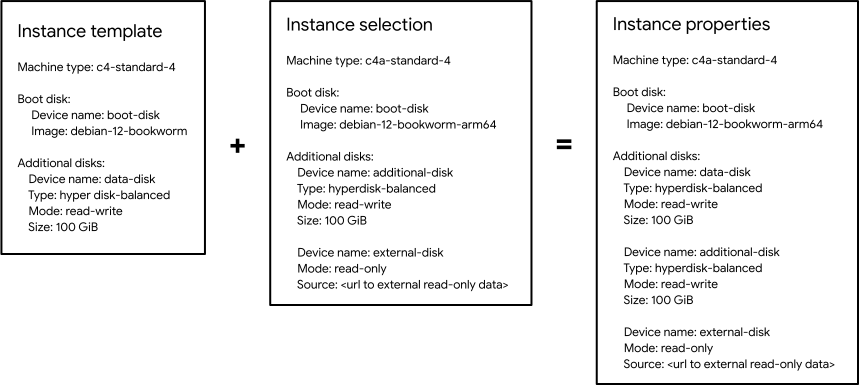
For instructions on how to specify minimum CPU platform and disk overrides when you create VMs in bulk, see Create VMs with multiple machine types, minimum CPU platform, and disk overrides.
For more information about the limitations when you use instance selection overrides, see the Limitations section in this document.
Example: Minimum CPU platform and disk overrides
You can use overrides in an instance flexibility policy to provision VMs across machine series that require different CPU platforms, boot images, or disk types.
Consider a bulk insert request with the following base instanceProperties
configuration that defines a default pd-balanced boot disk:
"instanceProperties": {
  "disks": [
    {
      "autoDelete": true,
      "deviceName": "boot-disk",
      "boot": true,
      "initializeParams": {
        "sourceImage": "projects/debian-cloud/global/images/family/debian-12",
        "diskSizeGb": "10",
        "diskType": "pd-balanced"
      }
    }
  ],
  "networkInterfaces": [{}]
}
The following instanceFlexibilityPolicy configuration in the same request
overrides the base instanceProperties configuration by specifying minimum CPU
platform and disk configurations across three instance selections:
"instanceFlexibilityPolicy": {
  "instanceSelections": {
    "first-preference": {
      "rank": 1,
      "machineTypes": ["n4-standard-4"],
      "disks": [
        {
          "autoDelete": true,
          "deviceName": "boot-disk",
          "boot": true,
          "initializeParams": {
            "sourceImage": "projects/debian-cloud/global/images/family/debian-12",
            "diskSizeGb": "10",
            "diskType": "hyperdisk-balanced"
          }
        }
      ]
    },
    "second-preference": {
      "rank": 2,
      "machineTypes": ["c4a-standard-4"],
      "disks": [
        {
          "autoDelete": true,
          "deviceName": "boot-disk",
          "boot": true,
          "initializeParams": {
            "sourceImage": "projects/debian-cloud/global/images/family/debian-12-arm64",
            "diskSizeGb": "10",
            "diskType": "hyperdisk-balanced"
          }
        },
        {
          "autoDelete": true,
          "deviceName": "data-disk",
          "boot": false,
          "initializeParams": {
            "diskSizeGb": "100",
            "diskType": "hyperdisk-balanced"
          }
        }
      ]
    },
    "third-preference": {
      "rank": 3,
      "machineTypes": ["n2-standard-4"],
      "minCpuPlatform": "Intel Ice Lake",
      "disks": [
        {
          "autoDelete": true,
          "deviceName": "boot-disk",
          "boot": true,
          "initializeParams": {
            "sourceImage": "projects/debian-cloud/global/images/family/debian-12",
            "diskSizeGb": "10",
            "diskType": "pd-ssd"
          }
        }
      ]
    }
  }
}
In this example, Compute Engine applies the following overrides depending on which instance selection it uses to create VMs:
- First preference (
first-preference): Forn4-standard-4VMs, the selection overridesboot-diskto use ahyperdisk-balanceddisk instead of the basepd-balanceddisk. - Second preference (
second-preference): Forc4a-standard-4(Arm) VMs, the selection overridesboot-diskto use an Arm-compatible boot image (debian-12-arm64) on ahyperdisk-balanceddisk, and attaches an additional 100 GBhyperdisk-balanceddisk nameddata-disk. - Third preference (
third-preference): Forn2-standard-4VMs, the selection setsminCpuPlatformtoIntel Ice Lakeand overridesboot-diskto use apd-ssddisk.
Zone selection when a target distribution shape is defined
When using instance flexibility with a regional bulkInsert request, you can
specify a target distribution shape to control how
VMs are distributed across zones in the region. Compute Engine selects
zones for provisioning VMs based on this shape, as follows:
ANY_SINGLE_ZONE: Compute Engine selects a single zone that has the most capacity for machine types with a higher preference.BALANCED: Compute Engine distributes VMs as evenly as possible across zones with available resources. Within each zone, Compute Engine prioritizes machine types with a higher preference.ANY: Compute Engine selects zones with available resources. If ranks are configured, then Compute Engine prioritizes zones to provision VMs with machine types with a higher preference.
For more information, see Create VMs in bulk in a region.
Minimum VM provisioning and instance flexibility
If you define a value for the minimum required number of VMs (minCount) in the bulkInsert request, the API
attempts to create at least that many VMs. If Compute Engine can't
provision the minimum required number of VMs (minCount), the entire operation
fails, and Compute Engine
doesn't create any VMs. When you use minCount with instance flexibility,
Compute Engine prioritizes provisioning VMs based on obtainability over
rank, as follows:
- Compute Engine prioritizes provisioning the maximum number of VMs up
to
count, even if this means using machines of lower preference. For example, if your request specifies a minimum of one required VM (minCount=1) and a maximum of 10 VMs (count=10), and if Compute Engine has capacity to provision either one higher-preference VM or six lower-preference VMs, then Compute Engine provisions the six lower-preference VMs. - If Compute Engine can provision the same maximum number of VMs up to
countby using different instance selections, it prioritizes the selection with higher preference. For example, if your request specifies a minimum of one required VM (minCount=1) and a maximum of 10 VMs (count=10), and if Compute Engine can provision six VMs by using either a higher-preference or a lower-preference instance selection, then Compute Engine provisions the six VMs from the higher-preference selection.
For more information, see minCount property in
bulkInsert.
Bulk insert validation and error scenarios
Compute Engine performs an initial validation of machine types and their zonal compatibility, excluding any invalid entries from consideration. If at least one valid configuration remains after this initial check, Compute Engine proceeds with VM creation.
However, some validations of your configuration can occur only after
Compute Engine has selected the zones and machine types to use for
provisioning, based on your instance flexibility policy and available capacity.
If, during this later validation stage, the specific machine type and zone
combination chosen for provisioning is found to be invalid, the entire
bulk insert request fails with validation errors. This failure can happen even if other
configurations within the instanceFlexibilityPolicy were initially valid.
Limitations
The following limitations apply when you use instance flexibility for bulk VM creation:
- You can specify instance flexibility only for regional
bulkInsertrequests; you can't use it with zonal requests. - Instance flexibility doesn't support Flex-start VMs and future reservations.
- You can't use instance flexibility with AI Hypercomputer features, or with A3 Ultra, A4, and newer GPUs.
- You can specify a maximum of 10 different machine types across a maximum of 10 different instance selections.
- When you override
minCpuPlatformordisksin an instance selection, the following limitations also apply:- When you configure
minCpuPlatformordisksfor an instance selection, you must also include themachineTypesfield. If you omit themachineTypesfield, then the operation fails with an error. - You can override Local SSD disks only for
machine types that let you choose a number of Local SSD disks.
You can't override Local SSD disks for
-lssdvariants of machine types, which automatically attach Local SSD disks.
- When you configure
What's next
- Learn how to Create VMs in bulk with instance flexibility.
- Learn about flexibility dimensions, use cases, and best practices in Optimize compute provisioning.