
יצירת מכונה וירטואלית עם שם מארח בהתאמה אישית

כשיוצרים מכונה וירטואלית (VM), המערכת Cloud de Confiance by S3NS יוצרת שם DNS פנימי משם המכונה הווירטואלית. אלא אם מציינים שם מארח בהתאמה אישית, Cloud de Confiance משתמש בשם ה-DNS הפנימי שנוצר אוטומטית כשם המארח שהוא מספק למכונה הווירטואלית.

אתם יכולים ליצור מכונה וירטואלית עם שם מארח מותאם אישית על ידי ציון שם DNS מוגדר במלואו. שמות מארחים מותאמים אישית שימושיים לשמירה על מוסכמות או לתמיכה בדרישות של אפליקציות שמצפות לשם מארח מסוים.

גם כשמציינים שם מארח מותאם אישית, Cloud de Confiance יוצר את שם ה-DNS הפנימי של Compute Engine. אפשר להתחבר למכונה הווירטואלית באמצעות רשומת ה-DNS הפנימית הזו שנוצרה באופן אוטומטי. רשומת ה-DNS הפנימית מפוענחת לשם ה-DNS הפנימי ולא לשם המארח המותאם אישית. גם כשמשתמשים בשמות מארחים בהתאמה אישית, צריך ליצור רשומת DNS תואמת באזור המתאים, למשל באמצעות Cloud DNS.

לפני שמתחילים

התפקידים הנדרשים

כדי לקבל את ההרשאות שנדרשות ליצירת מכונה וירטואלית עם שם מארח בהתאמה אישית, צריך לבקש מהאדמין להקצות לכם ב-IAM את התפקיד אדמין מכונות של Compute ‏ (v1) (roles/compute.instanceAdmin.v1) בפרויקט. כדי לקרוא הסבר על מתן תפקידים, ראו איך מנהלים את הגישה ברמת הפרויקט, התיקייה והארגון.

זהו תפקיד שמוגדר מראש וכולל את ההרשאות שנדרשות ליצירת מכונה וירטואלית עם שם מארח בהתאמה אישית. כדי לראות בדיוק אילו הרשאות נדרשות, אפשר להרחיב את הקטע ההרשאות הנדרשות:

ההרשאות הנדרשות

כדי ליצור מכונה וירטואלית עם שם מארח בהתאמה אישית, צריך את ההרשאות הבאות:

  • compute.instances.create בפרויקט
  • כדי להשתמש באימג' בהתאמה אישית ליצירת המכונה הווירטואלית (VM)‏: ‫compute.images.useReadOnly בקובץ אימג'
  • כדי להשתמש ב-snapshot ליצירת המכונה הווירטואלית: ‫compute.snapshots.useReadOnly בקובץ snapshot
  • כדי להשתמש בתבנית של הגדרות מכונה ליצירת המכונה הווירטואלית: compute.instanceTemplates.useReadOnly בתבנית של הגדרות המכונה
  • כדי לציין רשת משנה למכונה הווירטואלית: ‫compute.subnetworks.use בפרויקט או ברשת המשנה שנבחרה
  • כדי לציין כתובת IP סטטית למכונה הווירטואלית: ‫compute.addresses.use בפרויקט
  • כדי להקצות כתובת IP חיצונית למכונה הווירטואלית כשמשתמשים ברשת VPC: ‫compute.subnetworks.useExternalIp בפרויקט או ברשת המשנה שנבחרה
  • כדי להקצות רשת מדור קודם למכונה הווירטואלית: ‫compute.networks.use בפרויקט
  • כדי להקצות כתובת IP חיצונית למכונה הווירטואלית כשמשתמשים ברשת מדור קודם: ‫compute.networks.useExternalIp בפרויקט
  • כדי להגדיר מטא-נתונים של המכונה הווירטואלית: ‫compute.instances.setMetadata בפרויקט
  • כדי להגדיר תגים למכונה הווירטואלית: ‫compute.instances.setTags במכונה הווירטואלית
  • כדי להגדיר תוויות למכונה הווירטואלית: ‫compute.instances.setLabels במכונה הווירטואלית
  • כדי להגדיר חשבון שירות לשימוש של המכונה הווירטואלית: ‫compute.instances.setServiceAccount במכונה הווירטואלית
  • כדי ליצור דיסק חדש למכונה הווירטואלית: ‫compute.disks.create בפרויקט
  • כדי לצרף דיסק קיים במצב קריאה-בלבד או במצב קריאה וכתיבה: ‫compute.disks.use בדיסק
  • כדי לצרף דיסק קיים במצב קריאה-בלבד: ‫compute.disks.useReadOnly בדיסק

יכול להיות שתקבלו את ההרשאות האלה באמצעות תפקידים בהתאמה אישית או תפקידים מוגדרים מראש אחרים.

מגבלות

  • צריך להגדיר ידנית את רשומת ה-DNS של שם המארח המותאם אישית. שמות מארחים בהתאמה אישית לא נפתרים על ידי הרשומות שנוצרות באופן אוטומטי על ידי מערכת ה-DNS הפנימית של Compute Engine. אפשר להשתמש באחת מהאפשרויות הבאות כדי לארח את רשומת ה-DNS של שם המארח המותאם אישית:

  • אי אפשר לשנות שם מארח מותאם אישית אחרי שיוצרים את המכונה הווירטואלית.

מערכות הפעלה נתמכות

שמות מארחים מותאמים אישית מוגדרים בסביבת האורח באמצעות סקריפטים של hook שמשולבים בתוכנת הרשת של האורח. יכול להיות שבמערכות הפעלה של Linux שאין להן סקריפט לשילוב עם תוכנת הרשת לאורחים, שם המארח לא יהיה נכון.

לרשימה המלאה של גרסאות מערכות ההפעלה שתומכות בשמות מארחים בהתאמה אישית, אפשר לעיין בתמיכה בסביבת האורח בפרטים על מערכת ההפעלה.

מוסכמה למתן שמות

שמות מארחים מותאמים אישית צריכים לעמוד בדרישות של RFC 1035 לשמות מארחים תקינים. כדי לעמוד בדרישות האלה, שמות מארחים מותאמים אישית צריכים לעמוד במפרט הפורמט הבא:

  • שם המארח מכיל לפחות שתי תוויות שמתוארות באופן הבא:
    • כל תווית מכילה ביטויים רגולריים שכוללים רק את התווים האלה: [a-z]([-a-z0-9]*[a-z0-9])?.
    • התוויות מחוברות באמצעות נקודה.
    • כל תווית יכולה לכלול 1 עד 63 תווים.
  • שם המארח לא חורג מ-253 תווים.

לא תקין: מכיל תווית אחת

my-host1234

תקין: מכיל שלוש תוויות שמשורשרות עם נקודות

my-host1234.example.com

יצירת מכונה וירטואלית עם שם מארח מותאם אישית

המסוף

  1. נכנסים לדף Create an instance במסוף Cloud de Confiance .

    כניסה לדף Create an instance

  2. מציינים שם למכונה הווירטואלית. מידע נוסף זמין במאמר מוסכמות למתן שמות למשאבים.

  3. מרחיבים את הקטע אפשרויות מתקדמות ומבצעים את הפעולות הבאות:

    1. מרחיבים את הקטע Networking.
    2. בשדה שם המארח, מציינים את שם המארח המותאם אישית.
  4. מבצעים התאמות אישיות נוספות למכונה הווירטואלית לפי הצורך.

  5. כדי ליצור את המכונה הווירטואלית ולהפעיל אותה, לוחצים על Create.

השלב הבא: הגדרת רשומות ה-DNS. מידע נוסף זמין במאמר בנושא ניהול רשומות.

gcloud

באמצעות Google Cloud CLI, פועלים לפי ההוראות ליצירת מכונה מתמונה או מתמונת מצב, מוסיפים את הדגל --hostname ומשתמשים בפקודה gcloud compute instances create באופן הבא:

gcloud compute instances create VM_NAME \
    --hostname=HOST_NAME

מחליפים את מה שכתוב בשדות הבאים:

  • VM_NAME: השם של המכונה הווירטואלית
  • HOST_NAME: שם המארח של הדומיין שמוגדר במלואו שרוצים להקצות

לדוגמה, כדי ליצור מכונת VM‏ myinstance עם שם המארח המותאם אישית test.example.com, מריצים את הפקודה הבאה:

gcloud compute instances create myinstance \
    --hostname=test.example.com

השלב הבא: הגדרת רשומות ה-DNS. מידע נוסף זמין במאמר בנושא ניהול רשומות.

Terraform

אפשר להשתמש במשאב של Terraform כדי ליצור מכונה עם שם מארח מותאם אישית באמצעות הארגומנט hostname.


resource "google_compute_instance" "custom_hostname_instance" {
  name         = "custom-hostname-instance-name"
  machine_type = "f1-micro"
  zone         = "us-central1-c"

  # Set a custom hostname below
  hostname = "hashicorptest.com"

  boot_disk {
    initialize_params {
      image = "debian-cloud/debian-11"
    }
  }
  network_interface {
    # A default network is created for all GCP projects
    network = "default"
    access_config {
    }
  }
}
כדי ליצור את קוד Terraform, אפשר להשתמש ברכיב Equivalent code במסוף Cloud de Confiance .
  1. נכנסים לדף VM instances במסוף Cloud de Confiance .

    כניסה לדף VM Instances

  2. לוחצים על Create instance.
  3. מציינים את הפרמטרים הרצויים.
  4. בראש הדף או בתחתית הדף, לוחצים על Equivalent code ואז על הכרטיסייה Terraform כדי לראות את קוד Terraform.

השלב הבא: הגדרת רשומות ה-DNS. מידע נוסף זמין במאמר בנושא ניהול רשומות.

המשך

import (
	"context"
	"fmt"
	"io"

	compute "cloud.google.com/go/compute/apiv1"
	computepb "cloud.google.com/go/compute/apiv1/computepb"
	"google.golang.org/protobuf/proto"
)

// createInstanceWithCustomHostname creates an instance with custom hostname.
func createInstanceWithCustomHostname(w io.Writer, projectID, zone, instanceName, hostname, machineType, sourceImage, networkName string) error {
	// projectID := "your_project_id"
	// zone := "europe-central2-b"
	// instanceName := "your_instance_name"
	// hostname := "host.example.com" // Custom hostnames must conform to RFC 1035 requirements for valid hostnames.
	// machineType := "n1-standard-1"
	// sourceImage := "projects/debian-cloud/global/images/family/debian-12"
	// networkName := "global/networks/default"

	ctx := context.Background()
	instancesClient, err := compute.NewInstancesRESTClient(ctx)
	if err != nil {
		return fmt.Errorf("NewInstancesRESTClient: %w", err)
	}
	defer instancesClient.Close()

	req := &computepb.InsertInstanceRequest{
		Project: projectID,
		Zone:    zone,
		InstanceResource: &computepb.Instance{
			Name: proto.String(instanceName),
			// Custom hostnames are not resolved by the automatically created records
			// provided by Compute Engine internal DNS.
			// You must manually configure the DNS record for your custom hostname.
			Hostname: proto.String(hostname),
			Disks: []*computepb.AttachedDisk{
				{
					// Describe the size and source image of the boot disk to attach to the instance.
					InitializeParams: &computepb.AttachedDiskInitializeParams{
						DiskSizeGb:  proto.Int64(10),
						SourceImage: proto.String(sourceImage),
					},
					AutoDelete: proto.Bool(true),
					Boot:       proto.Bool(true),
					Type:       proto.String(computepb.AttachedDisk_PERSISTENT.String()),
				},
			},
			MachineType: proto.String(fmt.Sprintf("zones/%s/machineTypes/%s", zone, machineType)),
			NetworkInterfaces: []*computepb.NetworkInterface{
				{
					// Use the network interface provided in the networkName argument.
					Name: proto.String(networkName),
				},
			},
		},
	}

	op, err := instancesClient.Insert(ctx, req)
	if err != nil {
		return fmt.Errorf("unable to create instance: %w", err)
	}

	if err = op.Wait(ctx); err != nil {
		return fmt.Errorf("unable to wait for the operation: %w", err)
	}

	fmt.Fprintf(w, "Instance created\n")

	return nil
}

Java


import com.google.cloud.compute.v1.AttachedDisk;
import com.google.cloud.compute.v1.AttachedDiskInitializeParams;
import com.google.cloud.compute.v1.InsertInstanceRequest;
import com.google.cloud.compute.v1.Instance;
import com.google.cloud.compute.v1.InstancesClient;
import com.google.cloud.compute.v1.NetworkInterface;
import com.google.cloud.compute.v1.Operation;
import java.io.IOException;
import java.util.concurrent.ExecutionException;
import java.util.concurrent.TimeUnit;
import java.util.concurrent.TimeoutException;

public class CreateInstanceWithCustomHostname {

  public static void main(String[] args)
      throws IOException, ExecutionException, InterruptedException, TimeoutException {
    // TODO(developer): Replace these variables before running the sample.
    // hostName: Custom hostname of the new VM instance.
    // *    Custom hostnames must conform to RFC 1035 requirements for valid hostnames.
    String project = "your-project-id";
    String zone = "zone-name"; // eg: "us-central1-a"
    String instanceName = "instance-name";
    String hostName = "host.example.com";
    createInstanceWithCustomHostname(project, zone, instanceName, hostName);
  }

  // Creates an instance with custom hostname.
  public static void createInstanceWithCustomHostname(String projectId, String zone,
      String instanceName, String hostName)
      throws IOException, ExecutionException, InterruptedException, TimeoutException {
    //  machineType - Machine type for the VM instance specified in the following format:
    //  *    "zones/{zone}/machineTypes/{type_name}". For example:
    //  *    "zones/europe-west3-c/machineTypes/f1-micro"
    //  *    You can find the list of available machine types by using this gcloud command:
    //  *    $ gcloud compute machine-types list
    //  sourceImage - Path of the disk image you want to use for your boot
    //  *    disk. This image can be one of the public images
    //  *    eg: "projects/...
    //  *    or a private image you have access to.
    //  *    You can check the list of available public images using:
    //  *    $ gcloud compute images list
    //  networkName - Name of the network you want the new instance to use.
    //  *    For example: global/networks/default - if you want to use the default network.
    String machineType = "n1-standard-1";
    String sourceImage = String.format("projects/%s/global/images/family/%s", "debian-cloud",
        "debian-11");
    String networkName = "global/networks/default";

    try (InstancesClient instancesClient = InstancesClient.create()) {
      System.out.printf("Creating the %s instance in %s with hostname %s...", instanceName, zone,
          hostName);

      AttachedDisk disk =
          AttachedDisk.newBuilder()
              .setBoot(true)
              .setAutoDelete(true)
              .setType(AttachedDisk.Type.PERSISTENT.toString())
              .setInitializeParams(
                  // Describe the size and source image of the boot disk to attach to the instance.
                  AttachedDiskInitializeParams.newBuilder()
                      .setSourceImage(sourceImage)
                      .setDiskSizeGb(10).build())
              .build();

      // Use the network interface provided in the networkName argument.
      NetworkInterface networkInterface = NetworkInterface.newBuilder()
          .setName(networkName)
          .build();

      Instance instanceResource = Instance.newBuilder()
          // Custom hostnames are not resolved by the automatically created records
          // provided by Compute Engine internal DNS.
          // You must manually configure the DNS record for your custom hostname.
          .setName(instanceName)
          .setHostname(hostName)
          .addDisks(disk)
          .setMachineType(String.format("zones/%s/machineTypes/%s", zone, machineType))
          .addNetworkInterfaces(networkInterface).build();

      InsertInstanceRequest request = InsertInstanceRequest.newBuilder()
          .setProject(projectId)
          .setZone(zone)
          .setInstanceResource(instanceResource).build();

      // Wait for the create operation to complete.
      Operation response = instancesClient.insertAsync(request).get(3, TimeUnit.MINUTES);
      ;

      if (response.hasError()) {
        System.out.printf("Instance creation failed for instance: %s ; Response: %s ! ! ",
            instanceName, response);
        return;
      }
      System.out.printf("Instance created : %s", instanceName);
      System.out.printf("Operation Status for instance %s is %s: ", instanceName,
          response.getStatus());
    }

  }

}

Node.js

/**
 * TODO(developer): Uncomment and replace these variables before running the sample.
 */
// const projectId = 'YOUR_PROJECT_ID';
// const zone = 'europe-central2-b'
// const instanceName = 'YOUR_INSTANCE_NAME'
// const hostname = 'host.example.com'
// const machineType = 'n1-standard-1';
// const sourceImage = 'projects/debian-cloud/global/images/family/debian-11';
// const networkName = 'global/networks/default';

const compute = require('@google-cloud/compute');

// Create a new instance with the values provided above in the specified project and zone.
async function createInstanceWithCustomHostname() {
  const instancesClient = new compute.InstancesClient();

  console.log(
    `Creating the ${instanceName} instance in ${zone} with hostname ${hostname}...`
  );

  const [response] = await instancesClient.insert({
    instanceResource: {
      name: instanceName,
      // Custom hostnames are not resolved by the automatically created records
      // provided by Compute Engine internal DNS.
      // You must manually configure the DNS record for your custom hostname.
      hostname,
      disks: [
        {
          // Describe the size and source image of the boot disk to attach to the instance.
          initializeParams: {
            diskSizeGb: '10',
            sourceImage,
          },
          autoDelete: true,
          boot: true,
          type: 'PERSISTENT',
        },
      ],
      machineType: `zones/${zone}/machineTypes/${machineType}`,
      networkInterfaces: [
        {
          // Use the network interface provided in the networkName argument.
          name: networkName,
        },
      ],
    },
    project: projectId,
    zone,
  });
  let operation = response.latestResponse;
  const operationsClient = new compute.ZoneOperationsClient();

  // Wait for the create operation to complete.
  while (operation.status !== 'DONE') {
    [operation] = await operationsClient.wait({
      operation: operation.name,
      project: projectId,
      zone: operation.zone.split('/').pop(),
    });
  }

  console.log('Instance created.');
}

createInstanceWithCustomHostname();

Python

from __future__ import annotations

import re
import sys
from typing import Any
import warnings

from google.api_core.extended_operation import ExtendedOperation
from google.cloud import compute_v1


def get_image_from_family(project: str, family: str) -> compute_v1.Image:
    """
    Retrieve the newest image that is part of a given family in a project.

    Args:
        project: project ID or project number of the Cloud project you want to get image from.
        family: name of the image family you want to get image from.

    Returns:
        An Image object.
    """
    image_client = compute_v1.ImagesClient()
    # List of public operating system (OS) images: https://cloud.google.com/compute/docs/images/os-details
    newest_image = image_client.get_from_family(project=project, family=family)
    return newest_image


def disk_from_image(
    disk_type: str,
    disk_size_gb: int,
    boot: bool,
    source_image: str,
    auto_delete: bool = True,
) -> compute_v1.AttachedDisk:
    """
    Create an AttachedDisk object to be used in VM instance creation. Uses an image as the
    source for the new disk.

    Args:
         disk_type: the type of disk you want to create. This value uses the following format:
            "zones/{zone}/diskTypes/(pd-standard|pd-ssd|pd-balanced|pd-extreme)".
            For example: "zones/us-west3-b/diskTypes/pd-ssd"
        disk_size_gb: size of the new disk in gigabytes
        boot: boolean flag indicating whether this disk should be used as a boot disk of an instance
        source_image: source image to use when creating this disk. You must have read access to this disk. This can be one
            of the publicly available images or an image from one of your projects.
            This value uses the following format: "projects/{project_name}/global/images/{image_name}"
        auto_delete: boolean flag indicating whether this disk should be deleted with the VM that uses it

    Returns:
        AttachedDisk object configured to be created using the specified image.
    """
    boot_disk = compute_v1.AttachedDisk()
    initialize_params = compute_v1.AttachedDiskInitializeParams()
    initialize_params.source_image = source_image
    initialize_params.disk_size_gb = disk_size_gb
    initialize_params.disk_type = disk_type
    boot_disk.initialize_params = initialize_params
    # Remember to set auto_delete to True if you want the disk to be deleted when you delete
    # your VM instance.
    boot_disk.auto_delete = auto_delete
    boot_disk.boot = boot
    return boot_disk


def wait_for_extended_operation(
    operation: ExtendedOperation, verbose_name: str = "operation", timeout: int = 300
) -> Any:
    """
    Waits for the extended (long-running) operation to complete.

    If the operation is successful, it will return its result.
    If the operation ends with an error, an exception will be raised.
    If there were any warnings during the execution of the operation
    they will be printed to sys.stderr.

    Args:
        operation: a long-running operation you want to wait on.
        verbose_name: (optional) a more verbose name of the operation,
            used only during error and warning reporting.
        timeout: how long (in seconds) to wait for operation to finish.
            If None, wait indefinitely.

    Returns:
        Whatever the operation.result() returns.

    Raises:
        This method will raise the exception received from `operation.exception()`
        or RuntimeError if there is no exception set, but there is an `error_code`
        set for the `operation`.

        In case of an operation taking longer than `timeout` seconds to complete,
        a `concurrent.futures.TimeoutError` will be raised.
    """
    result = operation.result(timeout=timeout)

    if operation.error_code:
        print(
            f"Error during {verbose_name}: [Code: {operation.error_code}]: {operation.error_message}",
            file=sys.stderr,
            flush=True,
        )
        print(f"Operation ID: {operation.name}", file=sys.stderr, flush=True)
        raise operation.exception() or RuntimeError(operation.error_message)

    if operation.warnings:
        print(f"Warnings during {verbose_name}:\n", file=sys.stderr, flush=True)
        for warning in operation.warnings:
            print(f" - {warning.code}: {warning.message}", file=sys.stderr, flush=True)

    return result


def create_instance(
    project_id: str,
    zone: str,
    instance_name: str,
    disks: list[compute_v1.AttachedDisk],
    machine_type: str = "n1-standard-1",
    network_link: str = "global/networks/default",
    subnetwork_link: str = None,
    internal_ip: str = None,
    external_access: bool = False,
    external_ipv4: str = None,
    accelerators: list[compute_v1.AcceleratorConfig] = None,
    preemptible: bool = False,
    spot: bool = False,
    instance_termination_action: str = "STOP",
    custom_hostname: str = None,
    delete_protection: bool = False,
) -> compute_v1.Instance:
    """
    Send an instance creation request to the Compute Engine API and wait for it to complete.

    Args:
        project_id: project ID or project number of the Cloud project you want to use.
        zone: name of the zone to create the instance in. For example: "us-west3-b"
        instance_name: name of the new virtual machine (VM) instance.
        disks: a list of compute_v1.AttachedDisk objects describing the disks
            you want to attach to your new instance.
        machine_type: machine type of the VM being created. This value uses the
            following format: "zones/{zone}/machineTypes/{type_name}".
            For example: "zones/europe-west3-c/machineTypes/f1-micro"
        network_link: name of the network you want the new instance to use.
            For example: "global/networks/default" represents the network
            named "default", which is created automatically for each project.
        subnetwork_link: name of the subnetwork you want the new instance to use.
            This value uses the following format:
            "regions/{region}/subnetworks/{subnetwork_name}"
        internal_ip: internal IP address you want to assign to the new instance.
            By default, a free address from the pool of available internal IP addresses of
            used subnet will be used.
        external_access: boolean flag indicating if the instance should have an external IPv4
            address assigned.
        external_ipv4: external IPv4 address to be assigned to this instance. If you specify
            an external IP address, it must live in the same region as the zone of the instance.
            This setting requires `external_access` to be set to True to work.
        accelerators: a list of AcceleratorConfig objects describing the accelerators that will
            be attached to the new instance.
        preemptible: boolean value indicating if the new instance should be preemptible
            or not. Preemptible VMs have been deprecated and you should now use Spot VMs.
        spot: boolean value indicating if the new instance should be a Spot VM or not.
        instance_termination_action: What action should be taken once a Spot VM is terminated.
            Possible values: "STOP", "DELETE"
        custom_hostname: Custom hostname of the new VM instance.
            Custom hostnames must conform to RFC 1035 requirements for valid hostnames.
        delete_protection: boolean value indicating if the new virtual machine should be
            protected against deletion or not.
    Returns:
        Instance object.
    """
    instance_client = compute_v1.InstancesClient()

    # Use the network interface provided in the network_link argument.
    network_interface = compute_v1.NetworkInterface()
    network_interface.network = network_link
    if subnetwork_link:
        network_interface.subnetwork = subnetwork_link

    if internal_ip:
        network_interface.network_i_p = internal_ip

    if external_access:
        access = compute_v1.AccessConfig()
        access.type_ = compute_v1.AccessConfig.Type.ONE_TO_ONE_NAT.name
        access.name = "External NAT"
        access.network_tier = access.NetworkTier.PREMIUM.name
        if external_ipv4:
            access.nat_i_p = external_ipv4
        network_interface.access_configs = [access]

    # Collect information into the Instance object.
    instance = compute_v1.Instance()
    instance.network_interfaces = [network_interface]
    instance.name = instance_name
    instance.disks = disks
    if re.match(r"^zones/[a-z\d\-]+/machineTypes/[a-z\d\-]+$", machine_type):
        instance.machine_type = machine_type
    else:
        instance.machine_type = f"zones/{zone}/machineTypes/{machine_type}"

    instance.scheduling = compute_v1.Scheduling()
    if accelerators:
        instance.guest_accelerators = accelerators
        instance.scheduling.on_host_maintenance = (
            compute_v1.Scheduling.OnHostMaintenance.TERMINATE.name
        )

    if preemptible:
        # Set the preemptible setting
        warnings.warn(
            "Preemptible VMs are being replaced by Spot VMs.", DeprecationWarning
        )
        instance.scheduling = compute_v1.Scheduling()
        instance.scheduling.preemptible = True

    if spot:
        # Set the Spot VM setting
        instance.scheduling.provisioning_model = (
            compute_v1.Scheduling.ProvisioningModel.SPOT.name
        )
        instance.scheduling.instance_termination_action = instance_termination_action

    if custom_hostname is not None:
        # Set the custom hostname for the instance
        instance.hostname = custom_hostname

    if delete_protection:
        # Set the delete protection bit
        instance.deletion_protection = True

    # Prepare the request to insert an instance.
    request = compute_v1.InsertInstanceRequest()
    request.zone = zone
    request.project = project_id
    request.instance_resource = instance

    # Wait for the create operation to complete.
    print(f"Creating the {instance_name} instance in {zone}...")

    operation = instance_client.insert(request=request)

    wait_for_extended_operation(operation, "instance creation")

    print(f"Instance {instance_name} created.")
    return instance_client.get(project=project_id, zone=zone, instance=instance_name)


def create_instance_custom_hostname(
    project_id: str, zone: str, instance_name: str, hostname: str
) -> compute_v1.Instance:
    """
    Create a new VM instance with Debian 10 operating system and a custom hostname.

    Args:
        project_id: project ID or project number of the Cloud project you want to use.
        zone: name of the zone to create the instance in. For example: "us-west3-b"
        instance_name: name of the new virtual machine (VM) instance.
        hostname: the hostname you want to use for the new instance.

    Returns:
        Instance object.
    """
    newest_debian = get_image_from_family(project="debian-cloud", family="debian-11")
    disk_type = f"zones/{zone}/diskTypes/pd-standard"
    disks = [disk_from_image(disk_type, 10, True, newest_debian.self_link)]
    instance = create_instance(
        project_id, zone, instance_name, disks, custom_hostname=hostname
    )
    return instance

REST

פועלים לפי ההוראות לשימוש ב-API כדי ליצור מופע מתמונה או מתמונת מצב, ומציינים את השדה hostname בגוף הבקשה.

POST https://compute.googleapis.com/compute/v1/projects/PROJECT_ID/zones/ZONE/instances

{
 "name": "VM_NAME",
 "hostname": "HOST_NAME",
 ...
}

מחליפים את מה שכתוב בשדות הבאים:

  • PROJECT_ID: מזהה הפרויקט
  • ZONE: האזור שבו רוצים ליצור את המכונה הווירטואלית
  • VM_NAME: השם של המכונה הווירטואלית
  • HOST_NAME: שם המארח של הדומיין שמוגדר במלואו שרוצים להקצות

אימות שם המארח בהתאמה אישית

במכונות וירטואליות של Linux, אפשר להריץ את הפקודה hostname -f במכונה הווירטואלית כדי לאמת את שם המארח.

אפשר גם לאמת את שם המארח המותאם אישית באמצעות מסוף Cloud de Confiance או Google Cloud CLI.

המסוף

  1. כדי לראות את שם המארח המותאם אישית של המכונה הווירטואלית, עוברים לדף VM instances.

    כניסה לדף VM instances

  2. לוחצים על שם המופע כדי לפתוח את הדף פרטי מכונת ה-VM.

  3. בודקים את הקטע שם המארח. השדה שם המארח גלוי רק אם מוגדר שם מארח מותאם אישית.
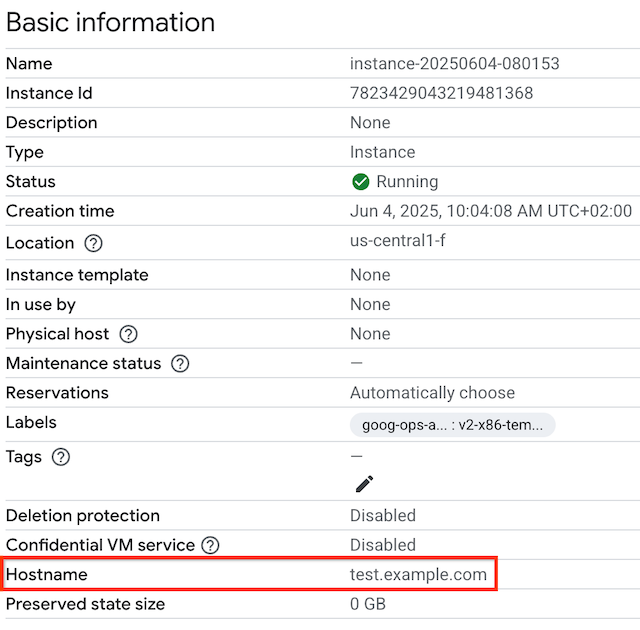
    דף המכונות הווירטואליות שבו מוצג שם המארח.

gcloud

כדי להציג את שם המארח המותאם אישית של מכונת ה-VM באמצעות gcloud compute, משתמשים בפקודת המשנה instances describe עם הדגל --format כדי לסנן את הפלט. מחליפים את VM_NAME בשם של המכונה הווירטואלית.

gcloud compute instances describe VM_NAME \
    --format='get(hostname)'

לדוגמה, כדי לראות את שם המארח בהתאמה אישית של מכונה וירטואלית בשם myinstance, מריצים את הפקודה הבאה.

gcloud compute instances describe myinstance \
    --format='get(hostname)'

הפלט עשוי להיראות כך:

test.example.com

אם לא מוגדר שם מארח מותאם אישית, הפלט של הפקודה הזו יהיה ריק.

המאמרים הבאים